How to Connect Ipod Classic to Pioneer Avh 120Bt Easily
Connecting your iPod Classic to a modern car stereo like the Pioneer AVH-120BT might sound complicated, especially if you’re not tech-savvy. Many drivers love the iPod Classic for its reliability and huge storage, but new car audio systems are built for smartphones, not iPods from 15 years ago. If you want to listen to your music library in your car, you’ll need the right setup. This article will guide you through every step, explain connection methods, and help you avoid common mistakes. Even if you’re a beginner, you’ll find easy instructions, practical tips, and clear examples.
Understanding The Pioneer Avh-120bt And Ipod Classic
Before connecting anything, it helps to know what each device can do.
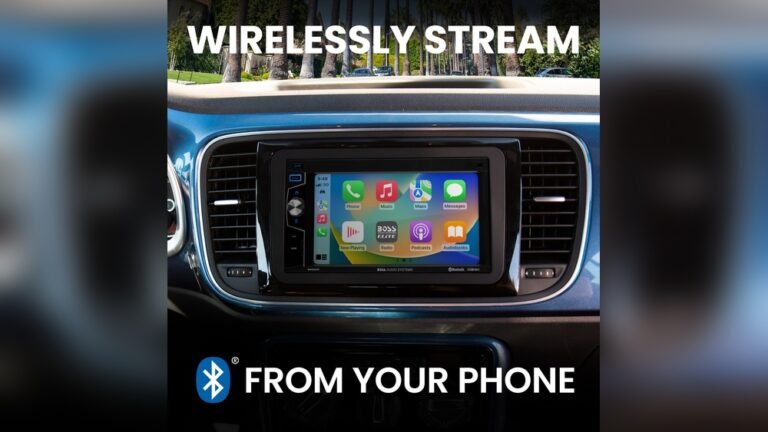
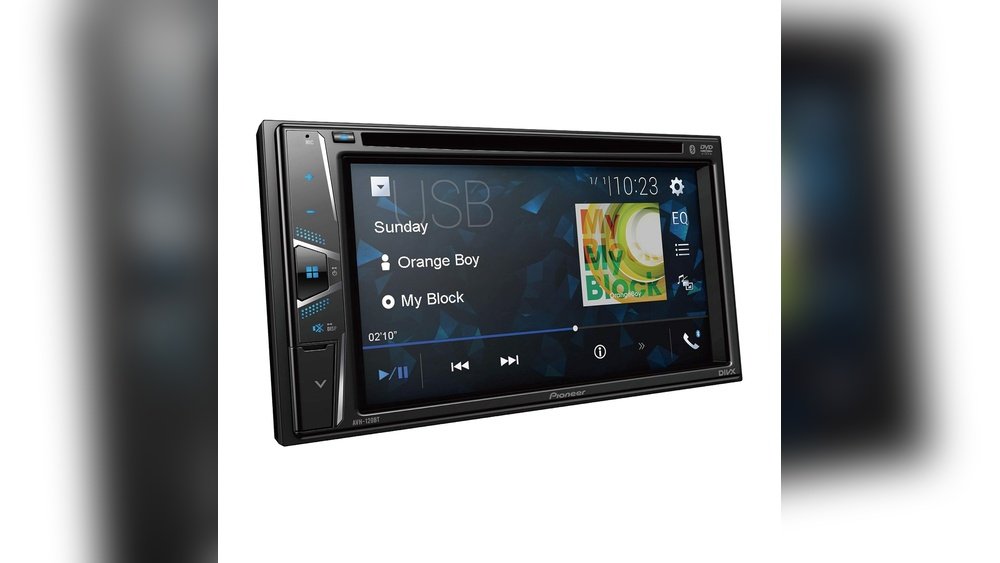
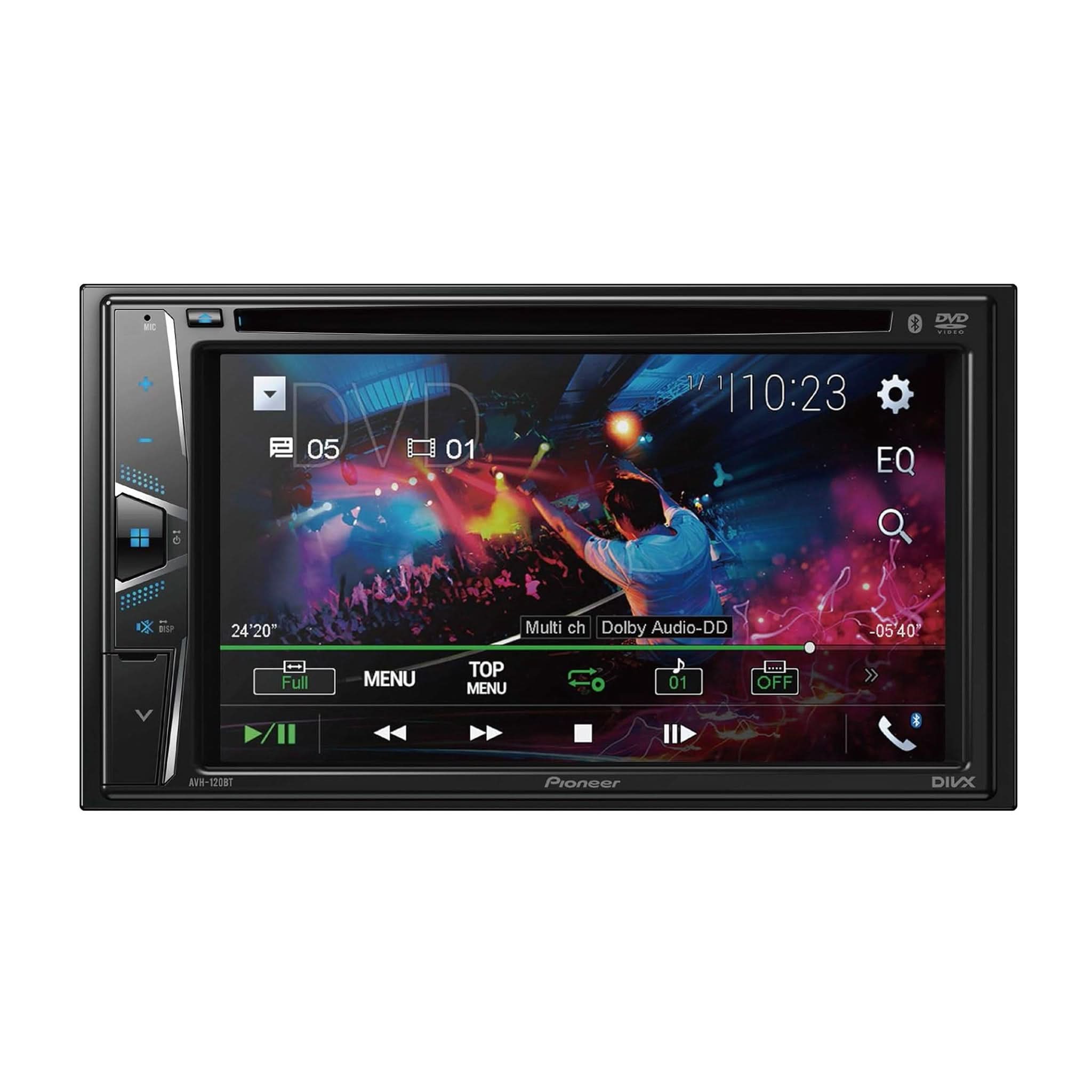
Pioneer AVH-120BT is a double DIN multimedia receiver. It has:
- A color touchscreen
- Bluetooth for audio and hands-free calls
- USB port (front)
- AUX input (front)
- Support for MP3, WMA, and WAV files
The iPod Classic is a portable media player from Apple. It has:
- A 30-pin dock connector (not Lightning)
- No Bluetooth or Wi-Fi
- Standard headphone jack
Key point: The iPod Classic does not support wireless connections, so you must use a cable.
Main Connection Methods
There are three main ways to connect your iPod Classic to the Pioneer AVH-120BT. Each has pros and cons.
| Method | Sound Quality | Ease of Use | Control from Stereo |
|---|---|---|---|
| AUX Cable | Good | Very Easy | No |
| USB (with Adapter) | Excellent | Moderate | Sometimes |
| FM Transmitter | Average | Easy | No |
Let’s break down each method.
Method 1: Using The Aux Input
This is the simplest and most reliable method. The AUX port on the Pioneer AVH-120BT is a 3. 5mm jack, just like your iPod’s headphone output.
What You Need
- A 3.5mm male-to-male AUX cable (about 3 feet is ideal)
- Your iPod Classic
How To Connect
- Plug one end of the AUX cable into the headphone jack of your iPod Classic.
- Plug the other end into the AUX IN port on the front of the Pioneer AVH-120BT.
- Set the stereo source to AUX.
- Press Play on your iPod.
Pro tip: Adjust the iPod’s volume to about 75%. Too low, and sound will be quiet; too high, and it may distort.
Advantages
- Very easy to set up
- No need for extra adapters
- Compatible with every iPod Classic
Limitations
- You must control music from the iPod, not the stereo
- Sound quality depends on cable quality
Beginner insight: Some cheap AUX cables cause static or poor connection. Invest in a shielded or gold-plated cable for best results.
Method 2: Connecting Via Usb Port
The Pioneer AVH-120BT has a USB port, but it’s designed for newer iPods and iPhones. The iPod Classic uses a 30-pin connector, so you need a special adapter.
What You Need
- Apple 30-pin to USB cable (original or certified)
- Optional: IPod interface adapter (rare, but some Pioneer units support direct iPod Classic control)
How To Connect
- Plug the 30-pin connector into your iPod Classic.
- Connect the USB end to the front USB port on the Pioneer AVH-120BT.
- Switch the stereo source to USB.
Important: Most Pioneer AVH series receivers support iPod audio over USB, but control features might be limited for iPod Classic. You may see “No Device” if the stereo doesn’t recognize the iPod Classic.
Example Table: Usb Compatibility
| Pioneer Model | iPod Classic Support | Control from Head Unit |
|---|---|---|
| AVH-120BT | Audio Only | Limited |
| AVH-2300NEX | Audio + Video | Full |
| AVH-X5800BHS | Audio Only | Partial |
Advantages
- Charges your iPod while playing
- Better sound quality than AUX (digital signal)
- Clean look with one cable
Limitations
- Some units will not control iPod Classic menus
- Not all USB cables work with older iPods
Non-obvious insight: If the stereo doesn’t recognize your iPod Classic, try using a different Apple USB cable or update your iPod firmware using iTunes.
Credit: usa.pioneer
Method 3: Using An Fm Transmitter
If you don’t want to use cables, an FM transmitter is an alternative. It broadcasts your iPod’s music as a short-range FM radio station.
What You Need
- An FM transmitter with a 3.5mm plug (or 30-pin dock)
- Your iPod Classic
How To Connect
- Plug the transmitter into the iPod’s headphone jack or dock connector.
- Set the transmitter and your car stereo to the same unused FM frequency.
- Play music on your iPod.
Advantages
- No physical cables between iPod and stereo
- Works in any car with FM radio
Limitations
- Lower sound quality (FM compression)
- Possible interference from local radio stations
- Needs to be re-tuned if you drive long distances
Practical tip: Use FM frequencies at the lower end (88.1–89.9 MHz) for less interference.
Troubleshooting Common Issues
Connecting old and new devices often brings up problems. Here’s how to solve the most common ones.
No Sound
- Check that the stereo’s source matches the input (AUX, USB, or FM).
- Make sure the iPod is playing music (not paused).
- Try a different cable or port.
Static Or Distortion
- Lower the iPod’s volume and increase the car stereo’s volume instead.
- Use a higher-quality, shielded AUX cable.
- Move away from sources of interference (with FM transmitters).
Stereo Doesn’t Recognize Ipod
- Not all Pioneer units support iPod Classic over USB. Try AUX or FM instead.
- Update your iPod’s firmware.
- Try a genuine Apple cable.
Beginner mistake: Forgetting to switch the car stereo source to the correct input. Always check your stereo display.
Credit: www.ebay.com
Making The Most Of Your Setup
Once connected, you want the best audio experience. Here are some optimization tips:
- Adjust the stereo’s EQ settings to match your music style (e.g., “Flat” for classical, “Bass Boost” for hip-hop).
- Use playlists on your iPod Classic for easy control while driving.
- Keep your iPod charged, especially if using AUX, since it won’t charge through the headphone jack.
Non-obvious insight: If you regularly drive with passengers, teach them basic iPod controls. It’s safer than you reaching for the device while on the road.
Safety And Legal Considerations
Many countries have laws against distracted driving. Handling an iPod while driving can be dangerous.
- Set up your playlist before starting the car.
- Use large, easy-to-reach buttons (the iPod Classic click wheel is better than a touchscreen for “eyes-free” control).
- If possible, have a passenger operate the iPod.
Some states may require hands-free operation. Check your local laws before using devices while driving. For more information on driver safety, visit the NHTSA’s official distracted driving page.
Alternatives To Using An Ipod Classic
Technology has moved forward, and there are other ways to play music in your car:
- Store music on a USB flash drive and plug it directly into the Pioneer stereo.
- Stream from your phone using Bluetooth (the AVH-120BT supports this).
- Use music apps with offline playlists.
Data point: Over 70% of new car audio users rely on Bluetooth streaming in 2023 (source: Statista).
Still, the iPod Classic offers unmatched storage and no streaming costs, which is why many drivers still love it.
Real-world Example
Anna drives a 2011 Honda Accord with a Pioneer AVH-120BT. She owns a 120GB iPod Classic with over 10,000 songs. Here’s her setup:
- She uses a gold-plated 3.5mm AUX cable for connection.
- She sets the iPod volume to 75%, then uses the car stereo for fine adjustment.
- She organizes music into playlists for safe, easy control.
- Anna keeps a spare AUX cable in her glove box in case of failure.
This setup has worked reliably for over 3 years. Anna prefers the AUX method because it never fails and works with any car, even rentals.
Credit: www.ebay.com
Quick Comparison: Methods At A Glance
Here’s a simple summary to help you choose the best way:
| Feature | AUX | USB | FM Transmitter |
|---|---|---|---|
| Setup Difficulty | Very Easy | Medium | Easy |
| Sound Quality | Good | Excellent | Fair |
| Control from Stereo | No | Partial | No |
| Charges iPod | No | Yes | Sometimes |
| Works with All Cars | Yes | No | Yes |
Choose AUX if you want simplicity and reliability. Try USB if your stereo supports it and you want charging. FM transmitter is best if you can’t use cables at all.
Frequently Asked Questions
How Do I Know If My Pioneer Avh-120bt Supports Ipod Classic Over Usb?
Check your stereo’s manual or Pioneer’s official website. Most AVH models support audio playback, but menu control may be limited for iPod Classic. If you see “No Device,” use AUX instead.
Can I Control My Ipod Classic From The Pioneer Avh-120bt Touchscreen?
Usually, no. The AVH-120BT does not fully support menu control for iPod Classic over USB. You must use the iPod itself to select songs.
Will My Ipod Classic Charge When Connected To The Pioneer Avh-120bt?
It depends on the connection. USB will charge your iPod Classic if recognized, but AUX will not. FM transmitters sometimes include charging, but not always.
Why Does My Stereo Show “no Device” When I Connect My Ipod Classic Via Usb?
The Pioneer AVH-120BT may not support your iPod Classic’s firmware. Try a different USB cable, update your iPod, or use the AUX method for guaranteed audio playback.
Is There A Risk Of Damaging My Ipod Classic Or Stereo By Connecting Them?
No, as long as you use quality cables and certified adapters. Avoid cheap knockoff cables, which can cause shorts or damage ports.
Connecting your iPod Classic to the Pioneer AVH-120BT is possible, even if you’re new to car audio. The AUX connection is the most reliable and beginner-friendly option. For those wanting better sound, try USB with a compatible cable. FM transmitters work as a last resort. With the right setup, you can enjoy your entire music library on the road, keeping your classic device alive for years to come.