How to Connect iPhone to CarPlay: A Step-by-Step Guide
Connecting your iPhone to CarPlay can change the way you drive. It brings your favorite apps, maps, music, and messages right to your car’s screen. For many beginners, this process seems complicated, but it’s easier than you think. With the right steps, you’ll use CarPlay safely and comfortably, even if English isn’t your first language.
This guide walks you through the setup, helps you solve common problems, and shows you how to make the most of CarPlay.
What Is Carplay And Why Use It?
Apple CarPlay is a system that lets you use your iPhone through your car’s display. It’s designed for drivers, so you can focus on the road.
- CarPlay works with many car brands like Ford, Honda, Toyota, and more.
- You can use apps like Maps, Spotify, WhatsApp, and Messages.
- Voice control with Siri lets you call or send texts without touching your phone.
CarPlay is not just a way to show your phone screen in the car. It is made to work smoothly with your car’s controls and display. For example, you can use the car’s buttons or touchscreen to change music or answer calls.
Siri voice control is especially useful for people who want to keep their hands on the wheel.
Key Benefits
- Safety: Keeps your hands on the wheel and eyes on the road. Siri voice control is designed to help you do tasks without looking at the screen.
- Convenience: Easy access to navigation, music, and calls. You can switch between apps quickly with just a tap or voice command.
- Compatibility: Works with most iPhones (iPhone 5 and newer) and many cars since 2016. If your car is older, you can sometimes upgrade with a new stereo.
Another less obvious benefit: CarPlay can show traffic warnings or alternative routes directly on your car’s screen, making your journey smoother. Some newer cars even let you control air conditioning or check fuel levels from the CarPlay interface.
Carplay In Numbers
- Over 600 car models support CarPlay.
- Around 54% of new cars in the US now offer CarPlay.
- CarPlay can reduce distraction by up to 24%, according to some studies.
- More than 80% of drivers who use CarPlay say it makes driving easier and more enjoyable.
What Do You Need To Connect Iphone To Carplay?
Before you start, check these requirements:
- An iPhone with iOS 7.1 or later (iPhone 5 or newer).
- A CarPlay-compatible car or aftermarket stereo.
- A USB cable (for wired connection) or a car that supports wireless CarPlay.
If you are not sure about your car’s compatibility, many dealers can help you check. Aftermarket stereos are also an option if your car is older. Brands like Pioneer, Kenwood, and Alpine offer CarPlay-enabled units.
Checking Compatibility
To find out if your car supports CarPlay:
- Look for a CarPlay logo on your car’s display.
- Check your car manual.
- Visit the official Apple CarPlay page for a list of supported models.
If your car doesn’t support CarPlay, you can install a compatible stereo. This is common for cars from before 2016.
| Car Brand | CarPlay Supported Models | Wireless CarPlay |
|---|---|---|
| Ford | 2017 Fusion, 2017 F-150 | Some 2020+ models |
| Toyota | 2019 Corolla, 2019 Camry | 2021+ models |
| Honda | 2016 Accord, 2017 Civic | 2020+ models |
Wireless CarPlay is becoming more common, but it is usually found in newer models or higher trims. If your car only supports wired CarPlay, you can still enjoy almost all features.
Credit: www.bianchihonda.com
Step-by-step Guide: How To Connect Iphone To Carplay
Connecting your iPhone to CarPlay is simple. Follow these steps:
1. Prepare Your Iphone
- Make sure your iPhone is updated to the latest iOS. Updates fix bugs and add features.
- Turn on Bluetooth and Wi-Fi if your car supports wireless CarPlay.
- Check that your iPhone’s battery is charged. Some cars charge the phone during use, but not all.
Before connecting, close any unnecessary apps on your phone. This helps CarPlay run smoothly and avoids distractions.
2. Wired Connection (using Usb Cable)
Most cars use a wired connection for CarPlay. Here’s how:
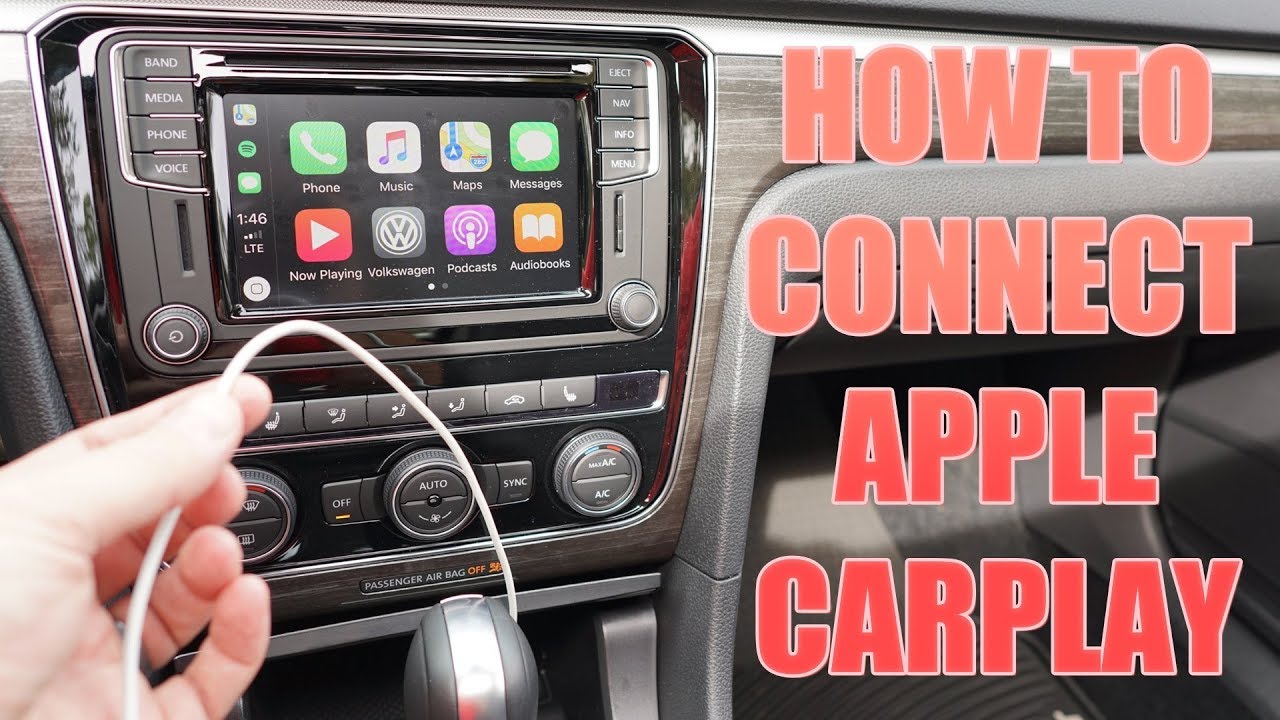
- Plug your iPhone into the car’s USB port using a Lightning cable.
- Look for the CarPlay or Smartphone icon on your car’s display.
- Tap the icon to start CarPlay.
- If you see a prompt on your iPhone, tap Allow.
If CarPlay doesn’t start, try another USB port or cable. Some ports are only for charging, not data.
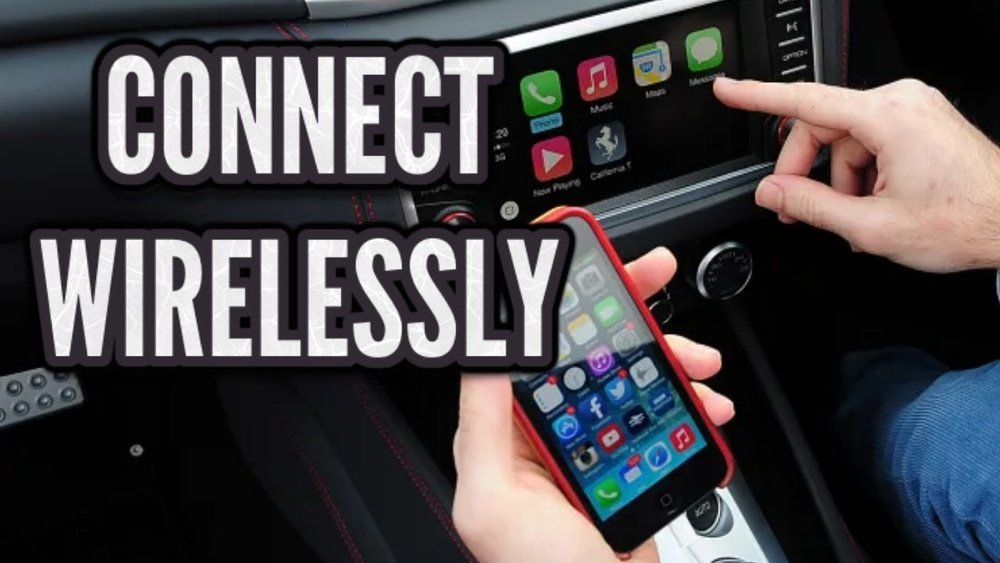
3. Wireless Connection (if Supported)
Some newer cars support wireless CarPlay. Steps may vary but usually:
- Turn on Bluetooth and Wi-Fi on your iPhone.
- Start your car and make sure the display is ready.
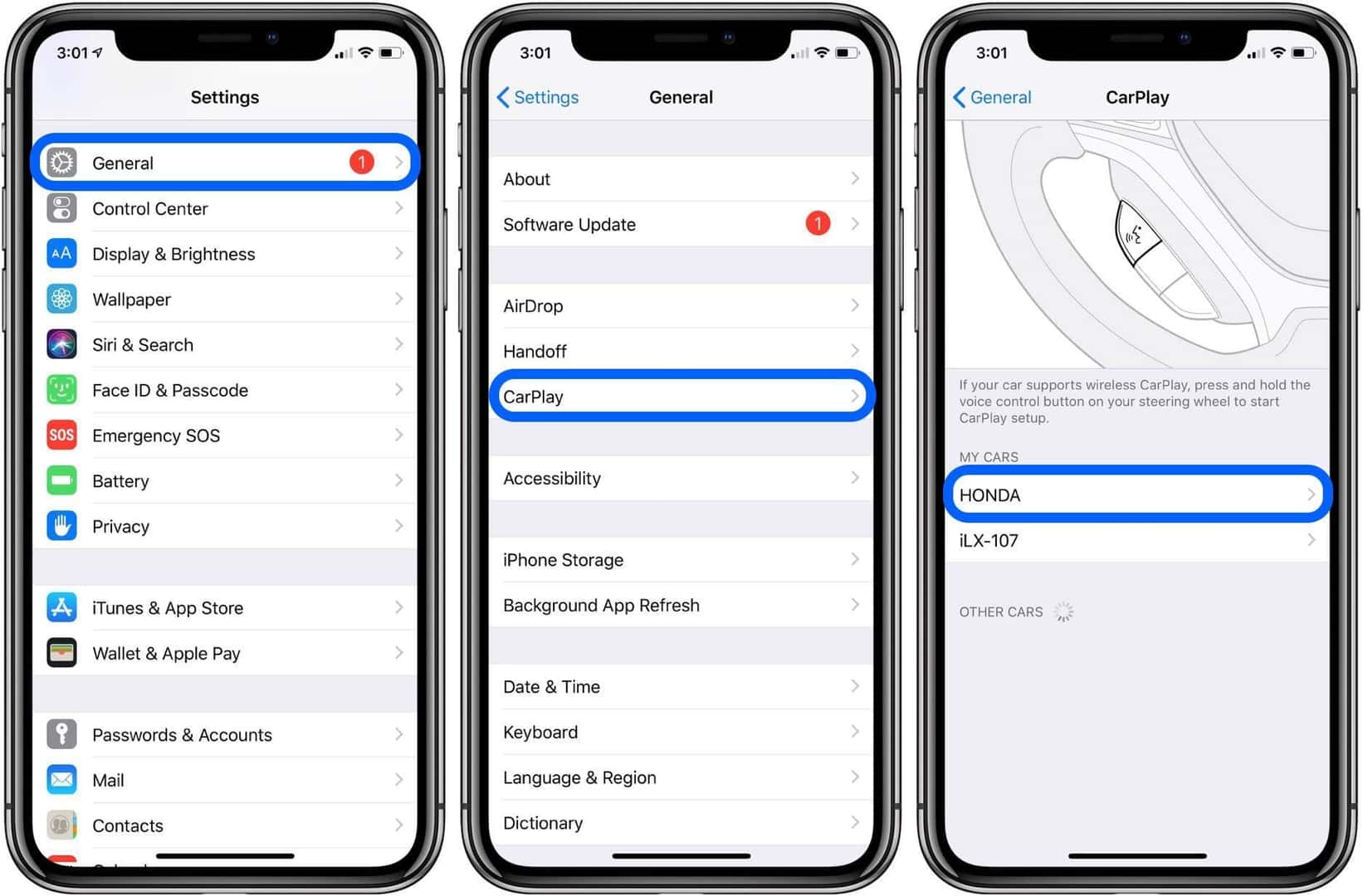
- On your iPhone, go to Settings > General > CarPlay.
- Select your car from the list.
- Follow on-screen instructions to pair your device.
Wireless CarPlay uses both Bluetooth (to start the connection) and Wi-Fi (to transfer data). If your car has a password for Wi-Fi, enter it when prompted.
Example: Connecting With A Toyota Camry 2021
- Plug your iPhone into the USB port.
- The car’s screen shows a CarPlay icon.
- Tap it, and your iPhone screen appears on the car display.
- For wireless, go to Settings > General > CarPlay, select “Toyota Camry,” and follow prompts.
Some Toyota models automatically start CarPlay when you connect the phone. If it doesn’t, check the settings on both the phone and car.
| Connection Type | Required Equipment | Setup Time |
|---|---|---|
| Wired | USB cable | 1-2 minutes |
| Wireless | Bluetooth, Wi-Fi | 2-4 minutes |
If you have trouble connecting, restart both your iPhone and the car’s system. Sometimes, a quick restart solves most problems.
Common Problems And Solutions
Even with simple steps, some users face issues. Here are some typical problems and how to fix them.
1. Carplay Doesn’t Appear
- Check if the USB cable is working.
- Make sure your car supports CarPlay.
- Restart your iPhone and car.
- Try a different USB port.
One extra tip: If your car has multiple USB ports, only one may support CarPlay. Look for “Media” or “Smartphone” labels.
2. Carplay Not Responding
- Update your iPhone and car’s software.
- Turn Bluetooth off and on.
- Forget your car in iPhone settings and reconnect.
If CarPlay is slow or freezes, closing unused apps on your phone can help. Some apps running in the background may slow down CarPlay.
3. Wireless Carplay Not Connecting
- Confirm your car is listed in Settings > General > CarPlay.
- Make sure Wi-Fi and Bluetooth are on.
- Move closer to your car for better signal.
Wireless CarPlay needs both Bluetooth and Wi-Fi to work. If your phone has poor battery, it may disconnect more often.
4. Carplay Disconnects Frequently
- Use a certified Lightning cable for wired connections.
- Remove other Bluetooth devices that might interfere.
- Restart your iPhone.
Some cars have USB ports that get loose over time. If you notice frequent disconnects, try another port or cable.
Real Example
A user with a Honda Civic 2017 found CarPlay wasn’t showing up. They switched to an Apple-certified cable and restarted their phone. CarPlay started working immediately.
Another case: A driver had trouble with wireless CarPlay in a Ford F-150. After updating their phone and the car’s software, the connection became stable.
Customizing Carplay
You can change how CarPlay looks and works. Here’s how:
Change App Order
- Go to Settings > General > CarPlay on your iPhone.
- Tap your car’s name.
- Drag apps to rearrange their order.
This is helpful if you use navigation more than music, or if you want quick access to messaging apps.
Add Or Remove Apps
- In the same settings, tap the + or – sign to add or remove apps.
Some apps may not appear if they are not compatible with CarPlay. Messaging apps like WhatsApp and Telegram work in many countries, but not all.
Set Up Siri
- Use “Hey Siri” voice command for hands-free use.
- Make sure Siri is enabled in Settings > Siri & Search.
If Siri doesn’t respond, check your iPhone’s microphone and make sure nothing is blocking it.
Using Carplay Features
CarPlay makes driving easier and safer. Here’s what you can do:
- Navigation: Use Apple Maps or Google Maps for directions. You can see traffic, speed limits, and estimated arrival times.
- Music: Play songs from Apple Music, Spotify, or other apps. You can search by artist or playlist using Siri.
- Calls and Messages: Make calls and send texts with Siri. You can hear messages read aloud and reply by voice.
- Audiobooks and Podcasts: Listen while you drive. Useful for long trips or learning on the go.
A less-known feature: Some cars let you split the screen between navigation and music. This helps you watch the route and control music at the same time.
Practical Data
- Over 90% of CarPlay users use navigation and music apps.
- Voice commands reduce distraction by up to 23% compared to manual controls.
- Using CarPlay for messaging is safer than picking up your phone, but always focus on the road first.
Carplay Vs. Android Auto
Some people ask how CarPlay compares to Android Auto. Here’s a quick comparison:
| Feature | CarPlay | Android Auto |
|---|---|---|
| Supported Devices | iPhone 5+ | Android 5.0+ |
| Navigation Apps | Apple Maps, Google Maps | Google Maps, Waze |
| Voice Assistant | Siri | Google Assistant |
| Wireless Support | Yes (select models) | Yes (select models) |
Both systems make driving safer and easier. The main difference is the phone you use. If you switch between iPhone and Android, some aftermarket stereos support both systems.
Non-obvious Tips For Beginners
Many first-time users miss these important points:
- Check the USB cable quality: Cheap cables often cause problems. Use Apple-certified cables.
- Update your car’s software: Some cars need software updates to use CarPlay well.
- Limit background apps: Closing unused apps on your iPhone can make CarPlay faster.
- Try Airplane Mode (except Wi-Fi/Bluetooth): If you have connection issues, turning on Airplane Mode and then enabling Wi-Fi and Bluetooth can solve interference problems.
- Test CarPlay in Park: Always test and set up CarPlay while the car is parked. Some cars disable setup features while driving for safety.
Credit: bossaudio.com
Safety Reminders
CarPlay is made for safer driving, but always:
- Use voice commands instead of touch when possible.
- Set up your apps before driving.
- Don’t text or scroll while on the road.
- If you need to fix something, pull over safely before adjusting settings.
Remember: CarPlay is a tool to help, not a replacement for safe driving habits.
Where To Get More Help
If you have trouble, visit the official Apple CarPlay support page: Apple CarPlay Support. It has up-to-date guides and troubleshooting advice.
Credit: www.youtube.com
Frequently Asked Questions
What Iphones Work With Carplay?
CarPlay works with iPhone 5 or newer, using iOS 7.1 or later. If your phone is older, it won’t connect.
Can I Use Carplay Without A Usb Cable?
Yes, but only if your car supports wireless CarPlay. Most cars before 2020 require a USB cable. Wireless CarPlay uses Bluetooth and Wi-Fi.
Which Apps Can I Use With Carplay?
You can use navigation apps (Apple Maps, Google Maps), music apps (Apple Music, Spotify), messaging apps (WhatsApp, Messages), and more. The list depends on your country and iPhone settings.
Why Does Carplay Keep Disconnecting?
Usually it’s a bad cable or interference from other Bluetooth devices. Try a certified cable, remove other devices, and make sure your iPhone’s software is updated.
How Do I Update Carplay?
CarPlay updates automatically when you update your iPhone’s iOS. You don’t need to update CarPlay separately. For cars, check with your dealer if a software update is needed.
Connecting your iPhone to CarPlay is a powerful way to enjoy your drive. With simple steps, you can access maps, music, and messages safely. Remember to check your car and phone compatibility, use quality cables, and update your software. If you follow these tips, your CarPlay experience will be smooth and enjoyable—even if you’re new to the technology.
With a little practice and attention to detail, CarPlay can become an essential part of your daily driving routine.