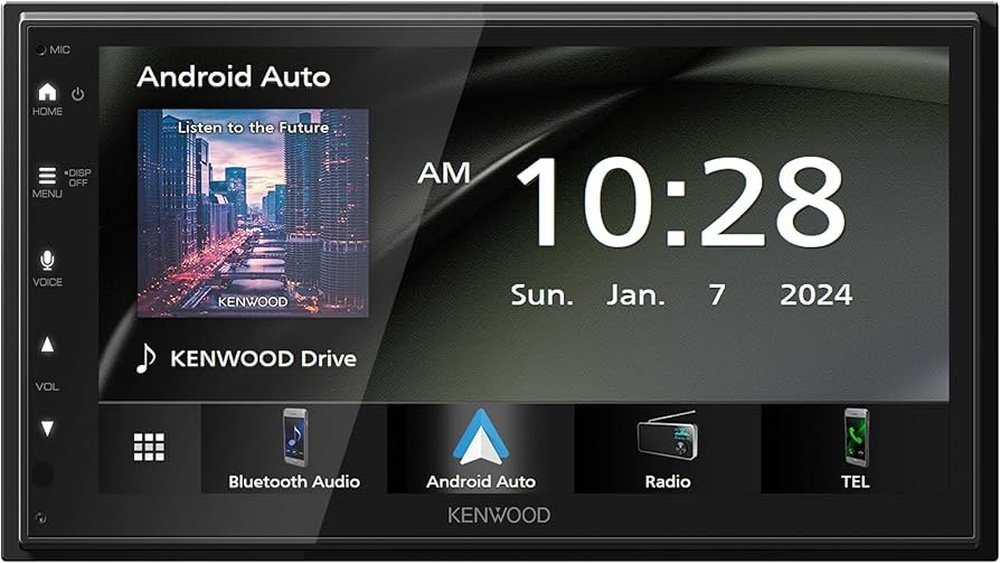
How to Connect Android to Kenwood Car Stereo USB: Easy Guide
Connecting your Android phone to a Kenwood car stereo USB can make driving more enjoyable and safer. Many people want to play music, use navigation, or make hands-free calls. However, not everyone finds the process simple. Sometimes, cables don’t work, or the stereo doesn’t recognize the phone. If you’re new to car audio or technology, this guide will help you connect your Android device to your Kenwood USB stereo step by step.
Why Connect Android To Kenwood Car Stereo Usb?
Connecting your phone directly to your Kenwood stereo gives you many advantages:
- Better sound quality than Bluetooth
- Access to music apps like Spotify, YouTube Music, or Amazon Music
- Phone charging while you drive
- Voice control options for safer driving
- Hands-free calling and texting
Many drivers notice that using USB instead of Bluetooth gives clearer sound and faster response when changing tracks or using apps.
What You Need Before You Start
To avoid frustration, gather these items first:
- Android smartphone with USB charging/data cable
- Kenwood car stereo with a USB port (usually on the front panel)
- Latest Kenwood firmware (if available)
- Android Auto app (for some models)
- Stable internet connection (for first-time setup)
- Car parked safely with engine running
Check Compatibility
Not all Kenwood stereos work with every Android phone. Newer Kenwood models support more Android features, but older ones may need firmware updates.
Check these:
- Your Kenwood model number (often on the stereo’s faceplate)
- Your Android version (Settings > About Phone)
- The cable should be an original or high-quality USB cable
If you’re unsure, check the Kenwood official site or your car manual.

Credit: www.amazon.com
Step-by-step: How To Connect
Follow these steps for a smooth connection:
1. Prepare Your Android Phone
- Unlock your phone.
- Turn on Developer options (optional, but helps with troubleshooting).
- Enable USB debugging if prompted.
- Make sure the Android Auto app is installed (for newer stereos).
2. Connect The Usb Cable
- Plug the USB cable into your phone.
- Connect the other end to the Kenwood stereo’s USB port.
- You may hear a chime or see a notification on your phone.
3. Select Usb Source On Kenwood
- Press the SRC (Source) button on the stereo.
- Choose USB from the list.
- Wait a few seconds for the stereo to detect your device.
4. Allow Permissions
Your phone may ask if you trust the device:
- Tap Allow for data access.
- For Android Auto, accept any setup prompts.
- Sometimes, you need to unlock your phone for the stereo to read it.
5. Start Using Features
Once connected, you can:
- Play music directly from your phone’s library or apps
- Use navigation like Google Maps (with compatible stereos)
- Make hands-free calls if supported
Common Problems And Fixes
Sometimes, the connection does not work as expected. Here are frequent issues and what you can do:
Phone Not Recognized
- Try a different USB cable (original is best)
- Restart your phone and stereo
- Update your Kenwood firmware
Only Charging, Not Connecting
- Change the USB mode on your phone: Swipe down > Tap USB notification > Select File Transfer or Media Transfer (MTP)
- Update or reinstall Android Auto
Music Won’t Play
- Check if your files are in supported formats (MP3, AAC, WAV)
- Try playing music from another app
Stereo Freezes Or Lags
- Unplug and replug the USB cable
- Turn the car stereo off, wait 10 seconds, then turn on again
Here’s a quick comparison of common connection issues and solutions:
| Problem | Possible Cause | Quick Solution |
|---|---|---|
| No recognition | Faulty cable | Use original or certified USB cable |
| Only charging | Wrong USB mode | Switch to File Transfer/MTP |
| Music not playing | Unsupported format | Use MP3, AAC, or WAV files |
| Frequent disconnects | Loose port | Check and clean USB ports |
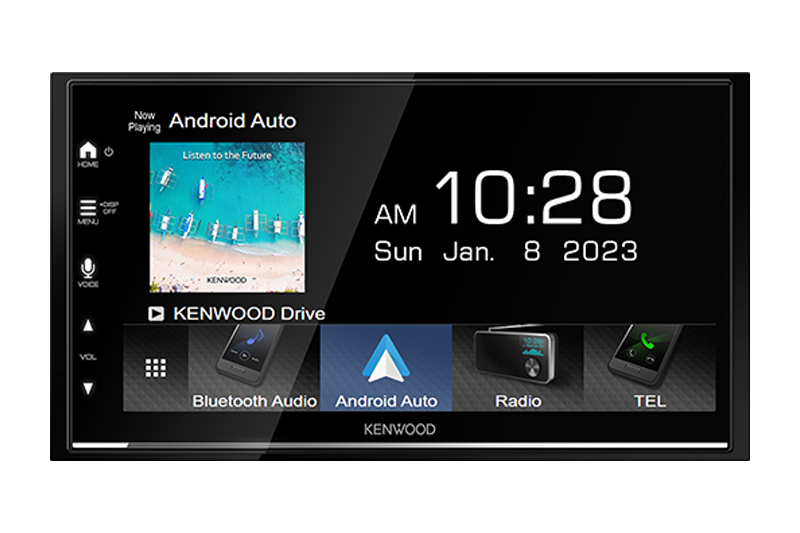
Credit: www.kenwood.com
Android Auto Vs. Usb Audio: What’s Different?
Many Kenwood stereos support both Android Auto and basic USB audio. It’s easy to confuse them, but they’re different:
- USB Audio lets you play music from your phone’s storage or some apps.
- Android Auto mirrors apps like Maps, Google Assistant, and messaging on the stereo screen.
Which one is better depends on your needs. Here’s a quick comparison:
| Feature | USB Audio | Android Auto |
|---|---|---|
| Music playback | Yes | Yes (plus streaming apps) |
| Navigation | No | Yes (Google Maps, Waze) |
| Voice control | No | Yes |
| Calls/messages | No | Yes |
| Display on stereo | No | Yes |
For just music, USB audio is enough. For navigation and more, use Android Auto.
Tips For A Smooth Connection Every Time
Many beginners miss small details that make a big difference. Here are some practical tips:
- Always use the original USB cable if possible. Cheap cables often cause problems.
- Clean your phone and stereo USB ports with a soft brush or compressed air.
- Don’t use USB hubs or extensions. Plug directly into the stereo.
- Update your stereo’s firmware from the Kenwood website if you see bugs.
- If you switch between cars, some Androids remember only one stereo as ‘trusted’ at a time.
- Keep your Android system and apps updated for best compatibility.

Credit: creativeaudio.net
Example: Connecting A Samsung Galaxy S21 To Kenwood Ddx376bt
Let’s look at a real-world example with a popular phone and stereo:
- Connect the USB-C cable from the Samsung to the stereo’s USB port.
- The Kenwood DDX376BT screen flashes “Reading.”
- The phone shows a prompt: “Allow access to data?” Tap Allow.
- Kenwood automatically switches to USB mode and starts playing music from the phone.
- If Android Auto is installed, the stereo asks if you want to use it. Tap Yes on the phone.
- Now, you can use Google Maps and music apps on the stereo’s touchscreen.
If you don’t see the prompt, unplug and plug the cable again. Make sure your phone is unlocked.
Important Differences By Kenwood Model
Not all Kenwood stereos have the same features. Here’s a simple comparison:
| Model | USB Audio | Android Auto | Screen Type |
|---|---|---|---|
| KMM-BT328U | Yes | No | Text Display |
| DDX376BT | Yes | Yes | Touchscreen |
| DMX7706S | Yes | Yes | Capacitive Touch |
Before buying a Kenwood stereo, check which features you need. Not all models support Android Auto, and some only play music.
Non-obvious Insights For Beginners
Most guides miss these small but important tips:
- Not all apps work over USB. Some music apps (like Apple Music for Android) may not show up on Kenwood’s display. Try different apps if you have problems.
- Update your phone’s USB drivers. On some Android phones, a hidden update in the Play Store can fix USB issues.
- Some car USB ports are power-only. If the stereo has more than one USB port, try all of them. One may be for charging only.
Safety And Legal Reminders
Using your phone while driving can be dangerous. To keep safe:
- Set up your connection before you start driving
- Use voice commands whenever possible
- Don’t watch videos or interact with the phone while on the road
Some regions have laws about using devices while driving. Check your local rules to stay legal.
For more details on Kenwood’s official compatibility and troubleshooting, visit the Kenwood official support page.
Frequently Asked Questions
How Do I Know If My Kenwood Stereo Supports Android Auto?
Check the model number on the stereo’s faceplate. Look up the model online or in your manual to see if Android Auto is listed as a feature. Most touchscreens after 2018 support it.
My Phone Only Charges When Connected. What Should I Do?
Change the USB connection mode on your Android. Swipe down, tap the USB notification, and choose File Transfer or Media Transfer Protocol (MTP). Make sure you use a quality cable.
Can I Use My Kenwood Stereo To Control All My Music Apps?
No. Only supported music apps will work through USB or Android Auto. Try apps like Google Play Music, Spotify, or YouTube Music for best results.
Why Does My Connection Keep Dropping?
Frequent disconnects are often due to a bad cable, dirty USB port, or old firmware. Try replacing the cable, cleaning the ports, or updating the stereo’s firmware.
Is Bluetooth Better Than Usb For Android Connection?
USB usually gives better sound quality and more features (like Android Auto). Bluetooth is easier to set up but may not support all apps or high-quality audio.
Getting your Android phone connected to your Kenwood car stereo USB brings a better driving experience. With clear steps, good cables, and a little patience, you’ll enjoy music, maps, and calls hands-free and safely. If you run into trouble, most issues can be fixed with these simple tips.
Now, you’re ready to make the most of your ride with your favorite Android device.