How Do You Set the Clock on a JVC Radio: Easy Step-by-Step Guide
Setting the clock on a JVC radio may seem tricky if you’re new to car electronics or digital radios. But with the right steps, you can set the time easily and quickly. Whether you just installed a new JVC stereo or want to fix the clock after a battery change, this guide will help you. Clear instructions, practical examples, and simple explanations are here to make sure you get your radio clock set without confusion.
Why Setting Your Jvc Radio Clock Matters
Having the correct time on your car radio is more than just convenience. It helps you:
- Stay punctual for work, meetings, or school.
- Track travel times and manage your schedule.
- Sync with radio features like timed recordings or alarms.
- Avoid confusion when switching between different time zones.
Many modern JVC radios also use the clock for system functions. If your clock is wrong, some features may not work as expected.
Understanding Your Jvc Radio Model
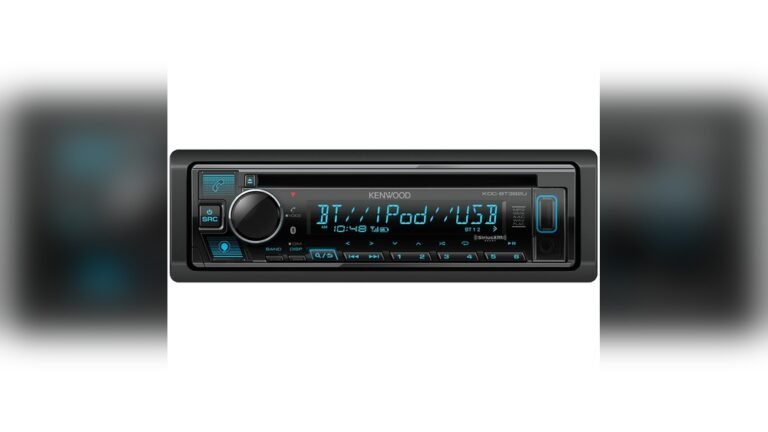
Not all JVC radios are the same. There are single-DIN, double-DIN, and digital touchscreen models. Each has unique buttons and displays. Knowing your model helps you follow the right steps.
Common Types Of Jvc Radios
- Single-DIN: Small, rectangular radios with physical buttons.
- Double-DIN: Larger units, often with bigger screens.
- Touchscreen: Modern, digital displays with touch controls.
Here’s a quick comparison:
| Model Type | Display | Controls | Clock Setting Method |
|---|---|---|---|
| Single-DIN | LED/LCD | Physical buttons | Button sequence |
| Double-DIN | Bigger LCD | Buttons/knobs | Button or knob |
| Touchscreen | Digital screen | Touch controls | Menu navigation |
Before you start, check your radio’s model number. It’s usually printed on the front panel or in your user manual.

Credit: www.reddit.com
Step-by-step Guide: Setting The Clock On A Jvc Radio
The actual steps depend on your radio’s design. Let’s break down the process for the three most common types.
For Single-din Jvc Radios
These radios often use button combinations to set the clock.
- Turn on the radio: Make sure the unit is powered and not muted.
- Find the ‘Menu’ or ‘Display’ button: Usually marked as ‘DISP’ or ‘MENU’.
- Press and hold ‘DISP’ or ‘MENU’: Hold for about 2–3 seconds until the clock starts flashing.
- Set the hour: Use the volume knob or arrow buttons to adjust the hour.
- Set the minutes: Press ‘DISP’ again, then adjust the minutes.
- Save and exit: Press ‘DISP’ or ‘MENU’ again to finish.
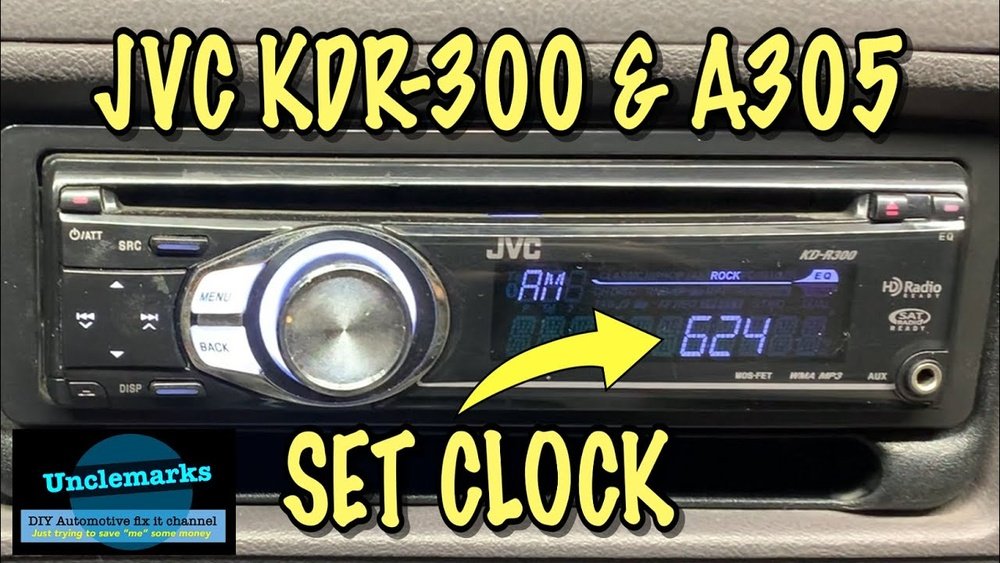
Example: On the JVC KD-R330, you press and hold ‘MENU’ until the display flashes. Turn the volume knob to set the hour, press ‘MENU’ again, and set minutes.
For Double-din Jvc Radios
These radios may use both buttons and knobs.
- Turn on the radio.
- Press ‘Menu’: Look for a button labeled ‘Menu’ or ‘Setup’.
- Select ‘Clock’ setting: Use the knob to scroll to ‘Clock’ or ‘Time’.
- Set the hour and minutes: Turn the knob to change values.
- Confirm and exit: Press ‘Menu’ or ‘OK’ to save.
Example: On the JVC KW-R930BTS, press ‘Menu’, scroll to ‘Clock’, set hour/minutes, and confirm.
For Touchscreen Jvc Radios
Touchscreen radios are more intuitive but still require clear steps.
- Power on the radio.
- Tap ‘Settings’: Find the gear or menu icon on the screen.
- Select ‘Clock’ or ‘Time’: Tap to open clock settings.
- Adjust hour and minutes: Tap up/down arrows or enter numbers.
- Save changes: Tap ‘OK’ or ‘Save’.
Example: On the JVC KW-M865BW, tap ‘Settings’, then ‘Clock’, adjust time, and tap ‘Save’.
Practical Tips For Setting The Clock
Many beginners forget these details:
- Set the clock with the car parked. Buttons may be hard to reach while driving.
- Some JVC radios require you to switch to standby mode (radio off, but power on) before setting the clock.
- If your radio resets often, check the battery connection or memory wire in the car’s wiring.
- Daylight Saving Time may require you to adjust the clock twice a year.
- Use the 24-hour format if you prefer military time (some models offer this).
Common Mistakes When Setting The Clock
Beginners often make simple errors. Avoid these:
- Not holding the right button long enough.
- Trying to set the clock while the radio is off.
- Confusing the ‘Menu’ button with the ‘Source’ button.
- Forgetting to save changes before exiting.
- Setting the wrong time zone (for radios with GPS).
Here’s a quick table of mistakes and solutions:
| Mistake | Why It Happens | How to Fix |
|---|---|---|
| Clock not flashing | Not holding button long enough | Hold for 2–5 seconds |
| Wrong time | AM/PM confusion | Check format setting |
| Changes not saved | Exiting menu too soon | Press save/exit button |
| Radio resets time | Wiring issue | Check battery/memory wire |
Advanced Features: Automatic Clock Setting
Some newer JVC radios can set the clock automatically using radio signals or GPS. If your radio supports this:
- Enable RDS clock sync in the settings.
- For GPS models, set the correct time zone.
- Automatic adjustment works best in urban areas with strong radio signals.
This feature saves time but may not always be accurate. Manual setting is still recommended for reliability.

Credit: www.youtube.com
Example: Setting The Clock On The Jvc Kd-x370bts
Let’s walk through a real example:
- Turn on the radio.
- Press and hold ‘Menu’ until the display flashes.
- Rotate the volume knob to select ‘Clock’.
- Press the knob to enter clock setting.
- Rotate to set hour, press knob again, set minutes.
- Press ‘Menu’ to exit and save.
If you’re unsure, check your radio’s user manual or find guides online. The official JVC site has manuals for most models.
Troubleshooting Clock Setting Issues
If the clock won’t set, try these steps:
- Reset the radio: Many JVC radios have a small reset button. Use a pen tip to press it.
- Check the fuse: A blown fuse can cause display issues.
- Inspect wiring: Loose or damaged wires may cause memory loss.
- Update firmware: Some digital radios need software updates for stable clock functions.
If your radio keeps losing time, ask a professional or visit a car audio shop.
How To Keep The Clock Accurate
Once you’ve set the clock, keep it accurate by:
- Checking the time monthly.
- Adjusting for daylight savings.
- Avoiding battery disconnects (these reset the clock).
- Using the automatic feature if available.
JVC radios are reliable, but regular checks help avoid surprises.
Real Data: How Often Do People Set Their Car Radio Clock?
According to a 2023 survey by the Car Electronics Association:
- 68% of drivers set the clock only during daylight saving changes.
- 21% adjust after battery replacement or radio upgrade.
- 11% never set the clock, relying on their phone or dashboard.
This shows most people forget about their radio clock until something changes. It’s a small step that makes a big difference in daily life.

Credit: www.ebay.com
Quick Checklist For Setting The Clock
Before you start, make sure:
- The radio is powered on.
- You know your model type.
- You have access to the manual (optional).
- You’re parked safely.
If you miss any step, you may need to start over.
Where To Find More Help
If you’re stuck, use these resources:
- Official JVC manuals (search your model online).
- Car audio forums (many people share solutions).
- Professional car audio shops.
- The JVC Support Center for detailed guides.
These sources offer step-by-step videos and troubleshooting advice.
Frequently Asked Questions
How Do I Know Which Jvc Radio Model I Have?
Look for the model number on the front panel or check your purchase receipt. It’s usually a mix of letters and numbers (like KD-R330 or KW-M865BW).
Can I Set The Clock While Driving?
It’s possible, but not recommended. Setting the clock requires focus and button presses. Park safely before adjusting.
Why Does My Jvc Radio Clock Reset Every Time I Turn Off The Car?
This usually means a problem with the memory wire or battery connection. Ask a professional to check your wiring.
Does Every Jvc Radio Support Automatic Clock Setting?
No. Only some newer models with RDS or GPS features offer automatic setting. Check your manual for details.
How Can I Switch Between 12-hour And 24-hour Format?
Most JVC radios let you change the time format in the clock settings menu. Look for ‘Time Format’ or ‘12/24H’ option.
Setting the clock on your JVC radio is easy once you know the steps. With clear instructions and practical tips, you’ll never worry about wrong time again. Make it a habit to check your radio clock, especially after battery changes or daylight savings.
For more help, visit the official JVC support site or ask a local expert. Accurate time keeps you organized and makes your driving experience smoother.