How to Update Firmware on Pioneer Nex: Step-by-Step Guide
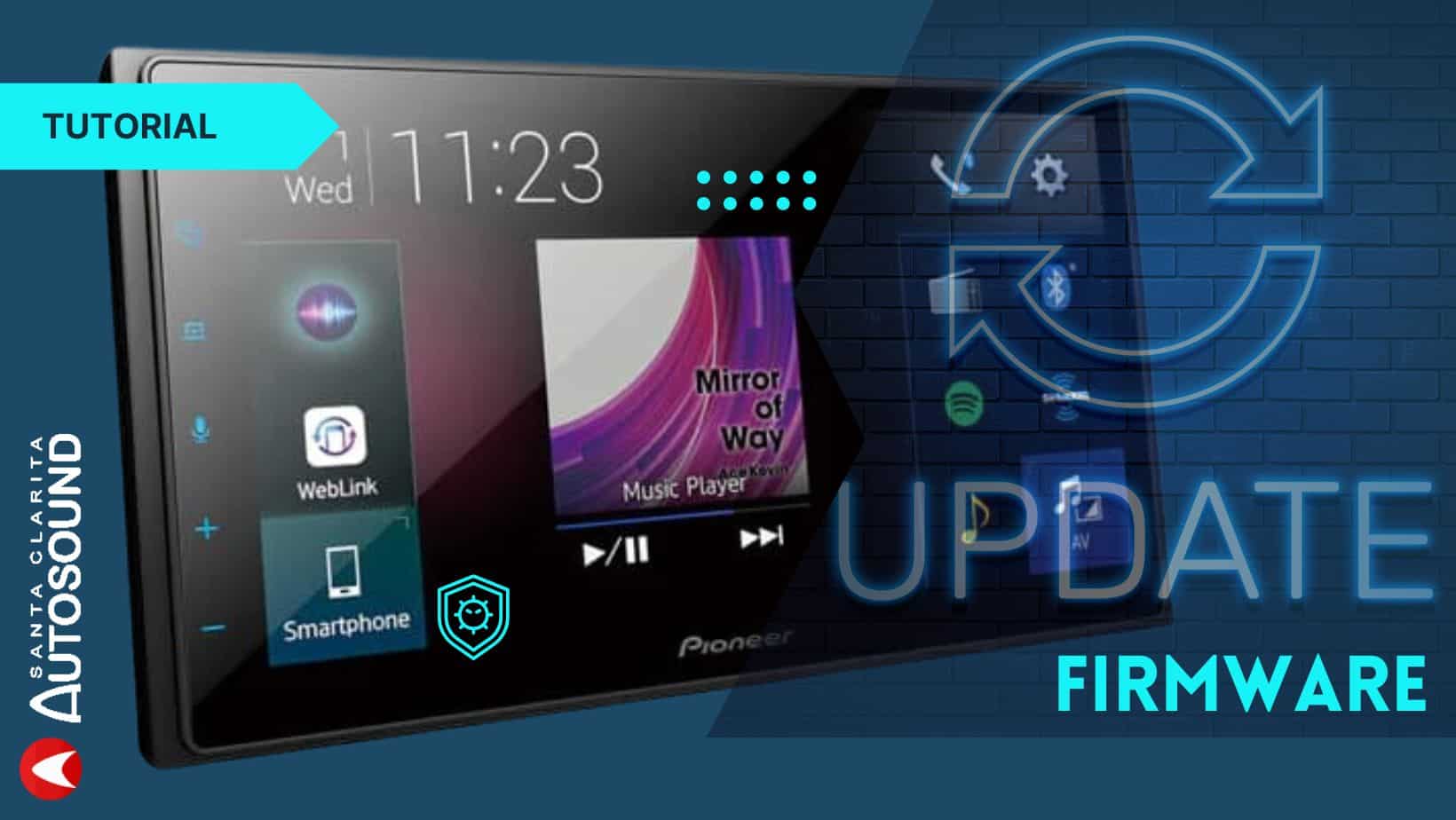
Updating the firmware on your Pioneer NEX car stereo is one of the best ways to keep your device running smoothly. Firmware updates can fix bugs, add new features, and improve compatibility with smartphones. If you are new to this process, it can seem a bit confusing. But with a step-by-step guide, you can finish the update safely and quickly. Let’s walk through everything you need to know to update your Pioneer NEX firmware, even if you’re just starting.
Why Update Pioneer Nex Firmware?
Your Pioneer NEX unit is a smart device that relies on firmware, which is software inside the hardware. Updating this firmware makes your stereo:
- Work better with new phones and apps
- Fix known problems or glitches
- Improve sound and touchscreen quality
- Add new features, like extra settings or compatibility with new audio formats
For example, after a firmware update, you might notice Apple CarPlay or Android Auto works more smoothly. You could also get extra menu options, improved Bluetooth performance, or better navigation support.
Checking Your Current Firmware Version
Before updating, you need to know which firmware is already installed. This helps you avoid unnecessary updates and shows if your unit needs an upgrade.
- Turn on your Pioneer NEX stereo.
- Go to the Settings menu.
- Find System Information or Firmware Version. The location may differ slightly depending on your model.
- Write down the version number. For example: “1.09” or “2.13”.
You can compare this version with the latest one on the Pioneer website. If your version is older, you should update.
| Pioneer NEX Model | Current Firmware | Latest Firmware |
|---|---|---|
| AVH-4200NEX | 1.09 | 1.13 |
| AVH-2300NEX | 1.10 | 1.14 |
| AVH-W4400NEX | 1.12 | 1.15 |
Preparing For The Firmware Update
To update your Pioneer NEX safely, you must prepare:
- Download the correct firmware:
- Go to the official Pioneer website.
- Search for your NEX model.
- Download the latest firmware file.
- Get a USB flash drive:
- Use an empty USB drive (8GB to 32GB is ideal).
- Format it to FAT32.
- Check your car battery:
- Make sure your car battery is strong.
- The update takes about 10–30 minutes. If the power cuts out, your stereo can get damaged.
- Read the update instructions:
- Pioneer includes a PDF or text file with the firmware download.
- Review these steps before starting.
| Preparation Step | Details |
|---|---|
| USB Size | 8GB–32GB, FAT32 format |
| Firmware Source | Pioneer official site |
| Battery Status | Strong charge, engine on recommended |
Step-by-step: Updating Pioneer Nex Firmware
The process is beginner friendly if you follow each step:
Step 1: Download Firmware
- Visit the Pioneer official website.
- Find your NEX model number.
- Download the firmware file to your computer.
- Unzip the file if needed.
Step 2: Prepare Usb Flash Drive
- Format the USB drive to FAT32.
- Copy the firmware file (usually named like “AVH-4200NEX_FW_Ver1.13”) to the root directory of the USB drive.
- Do not place the file inside any folder.
Step 3: Insert Usb Into Pioneer Nex
- Turn off your car stereo.
- Insert the USB drive into the USB port on your Pioneer NEX unit.
Step 4: Start The Update
- Turn on the car and the NEX stereo.
- The unit should detect the firmware file and ask if you want to update.
- Confirm the update by following the on-screen prompts.
- Wait patiently. The screen may show progress bars.
Step 5: Complete And Restart
- When the update finishes, the stereo will reboot automatically.
- Remove the USB drive.
- Check the System Information menu to confirm the new firmware version.

Credit: www.youtube.com
Practical Tips For A Smooth Update
Updating firmware is easy, but beginners sometimes miss key points:
- Do not remove power or USB during the update. Interrupting can cause the stereo to malfunction.
- Use only official firmware. Third-party files can damage your device.
- Format the USB to FAT32. Many users forget this and the stereo won’t recognize the drive.
- Keep your engine running during the update for stable power.
- Check USB compatibility. Some units work best with smaller USB drives (8GB–16GB).
For example, if your update fails, it’s often because the USB was not formatted correctly or the firmware file was placed in a folder.
Common Mistakes Beginners Make
Many first-time users run into problems. Knowing these can help you avoid them:
- Using an old USB drive with files on it (always use an empty drive).
- Forgetting to unzip the firmware file.
- Not matching the firmware file to the correct NEX model.
- Ignoring the battery level (a weak battery can cause the update to fail).
- Attempting to update while driving (always do it parked).
If your unit doesn’t recognize the firmware, double-check:
- File name and format
- USB size and format
- Model compatibility
Example: Updating Avh-4200nex Firmware
Let’s say you own the AVH-4200NEX and want to update from version 1.09 to 1.13.
- Go to Pioneer’s site, search for “AVH-4200NEX firmware.”
- Download the “AVH-4200NEX_FW_Ver1.13” file.
- Format your USB drive to FAT32.
- Place the firmware file (not the folder) on the drive.
- With the car parked and the engine running, insert the USB into the stereo.
- Follow the on-screen instructions to start the update.
- Wait about 15 minutes. Do not touch the stereo or remove the USB.
- After reboot, check the firmware version—it should now show 1.13.
Benefits Of Keeping Firmware Updated
Staying up-to-date brings several advantages:
- Improved compatibility with Apple CarPlay and Android Auto
- Faster Bluetooth pairing
- Smoother touchscreen performance
- Fewer bugs and crashes
- Access to new audio features
For example, after a firmware update, some users report their phone connects more reliably, and music apps work without glitches.
Credit: www.santaclaritaautosound.com
Comparing Old Vs. Updated Firmware
Here’s how performance can change with a firmware update:
| Feature | Old Firmware | Updated Firmware |
|---|---|---|
| CarPlay Stability | Frequent disconnections | Stable connection |
| Bluetooth Audio | Occasional lag | Smoother playback |
| Touch Response | Sluggish | Faster |
| Menu Options | Limited | Expanded settings |
How Often Should You Update?
You don’t need to update your Pioneer NEX every month. Usually, you should:
- Update when Pioneer releases a major new version
- Update if you notice bugs or connectivity problems
- Update before connecting a new phone or using new apps
Checking for updates every 6–12 months is a good habit. Most units do not update automatically, so manual checking is important.
Where To Find Official Firmware
Always use official sources to avoid risks:
- Visit the Pioneer official website for downloads.
- Search your model number to find the correct file.
- Read the instructions carefully.
You can check the official Pioneer site here: Pioneer Electronics.
What To Do If The Update Fails
Sometimes, updates fail. Here’s how to fix common problems:
- Restart the car stereo and try again.
- Reformat the USB drive and recopy the firmware file.
- Make sure you downloaded the correct firmware for your model.
- Check that the firmware file is not inside a folder.
- If the unit is stuck or won’t start, contact Pioneer support or visit a certified dealer.
Extra Tips For Beginners
- Always update while parked, not driving.
- If unsure, watch a video tutorial for your model on YouTube.
- Keep the old firmware file in case you need to roll back.
- Write down your settings before updating, as some updates may reset preferences.
- Use a USB drive from a trusted brand (SanDisk, Kingston, etc. ).
Frequently Asked Questions
What Is Firmware On Pioneer Nex?
Firmware is the software built into your Pioneer NEX car stereo. It controls how the unit works, connects with devices, and runs features. Updating firmware helps fix bugs and adds new options.
How Do I Know If My Pioneer Nex Needs An Update?
Check your current firmware version in the System Information menu. Compare it with the latest version on the Pioneer website. If your version is older, it’s time to update.
Can I Update Pioneer Nex Firmware Using My Phone?
No, you must use a USB flash drive for updates. Phones and wireless updates are not supported for Pioneer NEX units.
What Happens If Power Is Lost During The Update?
If power is lost, your stereo may become unresponsive. To avoid this, keep your engine running and do not turn off the car or stereo until the update is complete.
Where Can I Find Official Firmware Files?
Official firmware files are available on the Pioneer website. Only download from official sources to keep your device safe.
Updating your Pioneer NEX firmware is one of the smartest ways to keep your car stereo working its best. With careful preparation and clear steps, even beginners can complete the update without trouble. Keeping your device up to date ensures better performance, new features, and fewer problems on the road. Always use official sources, follow instructions closely, and enjoy a smoother, more reliable Pioneer NEX experience.
Credit: www2.parklanejewelry.com