Chevy Apple Carplay Problems: Complete Troubleshooting Guide
Chevy Apple Carplay Problems Complete Troubleshooting Guide
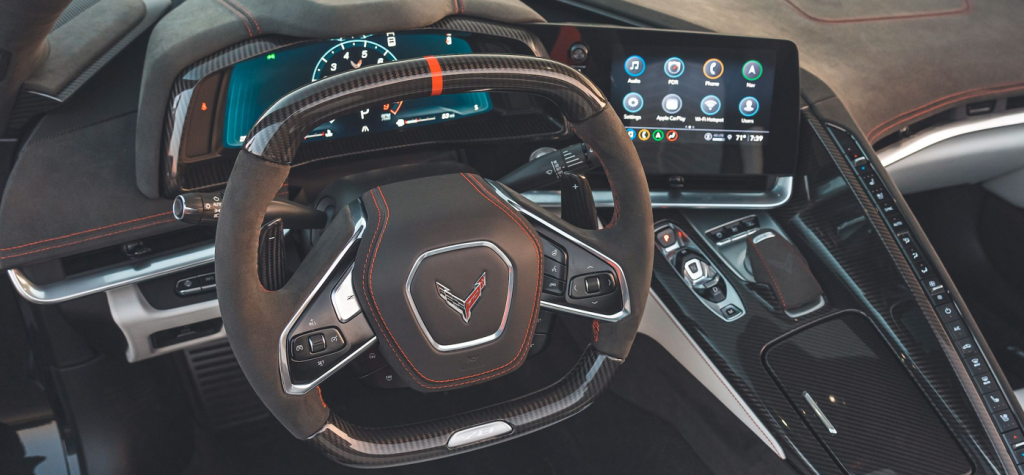
Apple CarPlay has changed how many Chevy owners use their car’s technology. It lets you connect your iPhone to your Chevrolet’s infotainment system, use maps, listen to music, send messages, and more. But sometimes, Chevy Apple CarPlay problems stop everything from working smoothly. If your CarPlay isn’t connecting or keeps dropping out, it can be frustrating—especially when you’re driving.
This guide will help you understand the most common CarPlay issues in Chevy vehicles. You’ll find easy explanations, practical steps, and clear answers. Whether you’re new to Apple CarPlay or just want a fix, this guide is for you.
What Is Apple Carplay And Why Chevy Owners Love It
Apple CarPlay is a feature that lets you use your iPhone’s apps through your Chevy’s built-in display. It’s safer because you don’t need to hold your phone while driving. Instead, you get:
- Navigation using Apple Maps, Google Maps, or Waze
- Hands-free calling and messaging
- Music and podcasts from Spotify, Apple Music, and more
- Siri voice control for easy access
Most new Chevrolet vehicles (like the Silverado, Equinox, Malibu, and Traverse) come with CarPlay. But, even great tech can have problems.
Common Chevy Apple Carplay Problems
Many Chevy owners face similar issues with CarPlay. Here are the most frequent problems:
- CarPlay not connecting at all
- CarPlay disconnects or drops out randomly
- Black screen or no display on the infotainment
- Audio issues (no sound or poor sound)
- Apps not showing or not responding
Let’s look at why these happen and how to fix them.
Credit: www.russellbarnettchevy.com
Basic Checks Before Troubleshooting
Before you dive into advanced fixes, check these basics. Many CarPlay issues are simple to solve:
- IPhone is unlocked when connecting for the first time
- USB cable is not damaged or cheap (use an original or certified cable)
- Both devices are updated (iOS and Chevy infotainment)
- Bluetooth and Wi-Fi are enabled for wireless CarPlay
- Siri is enabled on your iPhone
A surprising number of problems are caused by a bad cable or an outdated app.
How To Fix Chevy Apple Carplay Not Connecting
If your Chevy’s Apple CarPlay won’t connect, follow these steps:
- Restart your iPhone and your vehicle’s infotainment system.
- Try a different USB port in your Chevy. Some models only support CarPlay on certain ports.
- Replace the USB cable with a high-quality, Apple-certified one.
- Update your iPhone (Settings > General > Software Update).
- Update the Chevy infotainment system. Visit your dealer if you’re unsure how.
- Forget and re-pair the device:
- Go to Settings > General > CarPlay on your iPhone.
- Select your Chevy and tap “Forget This Car.”
- Reconnect your iPhone.
Example: A 2021 Chevy Silverado owner found CarPlay only worked with the front USB port. The center console port didn’t support CarPlay, leading to confusion.
Fixing Carplay Disconnects And Random Dropouts
CarPlay disconnects are common, especially with wireless setups. Here’s what you can do:
- Switch to a wired connection if wireless keeps dropping.
- Turn off Bluetooth on other devices in your car to reduce interference.
- Check for firmware updates for your Chevy’s infotainment system.
- Reset network settings on your iPhone (Settings > General > Transfer or Reset iPhone > Reset > Reset Network Settings).
- Keep your iPhone close to the infotainment system for wireless CarPlay.
Non-obvious insight: Some Chevy wireless chargers can interfere with CarPlay’s wireless signal. Try moving your phone out of the charging area.
Solving Black Screen Or No Display Issues
If your Chevy’s screen stays black when using CarPlay, try these solutions:
- Disconnect and reconnect your iPhone.
- Change to a different USB cable or port.
- Restart both the car and your iPhone.
- Check your iPhone’s display settings, especially if you use “Dark Mode.”
- Make sure your infotainment system is set to the right input (sometimes, you need to select “Projection” or “Smartphone” on the Chevy screen).
Practical tip: Not all Chevy trims have CarPlay enabled. Double-check your car’s manual to confirm your model supports it.
Fixing Apple Carplay Audio Problems
No sound, poor quality, or skipping audio can make CarPlay useless. Here’s how to fix audio issues:
- Check your iPhone’s volume and the car’s audio settings.
- Try a different audio app (e.g., if Spotify doesn’t work, try Apple Music).
- Restart your infotainment system (some Chevys need the car turned off, door opened, then restarted).
- Disconnect Bluetooth connections to other devices (e.g., passengers’ phones).
- Update your apps and iOS.
Non-obvious insight: Some Chevy systems default to radio or Bluetooth audio after a phone call, cutting CarPlay sound. Switch back to “CarPlay” on the display.
What To Do When Apps Don’t Show Or Respond
If some apps are missing from your CarPlay screen:
- Go to Settings > General > CarPlay on your iPhone.
- Select your Chevy, then choose “Customize.”
- Add or remove apps as needed.
- Check if the app supports CarPlay. Not all apps work.
- Delete and reinstall the problem app on your iPhone.
Example: WhatsApp only appears if installed and allowed in CarPlay settings.
When To Contact Your Chevy Dealer
Some CarPlay issues are beyond quick fixes. Contact your Chevy dealer if:
- The infotainment system freezes or reboots often
- You see error messages about firmware or hardware
- Updates do not install or fail repeatedly
- USB ports are physically damaged
Dealers can update your infotainment or check for hardware problems.
Wired Vs. Wireless Carplay: Pros, Cons, And Problems
Chevy offers both wired and wireless Apple CarPlay on newer models. Each has its own benefits and issues.
| Feature | Wired CarPlay | Wireless CarPlay |
|---|---|---|
| Connection Stability | Very stable | Can drop or lag |
| Setup Time | Plug and play | Requires initial pairing |
| Charging | Charges iPhone | Does not charge |
| Interference Issues | Rare | Common with wireless chargers |
Tip: If you have frequent disconnects with wireless CarPlay, try using a wired connection for long trips.
Apple Carplay Compatibility: Chevy Models And Iphone Requirements
Not all Chevy models or iPhones support CarPlay. Here’s a quick overview.
| Chevy Model | Year Range | CarPlay Type |
|---|---|---|
| Silverado | 2016-present | Wired (2016+), Wireless (2021+) |
| Equinox | 2016-present | Wired (2016+), Wireless (2022+) |
| Malibu | 2016-present | Wired (2016+), Wireless (2021+) |
| Traverse | 2018-present | Wired (2018+), Wireless (2022+) |
iPhone Requirements: Apple CarPlay works with iPhone 5 and later, but wireless CarPlay needs at least an iPhone 6 or newer and iOS 9 or higher.
How To Keep Your Chevy And Carplay Updated
Keeping your software updated is key to fewer problems.
- IPhone: Go to Settings > General > Software Update.
- Chevy Infotainment: Some newer Chevys allow over-the-air updates (Settings > System > Software Update). Older models may need a dealer visit.
- Check app updates in the App Store.
Tip: Set your iPhone to automatic updates to reduce issues.
Credit: mergescreens.com
Troubleshooting Steps At A Glance
Here’s a summary you can use for quick reference.
| Problem | Quick Fix | Advanced Fix |
|---|---|---|
| Not connecting | Restart devices, check cable | Update software, forget and re-pair |
| Disconnects | Use wired, reduce interference | Reset network settings |
| No display | Reconnect, try another port | Check input, update system |
| No sound | Adjust volume, restart system | Switch audio apps, update apps |
| Apps missing | Customize CarPlay settings | Reinstall app |
Tips To Prevent Apple Carplay Problems In Your Chevy
- Use original or certified USB cables. Cheap cables cause most problems.
- Don’t overload your iPhone with too many apps running in the background.
- Keep software updated on both your car and iPhone.
- Turn off unused Bluetooth devices nearby.
- Regularly restart your infotainment system for smoother performance.
Pro insight: Avoid using third-party charging adapters while using CarPlay—they often cause connection drops.
Credit: mergescreens.com
Advanced Troubleshooting: Reset And Restore
If nothing works, try these advanced steps:
- Reset infotainment system: Some Chevys have a “Factory Reset” in the settings.
- Reset iPhone settings: Go to Settings > General > Transfer or Reset iPhone > Reset.
- Test with a different iPhone: If another phone works, the issue may be with your device.
- Visit your Chevy dealer for a hardware check.
Warning: Factory resets will erase saved radio stations and preferences. Make a note before resetting.
Why Do These Problems Happen?
Many factors cause CarPlay issues:
- Software bugs in iOS or Chevy infotainment
- Hardware problems (damaged USB ports or cables)
- Interference from wireless chargers or other devices
- Incompatible apps or settings
Manufacturers release updates often, so keeping everything current helps avoid most problems.
For deeper technical details, see Apple’s official CarPlay support: Apple Support.
Frequently Asked Questions
Why Won’t My Chevy Connect To Apple Carplay?
Usually, this is caused by a bad USB cable, an outdated iPhone or infotainment system, or CarPlay not being enabled in your car’s settings. Try a new cable, restart both devices, and check for updates.
Does Wireless Carplay Work On All Chevy Models?
No. Only newer Chevys (mostly 2021 and later) support wireless CarPlay. Check your owner’s manual or Chevy’s official site for details.
Why Does My Carplay Disconnect When I Use The Wireless Charger?
Some Chevy wireless chargers interfere with the Wi-Fi signal needed for wireless CarPlay. Try removing your iPhone from the charger while using CarPlay.
How Do I Update My Chevy Infotainment System?
Some newer Chevys allow updates through the system settings. Go to Settings > System > Software Update. For older models, a dealer visit may be needed.
Is Carplay Safe To Use While Driving?
Yes, CarPlay is designed for safer use of your iPhone while driving. Use voice commands (Siri) and limit screen time to avoid distractions.
Having CarPlay work smoothly makes driving safer and more enjoyable. Most Chevy Apple CarPlay problems are easy to fix with the right steps. Check your cables, keep your software up to date, and don’t hesitate to ask for help if you need it.
With a little troubleshooting, you’ll be back to enjoying your favorite apps on the road.