How to Reset Pioneer Bluetooth: Quick and Easy Steps
Resetting your Pioneer Bluetooth system can solve many frustrating problems. Maybe your phone won’t connect, music keeps cutting out, or you want to pair a new device. If you’re new to Bluetooth tech or Pioneer devices, the process may seem confusing.
This guide explains—step by step—how to reset Pioneer Bluetooth, using clear language and practical examples. You’ll learn what a Bluetooth reset does, when to use it, and how to avoid common mistakes. Whether you have a Pioneer car stereo, home audio unit, or portable speaker, you’ll find simple instructions to help you reconnect quickly.
Why Reset Pioneer Bluetooth?
Bluetooth is a wireless technology for connecting devices like phones, speakers, and car stereos. Over time, Pioneer Bluetooth settings can get messy. Old connections, software glitches, or failed pairings can make it hard to connect. Resetting removes these problems.
Benefits of resetting Pioneer Bluetooth:
- Fixes connection errors between your phone and Pioneer device
- Clears old paired devices that you no longer use
- Helps if music playback stops or drops randomly
- Lets you start fresh with new devices
Common signs you need a reset:
- Devices won’t pair, even after restarting
- Bluetooth connects, but audio doesn’t play
- You see “memory full” or “unable to connect” errors
Resetting is a simple fix that often works when other solutions fail.
Types Of Pioneer Bluetooth Devices
Pioneer makes many devices that use Bluetooth. Each one has slightly different reset steps. Understanding your device helps you follow the right instructions.
Main types:
- Car stereos (e.g., DEH, MVH, AVH series)
- Home audio receivers (e.g., VSX, SX, A-series)
- Portable speakers (e.g., XW series)
Example:
If you own a Pioneer DEH-X6900BT car stereo, resetting Bluetooth is different from a Pioneer VSX-832 home receiver.
Below is a comparison of the main device types:
| Device Type | Bluetooth Usage | Typical Reset Steps |
|---|---|---|
| Car Stereo | Phone pairing, hands-free calls, music streaming | Menu navigation, clear memory, restart |
| Home Receiver | Wireless audio from phone/tablet | Factory reset, Bluetooth settings menu |
| Portable Speaker | Music playback from mobile devices | Button sequence, hold power, reset |
Always check your manual or model number before starting.
How To Reset Pioneer Car Stereo Bluetooth
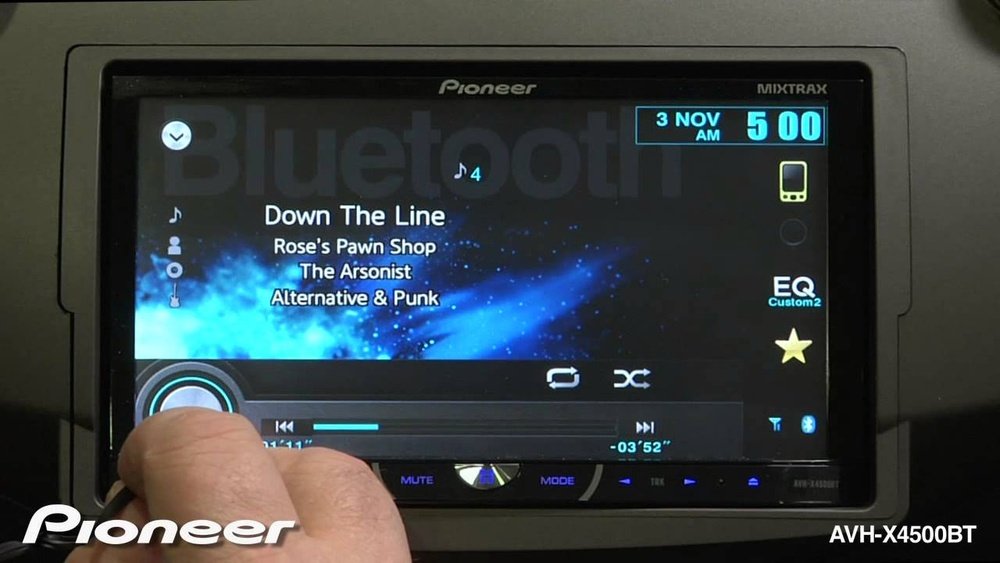
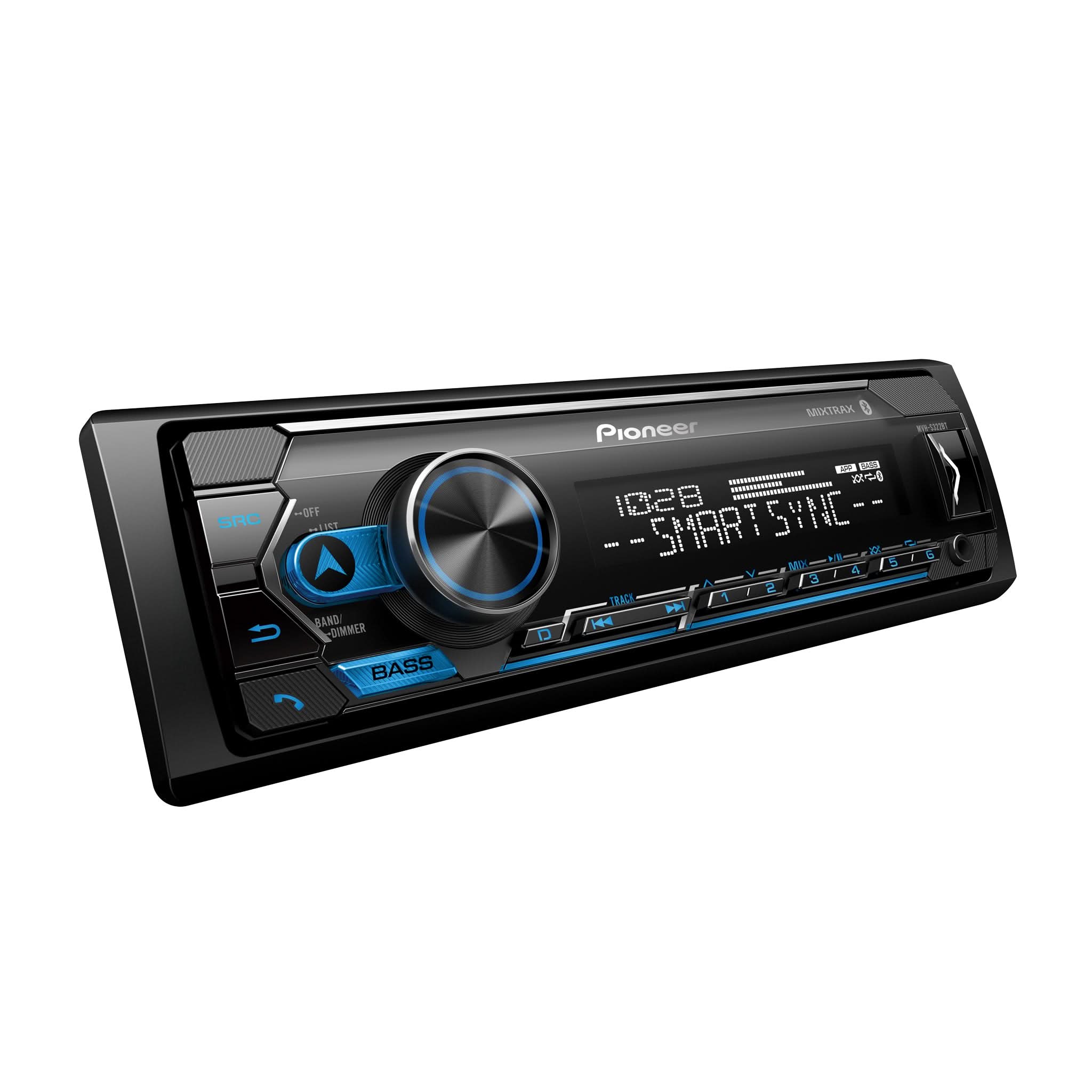
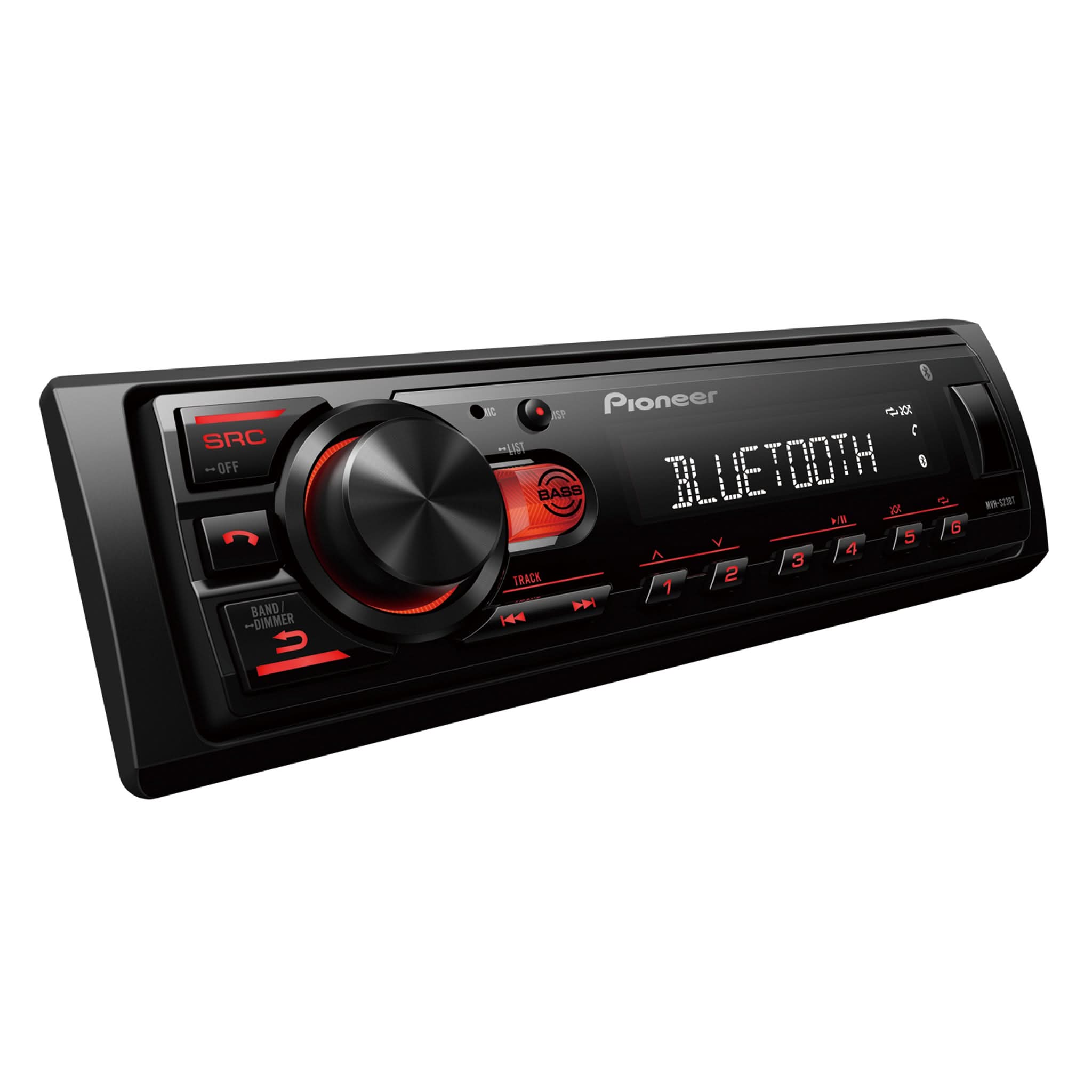
Car stereos are the most common Pioneer Bluetooth device. Resetting Bluetooth usually means clearing the memory and restarting the system.
Step-by-step guide:
- Turn on your car stereo.
- Press the “Menu” button.
- On most models, look for “Menu” or “SRC” (source).
- Find the “Bluetooth Settings” menu.
- Use the dial or arrow keys to navigate.
- Select “Clear Memory” or “Reset Bluetooth.”
- On DEH series: Look for “BT Memory Clear.”
- On AVH series: Go to “System Settings” then “Bluetooth Memory Clear.”
- Confirm the reset.
- Usually, you press “Yes” or “OK.”
- Restart the stereo.
- Turn off the ignition, wait 10 seconds, turn back on.
Important tips:
- After reset, old paired devices are forgotten.
- You must re-pair your phone or other devices.
- If your stereo doesn’t have a “Clear Memory” option, try disconnecting the battery for 1 minute. This forces a hard reset.
Example:
On Pioneer DEH-X6900BT:
- Press “Menu”
- Select “Bluetooth Settings”
- Choose “BT Memory Clear”
- Confirm with dial
How To Reset Pioneer Home Audio Bluetooth
Pioneer home receivers use Bluetooth for wireless music. Sometimes, the Bluetooth module needs a reset if you can’t connect.
Steps for most home receivers:
- Press the “Home” or “Setup” button on the remote.
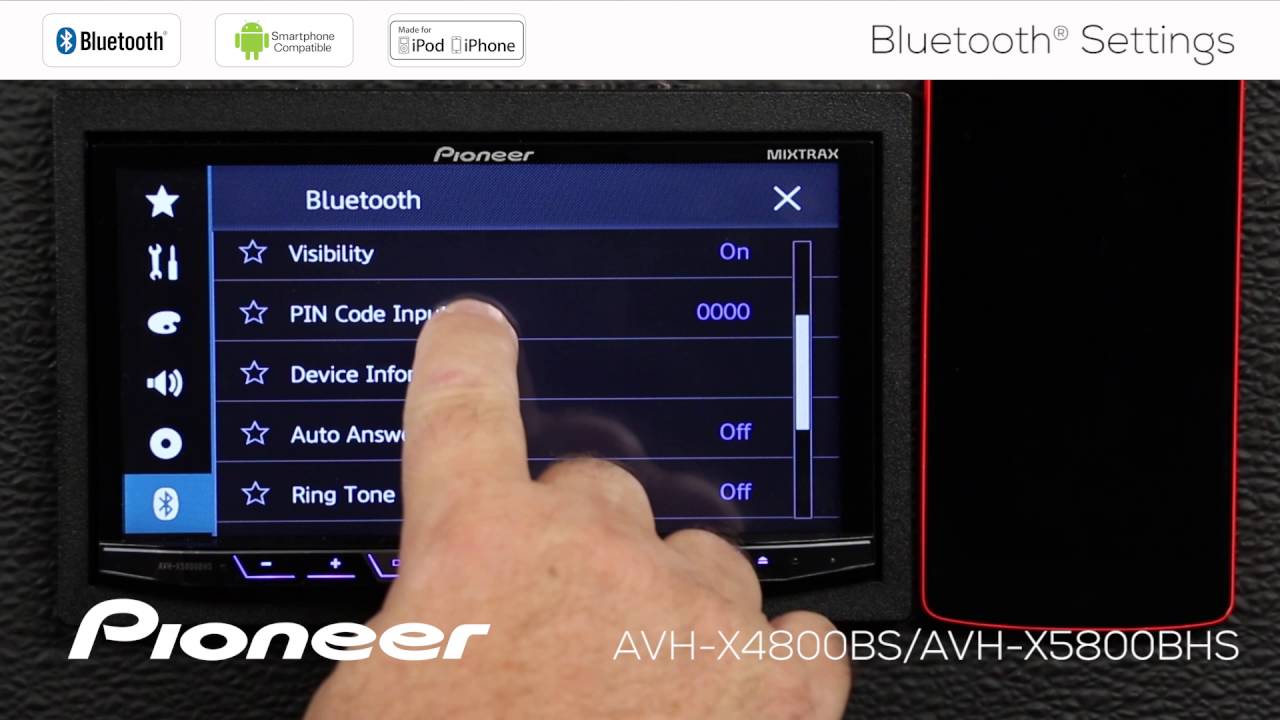
- Navigate to “Bluetooth Settings.”
- Select “Clear Pairing Information” or “Reset Bluetooth.”
- Confirm your choice.
- Restart the receiver.
Factory Reset Option:
If a simple Bluetooth reset doesn’t work, do a factory reset. This erases all settings.
- Hold down the “Power” button and “Advanced Setup” for 5–10 seconds.
- Wait for the display to show “Resetting.”
- Release the buttons.
Data tip:
According to Pioneer support, over 60% of pairing issues are solved by Bluetooth reset. If you still have problems, update the receiver’s firmware.
Credit: www.youtube.com
How To Reset Pioneer Portable Bluetooth Speakers
Pioneer portable speakers are simple but can still have pairing troubles. Resetting usually involves holding buttons.
Typical steps:
- Turn off the speaker.
- Press and hold the “Bluetooth” button and “Power” button together for 5–10 seconds.
- Wait for the LED light to flash.
- Flashing means Bluetooth memory is cleared.
- Release the buttons and turn on the speaker.
- Pair your device again.
Tip:
If the speaker doesn’t reset, check the manual or look for a small “Reset” hole (use a paperclip).
Example:
On Pioneer XW-BTSP1:
- Hold “Bluetooth” and “Power” for 7 seconds
- LED flashes rapidly
- Release buttons
Troubleshooting After Reset
Resetting solves most problems, but sometimes issues remain. Here’s what to check if you still can’t pair your device.
Checklist:
- Make sure Bluetooth is enabled on your phone/tablet
- Delete the Pioneer device from your phone’s Bluetooth list and pair again
- Move devices closer together (within 3–5 feet)
- Restart both devices after resetting
- Update your device’s software/firmware
Common mistakes:
- Not deleting old Pioneer connection from your phone
- Trying to pair too many devices at once
- Not waiting long enough after reset (give it 10–20 seconds)
- Using a damaged USB cable for firmware updates
Advanced tip:
Some Pioneer stereos and receivers have a limit on paired devices (usually 5–10). If memory is full, reset is needed.
How To Pair Devices After Reset
After resetting Bluetooth, you must pair your device again. Pairing is easy but follow these steps for success.
Steps:
- Activate Bluetooth on your phone or tablet
- Search for available devices
- Select your Pioneer device from the list
- Device name example: “Pioneer DEH-X6900BT”
- Enter the pairing code if asked
- Most Pioneer devices use “0000” or “1234”
- Wait for confirmation
- Look for “Connected” or a Bluetooth icon
Example:
On Android:
- Open Bluetooth settings
- Tap “Pioneer DEH-X6900BT”
- Enter “0000”
- Tap “Pair”
Insight:
Many users forget to check their phone’s Bluetooth visibility. Make sure it’s “discoverable” during pairing.
Comparing Reset Methods
Different Pioneer devices use different reset methods. Here’s a quick comparison.
| Device | Reset Method | Time Needed | Difficulty |
|---|---|---|---|
| Car Stereo | Menu navigation, BT memory clear | 2–5 min | Easy |
| Home Receiver | Settings menu or factory reset | 3–7 min | Medium |
| Portable Speaker | Button sequence | 1–3 min | Easy |
Car stereos and speakers are easier to reset than home receivers.
Credit: usa.pioneer
Non-obvious Insights For Beginners
Most guides skip some small but important facts. Here are two things beginners miss:
- Bluetooth reset does not erase radio presets or other audio settings.
Only Bluetooth memory and paired devices are cleared. So you won’t lose favorite stations.
- Some Pioneer devices need firmware updates to fix Bluetooth bugs.
If resetting doesn’t work, check the Pioneer website for updates. Updating can solve hidden problems.
Safety And Data Tips
Resetting Bluetooth is safe and won’t damage your device. Still, keep in mind:
- You’ll need to re-pair all devices.
Write down device names if you have many phones/tablets.
- Resetting is not the same as factory reset.
Factory reset erases all settings, not just Bluetooth.
- Avoid resetting while playing music.
Stop playback first to prevent glitches.
If you need official support, check the Pioneer Electronics website for manuals and troubleshooting.
Credit: usa.pioneer
Frequently Asked Questions
How Often Should I Reset Pioneer Bluetooth?
You only need to reset if you have connection problems, memory errors, or want to remove old devices. There is no fixed schedule. For most users, once every few months is enough.
Will Resetting Bluetooth Delete My Music Or Radio Settings?
No, resetting Bluetooth only clears paired device information. Your music playlists, radio presets, and audio settings will remain safe.
What Should I Do If Bluetooth Still Doesn’t Work After Reset?
Try these steps:
- Restart your phone and Pioneer device
- Update firmware/software
- Move devices closer together
- Delete Pioneer from your phone’s Bluetooth list and try pairing again
If problems continue, contact Pioneer support.
Can I Reset Bluetooth Without A Remote Control?
Yes. On many Pioneer car stereos and portable speakers, you can use front panel buttons. For home receivers, try holding “Power” and “Setup” together. If your device requires a remote, consider buying a replacement.
Is Bluetooth Reset The Same As Factory Reset?
No. Bluetooth reset clears only paired devices and connection memory. Factory reset erases all settings, including audio and network settings. Use Bluetooth reset for pairing issues; factory reset for bigger problems.
Closing Thoughts
Resetting Pioneer Bluetooth is a simple way to fix connection problems and enjoy smooth wireless audio. Whether you use a car stereo, home receiver, or portable speaker, the right reset steps can save time and frustration. Always check your device type, follow clear instructions, and remember to re-pair your devices after the reset.
For most users, these steps solve Bluetooth issues quickly. If you run into trouble, update firmware or check the official Pioneer site for help. With the tips in this guide, even beginners can handle Bluetooth resets confidently and keep their Pioneer device running smoothly.