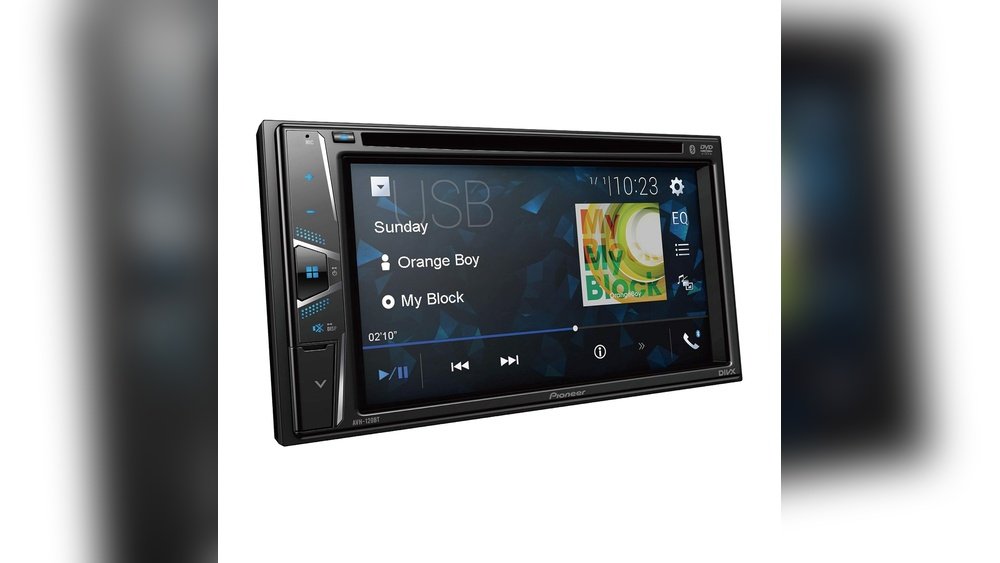
How to Clear Bluetooth Memory on Pioneer Avh 120Bt Easily
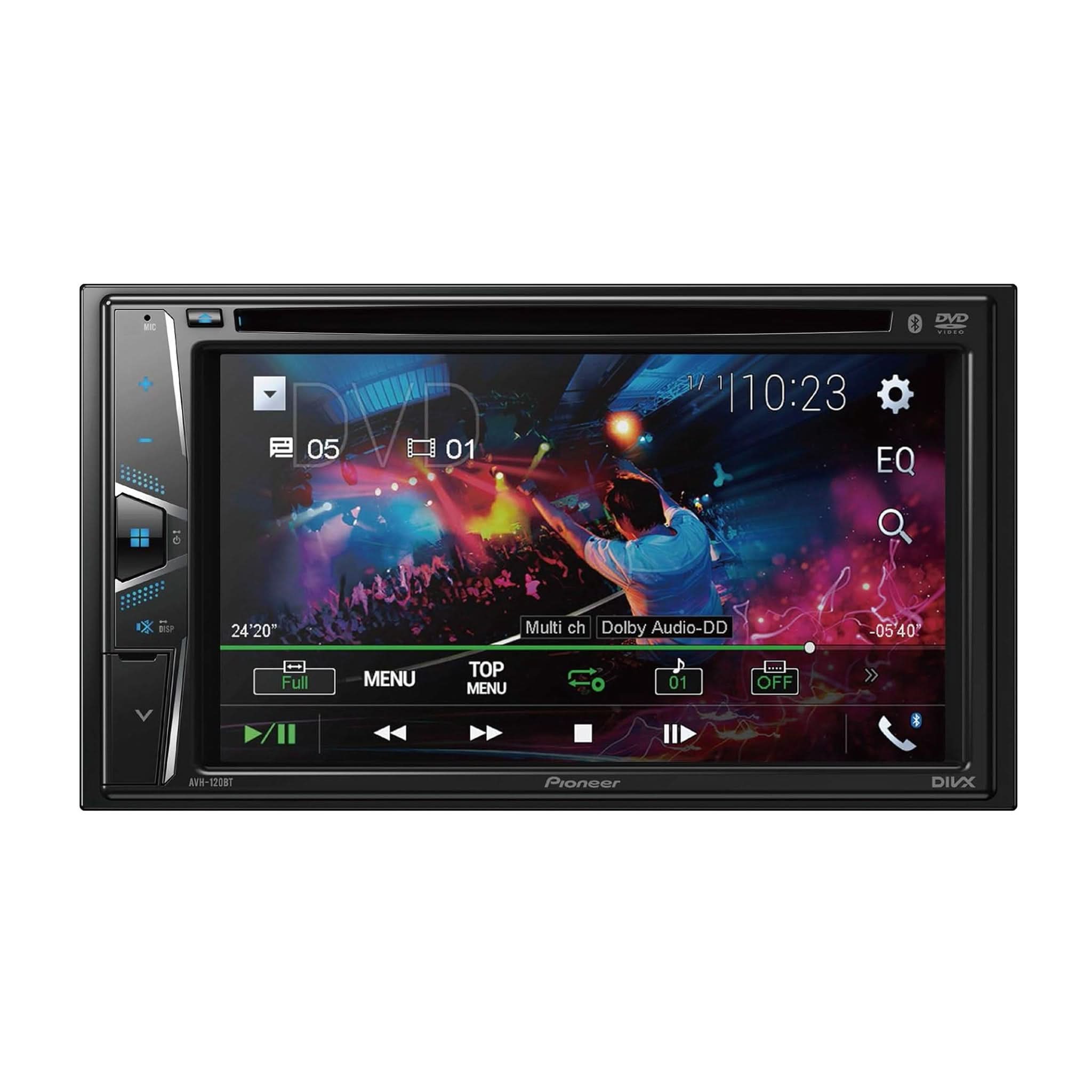
Many car owners love using Bluetooth to play music and make hands-free calls in their vehicles. The Pioneer AVH-120BT is a popular car stereo that lets you easily connect your smartphone or other devices. But over time, you might find the Bluetooth memory gets full. You may notice your stereo won’t pair with new devices, or it shows old device names you don’t recognize. Clearing the Bluetooth memory can solve these issues and give you a fresh start.
If you’re not sure how to do this, don’t worry. This guide will show you, step by step, how to clear Bluetooth memory on the Pioneer AVH-120BT. You’ll also learn why it’s important, what mistakes to avoid, and get answers to common questions.
Even if you’re a beginner, you’ll find this process simple with the right instructions.
Why Clear Bluetooth Memory On Pioneer Avh-120bt?
It’s common for the Bluetooth memory to fill up, especially if you connect many devices over time. When this happens, your Pioneer unit may:
- Refuse to pair with new phones or tablets
- Show a “Memory Full” message
- Keep old device names that you no longer use
Clearing the Bluetooth memory fixes these problems. It also protects your privacy if you sell your car or change phones. Anyone who connects to your stereo can sometimes see old device names. Removing them is a smart move.
Understanding Bluetooth Pairing On Pioneer Avh-120bt
When you pair a device with your Pioneer AVH-120BT, the stereo saves information about the device. This includes:
- The device’s name (like “John’s iPhone”)
- Bluetooth address (a unique ID)
- Connection history
Here’s a simple example: If you connect your phone, your friend’s phone, and a tablet, the stereo keeps all three in its memory. The AVH-120BT can remember up to three devices at a time. When you try to add a fourth, it may refuse or ask you to clear old devices.
Bluetooth Device Limit
You might wonder, “How many devices can my stereo remember?” Here’s a quick comparison with other models:
| Model | Bluetooth Device Limit |
|---|---|
| Pioneer AVH-120BT | 3 devices |
| Pioneer AVH-2400NEX | 5 devices |
| Pioneer MVH-S21BT | 3 devices |
If you often switch between many devices, you may need to clear the memory more often.

Credit: www.youtube.com
Step-by-step: How To Clear Bluetooth Memory
Clearing Bluetooth memory on the Pioneer AVH-120BT is a simple process. Follow these steps:
- Turn on your car and stereo.
- Make sure the Pioneer AVH-120BT is powered up and in “Source Off” mode.
- Access the Bluetooth Settings.
- Tap the gear icon (settings) on your main screen.
- Select “Bluetooth Settings” from the menu.
- Navigate to Clear Memory.
- Scroll down until you see the option “Clear BT Memory.”
- This option may also appear as “Bluetooth Memory Clear” on some firmware versions.
- Start the Clear Process.
- Tap “Clear BT Memory.”
- The unit will ask you to confirm. Select “Yes” to proceed.
- Wait for the Confirmation.
- The screen will briefly show a message like “Clearing…” or “BT Memory Cleared.”
- The process usually takes less than 30 seconds.
- Restart Pairing.
- Once memory is cleared, you’ll need to pair your devices again as if they were new.
Quick Reference Table: Clearing Bluetooth Memory Steps
| Step | Action |
|---|---|
| 1 | Turn on stereo in Source Off mode |
| 2 | Open Bluetooth Settings |
| 3 | Select “Clear BT Memory” |
| 4 | Confirm and wait for clearing |
| 5 | Re-pair your devices |
Common Mistakes When Clearing Bluetooth Memory
Beginners often make some mistakes during this process. Here are the most common errors and how to avoid them:
- Not using Source Off mode: The clear option may not appear if your stereo is playing music or radio. Always switch to “Source Off.”
- Forgetting to re-pair devices: After clearing, your phone won’t connect automatically. You must pair it again.
- Clearing memory by accident: Double-check before confirming. Once you clear, you can’t undo the action.
- Not saving contacts: If your phonebook was synced, you’ll have to allow access again after re-pairing.
Non-obvious Insight
Many users don’t realize that Bluetooth memory and call history are different. Clearing Bluetooth memory only removes paired devices, not your call logs or music lists. If you want to erase all personal data, check other settings as well.

Credit: www.youtube.com
How To Pair A Device After Clearing Bluetooth Memory
Once you’ve cleared the old memory, you’ll need to pair your phone or device again. Here’s how:
- Turn on Bluetooth on your phone.
- Set the Pioneer AVH-120BT to “Pairing” mode.
- Usually, this is automatic after clearing memory.
- Search for devices on your phone.
- Look for “Pioneer AVH-120BT” in the Bluetooth list.
- Select the stereo’s name.
- Accept the pairing request on both your phone and the stereo screen.
- Allow access if prompted.
- For full features, approve access to contacts and call history.
Your phone should now connect and be ready to use for music and calls.
Example Pairing Experience
Let’s say you cleared the memory and want to connect your Samsung Galaxy phone:
- Open Bluetooth on the Galaxy.
- Find “Pioneer AVH-120BT” in available devices.
- Tap to connect. Enter PIN (usually “0000” or “1234”) if asked.
- Accept permissions for contacts and calls.
You’re now ready to use Bluetooth features again.
Troubleshooting: When Bluetooth Memory Won’t Clear
Sometimes, the “Clear BT Memory” option doesn’t work as expected. Here’s what you can try:
- Restart the stereo: Turn off the car and stereo, then try again.
- Check firmware version: Older firmware might behave differently. Update if needed.
- Disconnect all devices: Remove all paired devices from both your phone and the stereo.
- Factory reset: As a last resort, perform a full factory reset (note: this erases all settings).
Firmware Version Comparison
Some users find differences based on their firmware version. Here’s a quick look:
| Firmware Version | Clear BT Memory Option | Other Differences |
|---|---|---|
| 1.00 | “Bluetooth Memory Clear” | Basic interface |
| 1.10+ | “Clear BT Memory” | Faster processing, clearer icons |
Updating your firmware can solve menu issues and add new features. Always download updates from the official Pioneer website.
Extra Tips For Managing Bluetooth On Pioneer Avh-120bt
- Name your device clearly: Use a unique name for your phone so you can find it easily in the list.
- Remove unused devices regularly: If you let friends pair their phones for one trip, clear them afterward.
- Keep software updated: Both your phone and the stereo may get updates that fix pairing bugs.
- Limit paired devices: Stick to three or fewer to avoid confusion.
- Avoid pairing while driving: Always set up Bluetooth when parked for safety.
Non-obvious Insight
If you have connection issues, try deleting the Pioneer stereo from your phone’s Bluetooth history as well. Sometimes, both sides need to “forget” each other before a fresh connection will work smoothly.
When Should You Clear Bluetooth Memory?
You don’t need to clear Bluetooth memory every day. But here are some good times to do it:
- Selling your car: Protects your privacy by removing old device names.
- Buying a used car: Clear out previous owner’s connections.
- Bluetooth won’t connect: Fixes most pairing issues.
- Too many devices in the list: Keeps things organized and fast.
Clearing the memory only takes a minute and can save you a lot of frustration.
Credit: usa.pioneer
How To Check If Bluetooth Memory Is Full
If your Pioneer AVH-120BT won’t let you add a new device, it may show a “Memory Full” message. You can also check by:
- Opening the Bluetooth settings menu
- Viewing the list of paired devices (if three are shown, it’s full)
- Trying to add a new device; if it fails, memory is likely full
Some newer phones may give you a hint, like “Pairing failed – device memory full. ”
Security And Privacy: Why Clearing Memory Matters
Old paired devices can sometimes reconnect to your stereo if they come close enough. This can be a privacy issue, especially in shared vehicles. Clearing the memory ensures that only your current devices can connect.
When selling or trading your car, always clear Bluetooth memory. This protects your contact list and call history. It’s a simple but important step for your digital security.
Frequently Asked Questions
How Many Devices Can I Pair With The Pioneer Avh-120bt?
You can pair up to three devices at the same time. If you try to add a fourth, you’ll need to clear the Bluetooth memory or remove an old device first.
Does Clearing Bluetooth Memory Delete My Contacts Or Music?
No. Clearing Bluetooth memory only removes paired devices from the stereo. Your contacts, music, and call logs on your phone are not affected. You’ll need to re-approve access when you pair your phone again.
What Do I Do If My Phone Won’t Pair After Clearing Memory?
First, make sure Bluetooth is enabled on your phone. Try restarting both the stereo and your phone. If you still have trouble, delete the Pioneer stereo from your phone’s Bluetooth history and try pairing again.
How Often Should I Clear The Bluetooth Memory?
Clear the memory when you hit the device limit, experience pairing problems, or before selling your car. There’s no need to clear it unless you have issues or want to remove old devices.
Where Can I Find Official Instructions And Firmware Updates?
You can find official guides and updates on the Pioneer Electronics website. Always use trusted sources to avoid installing the wrong firmware.
Clearing Bluetooth memory on your Pioneer AVH-120BT is a quick way to fix pairing issues and keep your system running smoothly. With these steps, you’ll enjoy reliable connections and better privacy in your car. Remember, when in doubt, check your user manual or visit the official Pioneer site for more details. Your car stereo experience should be simple, safe, and stress-free.