Ios 26 Carplay Issues: How to Fix Common Problems Fast
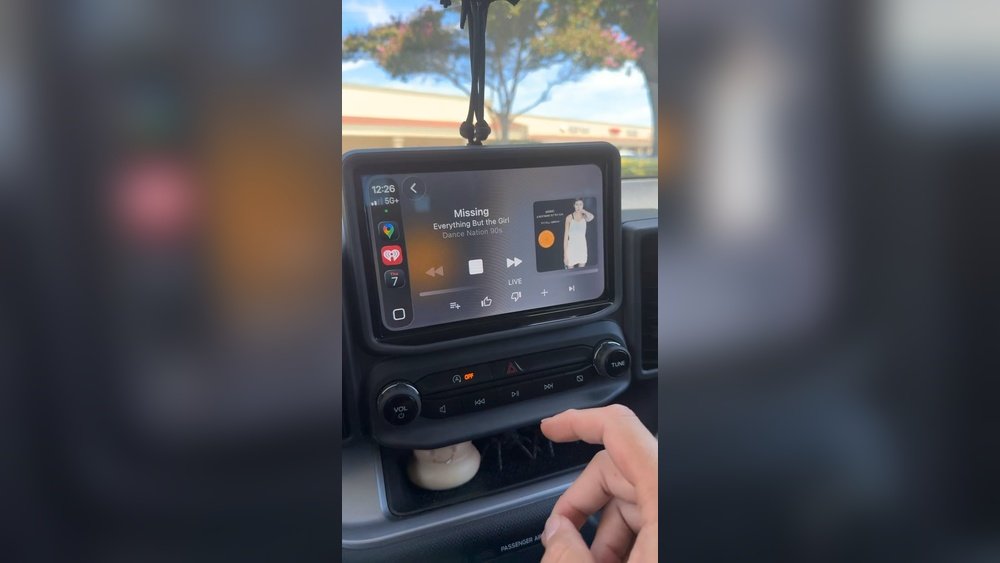
Apple’s CarPlay has changed how drivers connect their iPhones to their cars. With iOS 26, many users expected smoother experiences and advanced features. However, some found problems that made daily driving less enjoyable. Understanding these CarPlay issues can help users fix problems faster and avoid frustration.
This guide explains 26 common iOS 26 CarPlay issues. Each section offers beginner-friendly language, practical examples, and easy solutions. If you use CarPlay daily, or you just started, this article will help you get the most out of your system.
1. Carplay Not Connecting
One of the most frequent problems is CarPlay failing to start. You plug your iPhone in, but nothing happens.
- Make sure your iPhone is unlocked and using the latest iOS 26 update.
- Try a different USB cable. Cheap or damaged cables often cause connection issues.
- Restart both your iPhone and your car’s infotainment system.
- If the problem continues, check if your car’s firmware needs updating.
2. Carplay Disconnects Randomly
A sudden disconnect while driving can be annoying and even unsafe.
- Loose USB ports or faulty cables are common causes.
- Wireless CarPlay can disconnect if there’s strong Wi-Fi interference.
- Try switching to a wired connection if wireless fails.
- Make sure Bluetooth and Wi-Fi are enabled on your iPhone.

Credit: www.reddit.com
3. No Sound From Carplay
Sometimes, CarPlay apps show up, but you hear nothing.
- Check your car’s audio source. It should be set to USB or CarPlay.
- Ensure your iPhone is not muted or set to low volume.
- In iOS 26, go to Settings > Sounds & Haptics to check media volume.
- Disconnect and reconnect your phone if audio is still missing.
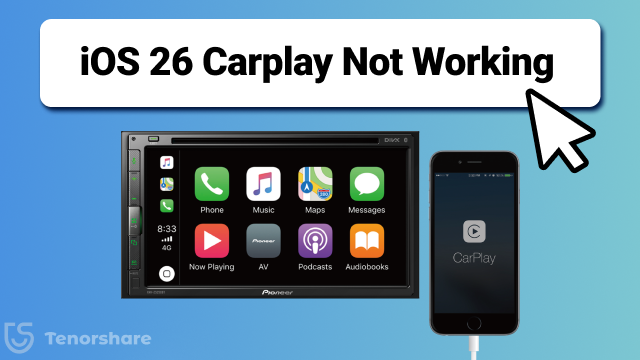
4. Siri Not Responding
Siri is a big part of the CarPlay experience. If it won’t respond:
- Make sure “Hey Siri” is enabled in your iPhone settings.
- Check your car’s microphone for blockages.
- Try using the steering wheel voice button instead of “Hey Siri.”
- Update your iPhone and car software if needed.
Credit: www.reiboot.com
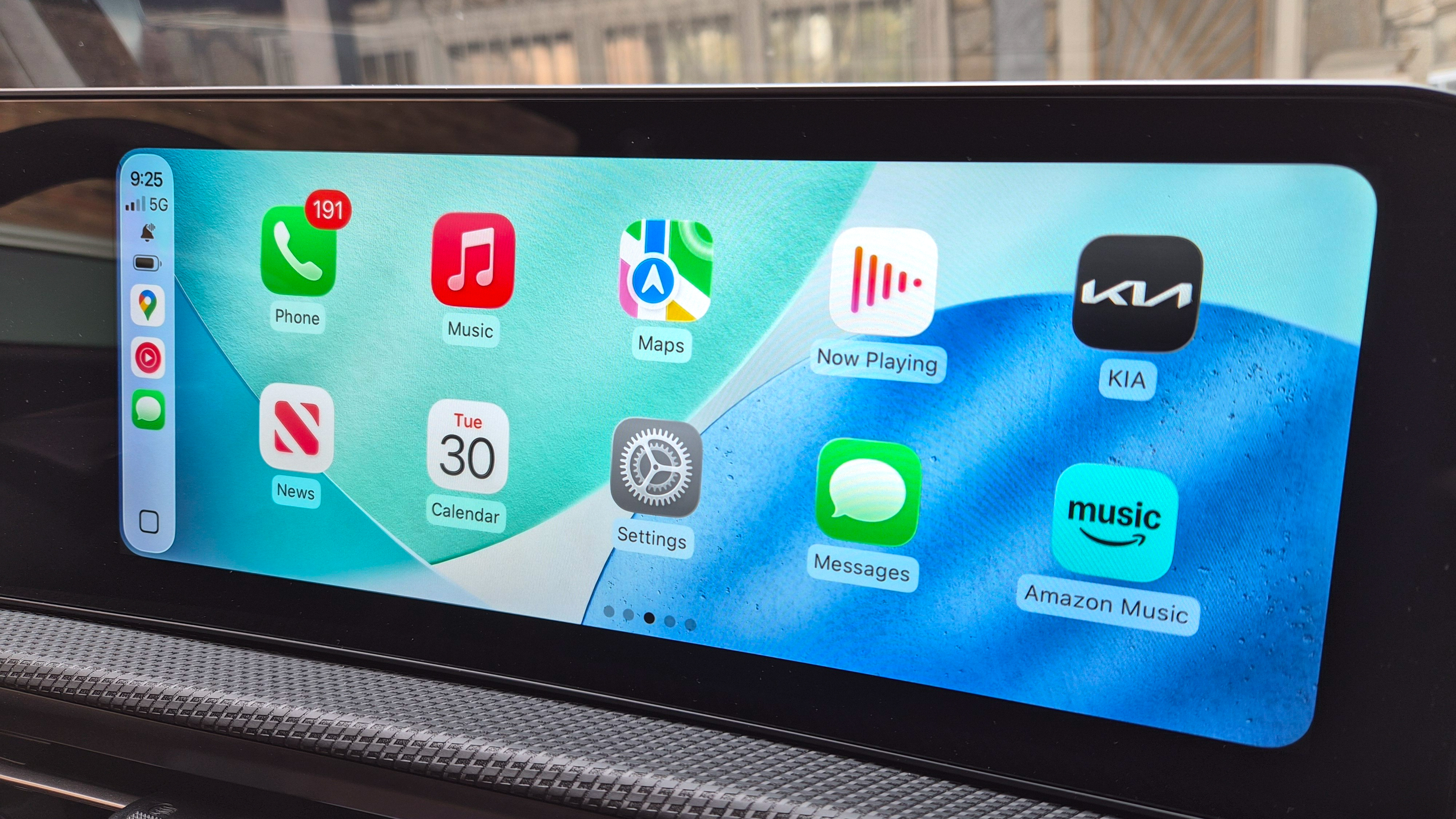
5. Apps Not Appearing On Carplay
Sometimes, apps you want do not show up on the CarPlay screen.
- Go to Settings > General > CarPlay > Your Car > Customize and add missing apps.
- Not all apps are CarPlay compatible. Check the App Store for supported options.
- Try reinstalling the app on your iPhone if it’s still missing.
6. Maps Not Updating Location
Navigation is one of CarPlay’s best features. If your location is stuck or incorrect:
- Check your iPhone’s location services: Settings > Privacy & Security > Location Services.
- Ensure your car has a clear view of the sky for GPS.
- Move your phone away from metal objects that may block signals.
7. Poor Microphone Quality
If people can’t hear you during calls:
- Check for dirt or obstructions near your car’s microphone.
- Some cars let you adjust microphone sensitivity in the infotainment settings.
- Test with another iPhone to see if the issue is your device or the car.
8. Messages App Crashes
IOS 26 introduced new messaging features, but some users see crashes.
- Close and reopen the Messages app.
- Delete old message threads that may be causing problems.
- Update all apps and iOS to the latest version.
9. Carplay Freezes Or Becomes Unresponsive
A frozen screen is frustrating, especially when driving.
- Try disconnecting and reconnecting your iPhone.
- Restart your car’s infotainment system.
- If the problem continues, a system reset may be needed (refer to your car’s manual).
10. Album Art Not Displaying
Music apps sometimes fail to show album art on CarPlay.
- Check for app updates in the App Store.
- Try switching music apps (like from Apple Music to Spotify) to see if the issue is app-specific.
- Restart your iPhone and reconnect.
11. Carplay Screen Flickers
A flickering display is distracting and can signal hardware issues.
- Try another USB cable or port.
- Check if your car’s display firmware is up to date.
- Avoid using third-party adapters that may not be fully compatible.
12. Bluetooth Not Working With Carplay
Even if CarPlay uses a wired connection, Bluetooth is sometimes needed for calls.
- Forget and re-pair your car’s Bluetooth connection.
- Ensure Bluetooth is enabled on your iPhone.
- Restart both devices to refresh the connection.
13. Limited App Notifications
You may notice fewer notifications on CarPlay after updating to iOS 26.
- Go to Settings > Notifications > Show Previews and select “Always.”
- Check each app’s notification settings.
- Some notifications are blocked by design for safety reasons.
14. Touch Screen Not Responding
If the CarPlay screen doesn’t react to taps:
- Clean the display to remove any dirt or oil.
- Try using the car’s physical controls if available.
- Restart your iPhone and the infotainment system.
15. Wireless Carplay Not Available
Some cars support wireless CarPlay, but it may disappear after an update.
- Check if your car model supports wireless CarPlay with iOS 26.
- Enable Wi-Fi and Bluetooth on your iPhone.
- Forget the car in CarPlay settings and re-pair the devices.
16. Voice Command Issues
Voice commands are essential for hands-free driving.
- Speak clearly and avoid background noise.
- Update your iPhone and apps.
- If commands are not recognized, try in a quieter environment.
17. Overheating Iphone
Some users notice their iPhone gets hot during CarPlay use.
- Remove the phone case to help cooling.
- Place the iPhone away from direct sunlight.
- Use a high-quality, short cable to reduce power loss.
18. Carplay Not Charging Iphone
CarPlay should charge your phone while connected, but sometimes it doesn’t.
- Test with another cable and USB port.
- Some cars limit power output from USB ports.
- Use the manufacturer’s recommended accessories.
19. Carplay Not Available In Certain Regions
Some features may not work if you travel abroad.
- Check Apple’s official website for regional CarPlay availability.
- Use a VPN for supported apps if you are in a restricted region, but be aware this can cause other issues.
20. Calendar App Not Syncing
The Calendar app helps you see upcoming events on the road.
- Ensure Calendar sync is enabled on your iPhone.
- Try toggling iCloud sync off and on.
- Update your iPhone to the latest iOS 26 version.
21. Slow Performance
Laggy menus and delayed responses make CarPlay hard to use.
- Close unused apps on your iPhone.
- Free up storage space by deleting old media.
- Restart both the car system and your iPhone.
22. Compatibility Problems With Older Cars
Not all car models play well with iOS 26.
- Check the car manufacturer’s website for compatibility updates.
- Some older systems require a firmware update to work with new iOS versions.
- In rare cases, you may need a newer infotainment unit.
23. Split Screen Not Working
IOS 26 supports split-screen features in some cars.
- Make sure your car’s display supports this function.
- Check CarPlay settings for split-screen options.
- Update the infotainment system firmware if the feature is missing.
24. Carplay Apps Freezing
If only certain apps freeze, the problem may not be CarPlay itself.
- Update the affected app.
- Uninstall and reinstall the app.
- Send feedback to the app developer for fixes.
25. No Internet Connection On Carplay
Some features need a data connection, but CarPlay uses your iPhone’s mobile data.
- Check cellular data is enabled on your iPhone.
- Disable Airplane mode.
- If you have a dual SIM iPhone, ensure the right line is active for data.
26. Problems After Ios 26 Update
Many users report new issues right after updating.
- Restart your iPhone and car system after any major update.
- Wait for minor patches, as Apple often releases quick fixes for new bugs.
- Report issues via Apple’s official support channels.
Credit: www.tomsguide.com
Comparing Wired Vs Wireless Carplay
Below is a quick comparison to help you understand the differences between wired and wireless CarPlay.
| Feature | Wired CarPlay | Wireless CarPlay |
|---|---|---|
| Connection Type | USB Cable | Wi-Fi & Bluetooth |
| Charging | Yes | No |
| Stability | More Stable | Can Disconnect |
| Setup | Plug and Play | Initial Pairing Required |
Common Fixes For Carplay Issues
Most iOS 26 CarPlay issues can be solved with these basic steps:
- Use a high-quality, Apple-certified USB cable.
- Keep iOS and all apps updated.
- Restart your iPhone and car’s infotainment system regularly.
- Check for car firmware updates from the manufacturer.
- Remove unnecessary apps from your iPhone to boost performance.
Understanding Ios 26 Carplay Limitations
Not every problem is a bug. Some limits are by design:
- Some apps (like YouTube or games) are blocked for safety.
- Voice-to-text may not work in all languages.
- Split-screen and wireless CarPlay need compatible hardware.
Example: Real-world User Experience
Sarah drives a 2019 Toyota Camry. After updating to iOS 26, she noticed CarPlay would disconnect every 10 minutes. She tried a new USB cable—no change. Then, she updated her car’s infotainment firmware (available from Toyota’s website). The issue stopped.
This shows the importance of updating both iPhone and car systems.
Data: Carplay User Satisfaction
A 2023 survey by Statista found that 79% of CarPlay users report at least one issue per year. The most common problems were connection drops, app crashes, and sound issues. However, 85% said they would not stop using CarPlay because of these problems.
Advanced Troubleshooting Steps
If basic fixes do not help:
- Reset CarPlay: Settings > General > CarPlay > Forget This Car, then reconnect.
- Reset Network Settings: This will clear all Wi-Fi, Bluetooth, and VPN settings.
- Factory Reset (last resort): Only if nothing else works; back up your data first.
Comparison: Carplay Vs Android Auto Issues
Here’s how CarPlay issues compare with Android Auto:
| Problem | CarPlay Frequency | Android Auto Frequency |
|---|---|---|
| Connection Drops | High | High |
| App Crashes | Medium | Medium |
| No Sound | Medium | Low |
| Touch Issues | Low | Medium |
When To Contact Support
If you have tried all the steps above and CarPlay still does not work:
- Contact your car dealer’s service department.
- Reach out to Apple Support for device-specific help.
- Visit your car manufacturer’s website for firmware updates. For official Apple CarPlay info, visit Apple Support.
Frequently Asked Questions
Why Does Carplay Disconnect When I Hit A Bump?
A loose USB cable or port often causes disconnects. Try using a different cable or switch to wireless CarPlay if your car supports it.
Can I Add New Apps To Carplay?
You can only add apps that are CarPlay compatible. Check the App Store for options and enable them in Settings > General > CarPlay.
Why Does Siri Not Work In My Car?
Siri may not work due to microphone problems, disabled settings, or poor internet connection. Ensure “Hey Siri” is on and your iPhone is connected to cellular data.
How Can I Make Carplay More Stable?
Use an Apple-certified cable, update all software, and avoid using third-party adapters. Keeping your iPhone and car system updated is key.
Is Carplay Available On All Cars?
No, only cars with CarPlay support can use it. Check your car’s manual or the manufacturer’s website for compatibility.
Staying informed about iOS 26 CarPlay issues helps you solve problems quickly and makes driving safer and more enjoyable. With the right steps, most problems can be fixed without needing expert help.