
How Do I Know If My Car Supports Wireless Carplay: Quick Guide
If you drive a modern car and own an iPhone, you may have heard about Wireless CarPlay. This feature lets you use apps, maps, music, and more on your car’s screen, without plugging your phone in. Many drivers are excited about going wireless, but not every car supports Wireless CarPlay. If you’re wondering, “How do I know if my car supports Wireless CarPlay?” this guide will walk you through the answers with clear steps, practical examples, and tips for beginners.
What Is Wireless Carplay?
Wireless CarPlay is an Apple feature that connects your iPhone to your car’s infotainment system over Bluetooth and Wi-Fi. You do not need to use a cable. It allows:
- Hands-free access to Apple Maps, Music, Messages
- Voice control with Siri
- Use of third-party apps, like Spotify and WhatsApp
- Safer driving by keeping your phone in your pocket
Wireless CarPlay is different from wired CarPlay, which needs a USB cable. Wireless is more convenient and makes your car look cleaner.
How Wireless Carplay Works
Wireless CarPlay uses two technologies:
- Bluetooth: Starts the connection between your phone and car.
- Wi-Fi: Transfers data quickly for apps, music, and maps.
Your car’s infotainment system must have both Bluetooth and Wi-Fi hardware. Not all cars have this setup, so Wireless CarPlay isn’t available everywhere.
How To Check If Your Car Supports Wireless Carplay
Let’s break down the practical ways to check. You don’t need any technical skills—just follow these steps.
1. Check Your Car’s Manual
The easiest starting point is your car’s owner’s manual. Look for sections about:
- CarPlay
- Infotainment system
- Bluetooth and Wi-Fi features
Wireless CarPlay is sometimes listed as “Wireless Apple CarPlay. ” If you see this in the manual, your car supports it.
2. Try Connecting Wirelessly
You can test your car in real life:
- Turn on your car.
- Make sure Bluetooth and Wi-Fi are enabled in the car’s settings.
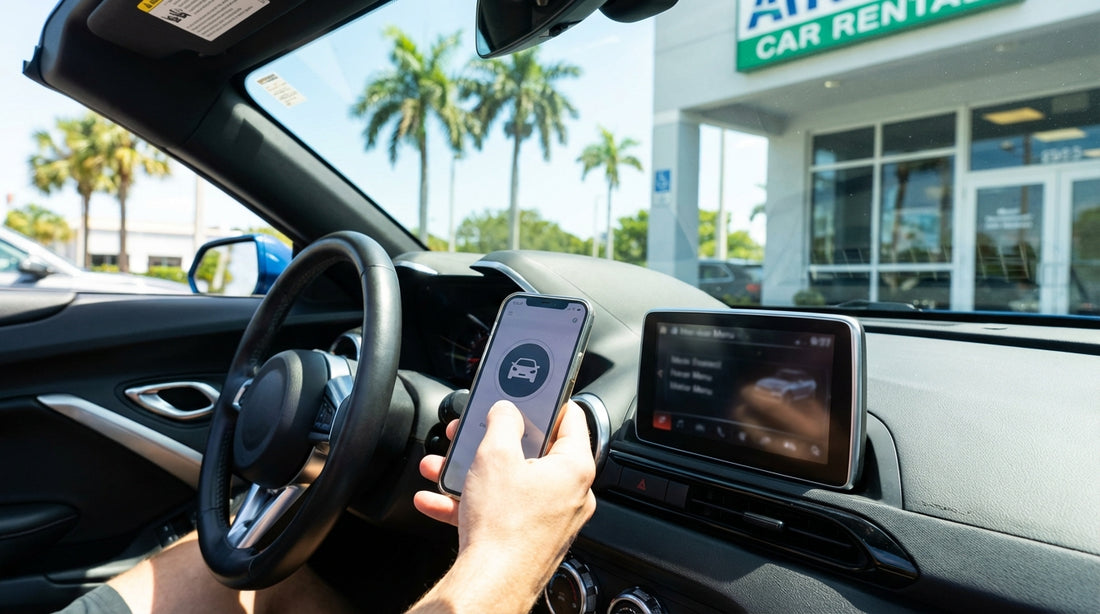
- On your iPhone, go to Settings > General > CarPlay.
- Check if your car appears in the list of Available Cars.
- If you see your car, tap it and follow the prompts.
If the connection works without a USB cable, your car supports Wireless CarPlay.
3. Check Manufacturer’s Website
Most car brands keep a list of supported models online. For example, BMW, Mercedes-Benz, and Honda have pages showing which cars support Wireless CarPlay. Search for your car’s year and model.
4. Look For Wireless Carplay Icon
Some cars display a Wireless CarPlay icon on the infotainment screen or dashboard. This icon looks like the Apple CarPlay logo with a wireless signal.
5. Ask Your Dealer
If you bought your car from a dealer, call or email them. Dealers can check your car’s VIN (Vehicle Identification Number) and confirm compatibility.
6. Use Online Carplay Compatibility Tools
Websites like Apple’s official CarPlay page list compatible brands and models. These lists are updated often.
Common Wireless Carplay Compatible Brands And Models
Wireless CarPlay is mostly found in cars made after 2017. Here are some examples:
- BMW: Most models from 2017 onward
- Audi: Select models from 2019 onward
- Porsche: Most models from 2020 onward
- Honda: Accord, Odyssey, CR-V from 2021 onward
- Ford: Mustang Mach-E, F-150 Lightning (2022+)
- Chevrolet: Suburban, Tahoe, Silverado (2022+)
Not all models or trims support wireless, so check your exact car.
Wired Vs Wireless Carplay: Quick Comparison
Here’s a side-by-side look at the differences.
| Feature | Wired CarPlay | Wireless CarPlay |
|---|---|---|
| Connection | USB Cable | Bluetooth & Wi-Fi |
| Setup | Plug in iPhone | Pair and connect |
| Convenience | Less convenient | More convenient |
| Charging | Charges phone | No charging (unless wireless charger) |
| Availability | Most cars 2016+ | Mostly premium cars 2017+ |
Wireless Carplay Requirements
To use Wireless CarPlay, you need:
- IPhone 5 or newer (iOS 9 or higher)
- Car with Bluetooth & Wi-Fi hardware
- Compatible infotainment system
Your iPhone must have enough battery. Some cars require you to pair using USB the first time, then wireless after.

Credit: roadtop.com
Signs Your Car Does Not Support Wireless Carplay
If you see any of these, your car likely does not support Wireless CarPlay:
- Only wired CarPlay is mentioned in the manual
- No Wi-Fi option in infotainment settings
- CarPlay works only when plugged in
- Car is older than 2017 and not a luxury model
Many budget cars only offer wired CarPlay.
What If Your Car Does Not Support Wireless Carplay?
You still have options if your car only supports wired CarPlay:
1. Use A Wireless Carplay Adapter
These adapters plug into the USB port and make CarPlay wireless. Popular brands include:
- Carlinkit
- Ottocast
- AAWireless
They cost $50–$150. Adapters work best in cars with reliable wired CarPlay.
2. Upgrade Your Infotainment System
Some aftermarket systems support Wireless CarPlay. Brands like Pioneer, Kenwood, and Sony sell these units. Installation can cost $500–$1000.
3. Use Bluetooth Audio And Navigation
If your car doesn’t support CarPlay at all, you can still use Bluetooth for:
- Music streaming
- Hands-free calling
- Basic navigation (voice only)
You lose CarPlay’s advanced features but gain wireless convenience.
Wireless Carplay In Popular Cars: Data Table
Here’s a sample of popular cars and their CarPlay support.
| Car Model | Year Introduced | Wireless CarPlay | Wired CarPlay |
|---|---|---|---|
| BMW 5 Series | 2017 | Yes | Yes |
| Honda Accord | 2021 | Yes | Yes |
| Toyota Camry | 2022 | No | Yes |
| Chevrolet Suburban | 2022 | Yes | Yes |
| Hyundai Sonata | 2023 | No | Yes |
Wireless Carplay: Common Myths
Some drivers believe all new cars have Wireless CarPlay. This isn’t true. Here are common myths:
- Myth: Every car with CarPlay supports wireless.
- Fact: Most only support wired.
- Myth: Wireless CarPlay drains battery fast.
- Fact: It uses more battery, but most cars offer wireless charging pads.
- Myth: Wireless CarPlay is only for luxury brands.
- Fact: Many mainstream brands now offer it.
Understanding these myths helps you make better choices.
Credit: holacarrentals.com
Real-world Example
Let’s say you own a 2022 Honda Accord. You want to use Wireless CarPlay:
- Check the infotainment screen for a wireless icon.
- Go to Settings > General > CarPlay on your iPhone.
- If your car appears, select it and follow the steps.
- If it doesn’t, try plugging in with USB. If CarPlay only works with the cable, your model might not support wireless.
Some trims (like EX-L and Touring) support wireless, but others do not. Always check your car’s exact trim.
Wireless Carplay Adapter Comparison Table
If your car doesn’t have wireless built-in, consider an adapter.
| Adapter Name | Price Range | Setup Difficulty | Compatibility |
|---|---|---|---|
| Carlinkit | $80–$120 | Easy | Most cars 2016+ |
| Ottocast | $99–$139 | Medium | Wired CarPlay only |
| AAWireless | $70–$100 | Easy | Android Auto only |
Two Non-obvious Insights Beginners Miss
- Wireless CarPlay often requires your car’s Wi-Fi to be enabled. Many users forget to turn on Wi-Fi in their car’s settings, thinking Bluetooth alone is enough. If you can’t connect, check the Wi-Fi setting.
- Wireless CarPlay can be trim-specific. For example, a 2021 Honda CR-V Touring supports wireless, but the base trim does not. Always check your car’s trim and options, not just the model year.
Common Mistakes When Checking Wireless Carplay Support
- Assuming all CarPlay is wireless
- Forgetting to enable Wi-Fi in the car
- Not checking the trim or infotainment package
- Ignoring updates: Some cars get wireless via software updates
Avoid these mistakes for a faster answer.
Final Tips For Beginners
- Always check the car manual first—it’s the fastest way.
- If unsure, test by connecting wirelessly from your iPhone.
- Use manufacturer websites for detailed compatibility.
- Consider a wireless adapter if your car only supports wired CarPlay.
- Remember, wireless is not available on all trims or models.
Wireless CarPlay makes your driving experience smoother and safer. With these tips, you can quickly find out if your car supports it and what to do if it doesn’t.
Frequently Asked Questions
Can I Add Wireless Carplay To My Car If It Only Supports Wired?
Yes, you can use a wireless CarPlay adapter. These devices plug into your car’s USB port and connect your iPhone wirelessly. They work best in cars with reliable wired CarPlay.
Does Wireless Carplay Use More Battery On My Iphone?
Wireless CarPlay uses both Bluetooth and Wi-Fi, so it can drain your phone battery faster than wired. Many cars have wireless charging pads to help.
Is Wireless Carplay Available On All New Cars?
No. Even in 2024, some new cars only have wired CarPlay. Check your car’s manual, trim, and infotainment options before buying.
What Are Common Problems With Wireless Carplay?
Common issues include:
- Connection drops
- Slow response times
- Problems after iOS updates
Most issues are fixed by updating your car’s software or your iPhone.
How Do I Know If My Car’s Infotainment System Is Compatible?
Check for Bluetooth and Wi-Fi in your car’s infotainment settings. If your manual or infotainment menu mentions Wireless CarPlay, your system is compatible.
Wireless CarPlay is growing in popularity, but not all cars support it yet. Use these steps to find out if your car is ready for wireless, and enjoy a safer, more connected driving experience.

Credit: www.youtube.com