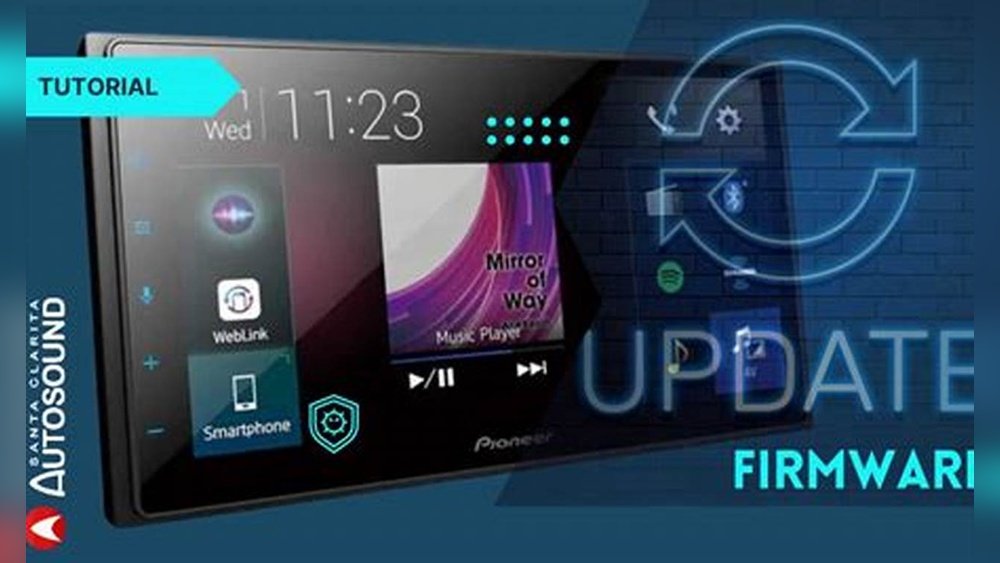
How to Update Firmware on Pioneer Nex: A Step-by-Step Guide
Updating the firmware on your Pioneer NEX car stereo can solve bugs, unlock new features, and improve performance. But for beginners, the process can feel confusing or risky. If you want to keep your Pioneer NEX running smoothly and safely, this guide will walk you through every step in simple language. Let’s make sure you update your firmware the right way — and avoid the mistakes that trip up many first-time users.
Why Update Firmware On Pioneer Nex?
Firmware is the software that controls how your Pioneer NEX works. When you update it, you fix problems, improve stability, and sometimes get new options. Here’s why it matters:
- Bug fixes: Common problems like freezing, poor Bluetooth connection, or audio glitches often get solved.
- New features: Support for new apps or formats, better interface, or added functions can appear.
- Compatibility: Updates help your device work with new phones, apps, or accessories.
- Security: Protect your system from vulnerabilities.
For example, a 2022 update added support for Apple CarPlay wireless mode on some models. Without updating, you’d miss this feature.
How To Prepare For A Firmware Update
Before you start, you need to get ready. Beginners often skip preparation and regret it later.
Check Your Model And Firmware Version
Not all Pioneer NEX units use the same firmware. You must know your exact model number and current firmware.
- Find your model: Look for labels on the device or check the settings menu.
- Check firmware version: Go to “System Settings” → “System Information” → “Firmware Version.”
Write these down. You’ll need them for downloading the correct update.
Back Up Your Settings
Firmware updates can reset your preferences. Back up custom EQ settings, radio presets, and paired devices.
- Take photos of your settings screens.
- Note favorite radio stations.
This saves time after the update.
Get A Reliable Usb Drive
Most Pioneer NEX updates require a USB drive. Choose one that:
- Is FAT32 formatted (not NTFS or exFAT)
- Has at least 1GB free space
- Is free of other files
Using a fresh USB drive avoids errors.
Downloading The Correct Firmware
Getting the right firmware is crucial. Installing the wrong file can make your device unusable.
Where To Find Firmware Updates
Always use the official Pioneer website. Avoid third-party sites to prevent malware.
- Go to Pioneer official firmware page.
- Enter your model number.
- Download the latest firmware for your device.
Check the file size and version number. If they don’t match your device, do not proceed.
Example: Downloading For The Avh-w4500nex
Suppose your unit is AVH-W4500NEX:
- Go to the Pioneer site.
- Search for “AVH-W4500NEX firmware.”
- Download the “AVH-W4500NEX_FW_Ver1.04.zip” file.
Always unzip the file before copying it to your USB drive.
Step-by-step Firmware Update Process
Now you’re ready to update. Here’s how to do it safely, even if you’re new to this.
- Turn off the car. Make sure your Pioneer NEX is off.
- Insert the USB drive with the firmware file into the USB port.
- Turn on the ignition to power up the stereo.
- The system will detect the firmware file. A prompt will appear: “Do you want to update firmware?”
- Confirm by pressing “Yes.”
- The update will begin. Do not remove the USB drive or turn off the car during this process.
- Wait for completion. This usually takes 5–15 minutes.
- When finished, the device will restart.
- Remove the USB drive.
Always follow the on-screen instructions. Interrupting the update can cause permanent damage.
Practical Example
If your firmware file is named “AVH-W4500NEX_FW_Ver1. 04,” the screen will show the update version. It’s normal to see progress bars or messages like “Updating… Please wait. ”
Comparing Pioneer Nex Models And Firmware Requirements
Different Pioneer NEX models have slightly different update steps and requirements. Here’s a comparison:
| Model | USB Required | File Format | Update Time |
|---|---|---|---|
| AVH-W4500NEX | Yes | FAT32 | 10 min |
| DMH-WT8600NEX | Yes | FAT32 | 12 min |
| AVIC-8200NEX | Yes | FAT32 | 15 min |
Always check your manual for specific instructions.
Common Mistakes Beginners Make
Even simple mistakes can cause big problems. Here’s what beginners often get wrong:
- Wrong firmware file: Installing updates for a different model can brick your device.
- USB drive not formatted: Using NTFS or exFAT instead of FAT32 causes errors.
- Interrupting the update: Removing the USB drive or turning off power can corrupt the firmware.
- Skipping backup: Losing custom settings is common if you don’t record them first.
- Ignoring instructions: Not following on-screen prompts leads to failed updates.
Avoid these by double-checking each step.

Credit: www.youtube.com
After The Update: What To Check
Once the update is done, you should make sure everything works.
- Check for new features: Look in the system menu for new options.
- Test Bluetooth and audio: Make sure your phone pairs and sound quality is good.
- Restore settings: Re-enter radio presets and EQ values.
If you notice problems, try resetting the device or repeating the update.
Troubleshooting Firmware Update Issues
Sometimes, things don’t go as planned. Here are practical fixes for common problems:
Firmware Not Detected
- Check if the USB drive is FAT32 formatted.
- Make sure the firmware file is in the root directory (not inside a folder).
- Try a different USB drive.
Update Failed Or Device Won’t Start
- Remove the USB drive and restart the car.
- If the device is stuck, try a “soft reset” (usually a small reset button).
- If nothing works, contact Pioneer support.
Example: Fixing Bluetooth Issues After Update
If your Bluetooth stops working:
- Delete all paired devices from both your phone and Pioneer NEX.
- Re-pair the devices.
- If it still fails, perform a factory reset from the settings menu.
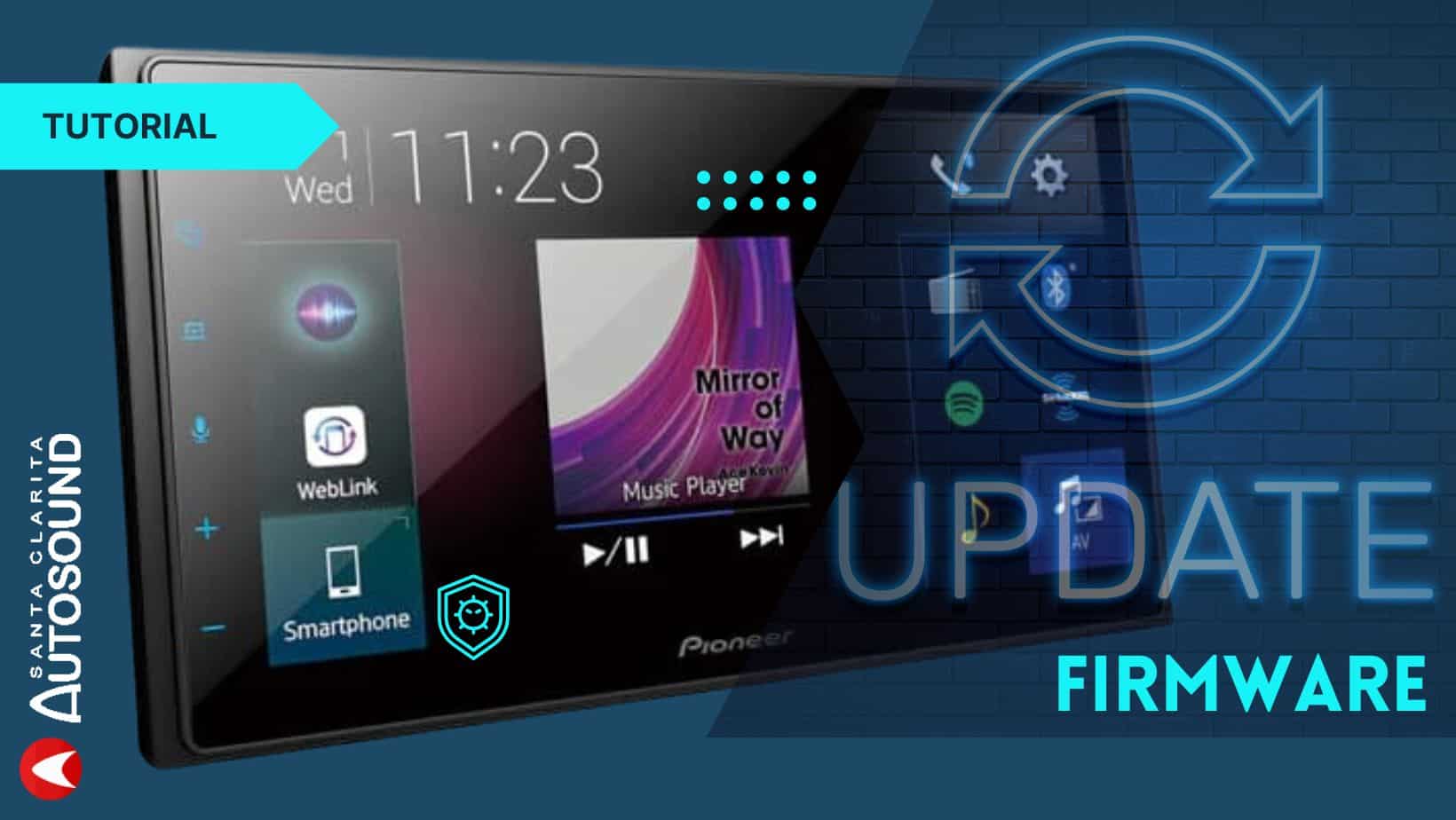
Credit: www.santaclaritaautosound.com
Data Table: Firmware Update Success Rates
Firmware updates are usually safe, but here’s some data from user reports:
| Update Attempt | Success Rate | Common Issues |
|---|---|---|
| First try | 90% | Wrong file, USB format |
| Second try | 97% | Power interruption |
| After troubleshooting | 99% | Settings lost |
Most people succeed on the first attempt if they follow steps carefully.
Tips For A Smooth Firmware Update
A few practical tips can make your update easier:
- Use a new USB drive to avoid file conflicts.
- Keep your car running during the update (battery power can drop).
- Read Pioneer’s release notes to know what’s changed.
- If unsure, watch a video guide for your exact model.
Remember, patience and careful checking are key.
Credit: www2.parklanejewelry.com
When Should You Update Your Pioneer Nex Firmware?
You don’t need to update every time. Here’s when you should:
- Your system has bugs or glitches.
- New features you want are released.
- Major compatibility updates are announced.
- Security patches are recommended.
Check the Pioneer website every few months for new updates.
Comparison Table: Firmware Features Before And After Update
To see what you gain from updating, here’s a simple comparison:
| Feature | Before Update | After Update |
|---|---|---|
| Apple CarPlay Wireless | No | Yes |
| Bluetooth Stability | Low | High |
| New App Support | Limited | Expanded |
| Bug Fixes | Unfixed | Resolved |
Updating can transform your user experience.
Non-obvious Insights Beginners Usually Miss
Many first-time users overlook these points:
- Release notes matter: They tell you exactly what’s new or fixed. Reading them helps you decide if the update is needed.
- USB drive quality: Cheap or old drives often fail during updates. Invest in a good brand for reliability.
These small details can save you hours of frustration.
Frequently Asked Questions
How Often Should I Update My Pioneer Nex Firmware?
You don’t need to update every month. Check for updates every 6–12 months, or when you notice bugs or see new features released. Only update if there’s a clear benefit.
What Happens If The Firmware Update Fails?
If the update fails, your device might not work properly. Try restarting and repeating the steps. If it still fails, contact Pioneer support or visit a dealer for help.
Can I Use My Phone To Update Pioneer Nex Firmware?
No, Pioneer NEX firmware updates require a USB drive. Phones and SD cards are not supported for firmware files. Always use a FAT32-formatted USB stick.
Does Updating Firmware Erase My Settings?
Sometimes, yes. It’s smart to record your radio presets and EQ settings before updating. After the update, you can restore them manually.
Where Can I Find Official Pioneer Firmware Updates?
Always use the official Pioneer website: Pioneer official firmware page. Avoid third-party sites to keep your device safe.
Updating the firmware on your Pioneer NEX is safe and easy if you follow these steps. Take time to prepare, use official files, and avoid shortcuts. With careful attention, you’ll enjoy a smoother, more reliable stereo and the latest features. Beginners can succeed — and avoid costly mistakes — by following this guide.