Auto Switch to Hook Up Audio in Car Stereo: Top Problems & Solutions
Auto Switch to Hook Up Audio in Car Stereo Problems And Solutions
Getting your car stereo to automatically switch and hook up audio sounds simple. But many drivers face unexpected problems. Sometimes, the stereo won’t detect your device. Other times, music stops playing or switches to the wrong input. If you’re new to car audio, these issues can be confusing.
Let’s break down how auto-switching works, common problems, and the best ways to fix them.
How Auto Switch Works In Car Stereos
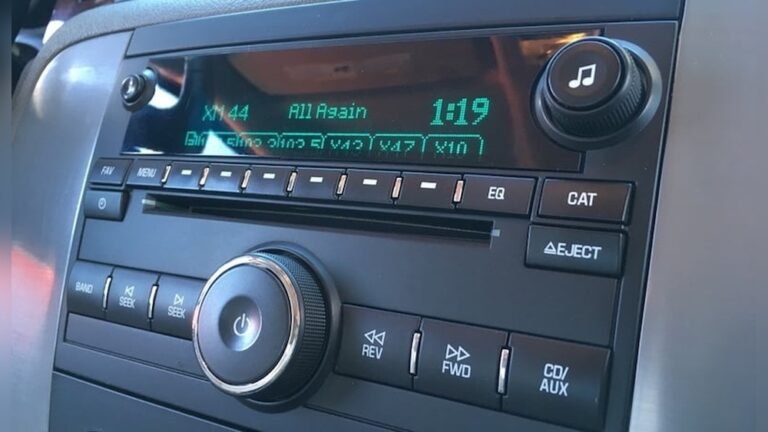
Modern car stereos can auto switch between different audio sources. This means the stereo changes from radio, CD, Bluetooth, AUX, or USB based on which device connects.
- If you plug your phone into the AUX port, the stereo should switch to AUX mode.
- When a Bluetooth device connects, it should move to Bluetooth audio.
- Some systems auto switch to USB if you connect a flash drive or smartphone.
Automatic switching saves time and lets you focus on driving. But it depends on your stereo’s software and wiring. Older models may not support full auto-switching. Newer stereos often have smart features that detect connections and switch modes.
Example
Imagine you’re driving. You plug your phone into the USB port. Your stereo detects the connection and switches from FM radio to USB audio. If you unplug it, the stereo goes back to radio.
Common Auto Switch Problems In Car Stereos
Auto-switching doesn’t always work smoothly. Here are the most frequent issues drivers face:
- Device not recognized: Stereo doesn’t detect your phone or audio device.
- Wrong input selection: Stereo switches to the wrong audio source.
- Delayed switching: Takes too long to change modes.
- Bluetooth auto-connect fails: Phone doesn’t connect automatically.
- Audio interruptions: Music stops or skips when switching sources.
- Low volume or no sound: Audio is missing after auto-switch.
- No auto switch at all: Stereo stays on the previous mode.
Data Example
According to a 2023 survey by the Car Audio Association, nearly 28% of drivers reported issues with auto-switching between devices. Problems were highest in cars older than five years.

Credit: burtbrothers.com
Why Auto Switch Problems Happen
Understanding the cause helps fix the problem faster. Most auto-switch issues are due to:
- Software bugs: Glitches in the stereo’s operating system.
- Outdated firmware: Old software can’t handle new devices.
- Loose cables or poor wiring: Physical connections matter.
- Compatibility issues: Device and stereo don’t “speak” the same language.
- Bluetooth interference: Multiple devices compete for connection.
- User error: Wrong settings or incorrect device pairing.
Practical Example
You connect your phone via Bluetooth. But your car stereo is still set to AUX. The stereo fails to switch because the Bluetooth profile isn’t active, or the stereo’s software is out of date.
Solutions For Auto Switch Problems
Fixing auto-switch issues can be easy if you follow clear steps. Here’s how to solve the most common problems:
1. Update Firmware And Software
Most auto-switch issues come from outdated software.
- Check your car stereo manual for update instructions.
- Visit the manufacturer’s website for downloads.
- Use a USB drive or connect your phone to update.
Tip: Updating firmware can fix bugs and improve compatibility with new devices.
2. Check Connections
Loose or damaged cables can cause switching failures.
- Inspect AUX, USB, and other ports for dust or corrosion.
- Use quality cables and adapters.
- If Bluetooth isn’t working, reset the pairing.
Example: Replacing a frayed AUX cable often restores auto-switching to normal.
3. Adjust Stereo Settings
Sometimes, the stereo’s settings block auto-switching.
- Go to the audio menu and enable auto switch features.
- Set Bluetooth as the default if you use it most.
- Turn off unused sources to avoid confusion.
4. Pair Devices Correctly
Bluetooth auto-switching depends on proper pairing.
- Delete old devices from the stereo’s memory.
- Pair your device again following the manual.
- Use “auto-connect” options if available.
Tip: Only keep one main device paired if you face interference.
5. Restart Devices
Simple restarts often fix temporary glitches.
- Turn off the car stereo and restart.
- Reboot your phone or audio device.
- Plug and unplug devices to reset the connection.
6. Replace Faulty Hardware
If auto switch still fails, hardware may be the cause.
- Try another AUX or USB cable.
- Test a different phone or audio device.
- Consider replacing the stereo if it’s very old.
7. Seek Professional Help
Some problems require expert assistance.
- Visit a car audio specialist.
- Ask for diagnostic tests if software and wiring seem fine.
Credit: www.gigaparts.com
Comparison Of Auto Switch Features In Car Stereos
To help you choose the right stereo, here’s a quick comparison of popular models:
| Model | Auto Switch Support | Bluetooth | USB | AUX | Firmware Updates |
|---|---|---|---|---|---|
| Pioneer MVH-S622BS | Yes | Yes | Yes | Yes | Supported |
| Kenwood KMM-BT328U | Yes | Yes | Yes | Yes | Supported |
| Sony XAV-AX100 | Yes | Yes | Yes | No | Supported |
| JVC KD-X270BT | Partial | Yes | Yes | Yes | Limited |
Key Features To Look For
When buying a car stereo for auto-switching, focus on these features:
- Multi-source support: AUX, USB, Bluetooth, CD.
- Firmware update option: Allows fixes for future devices.
- Automatic source detection: Stereo can sense new connections.
- Easy pairing: Fast Bluetooth setup.
- User-friendly menus: Simple controls for beginners.
Mistakes To Avoid
- Ignoring firmware updates.
- Using low-quality cables.
- Pairing too many devices at once.
- Choosing a stereo without auto-switch support.
Real-life Examples And Data
Auto-switching saves time, but only if it works reliably. Here are some practical cases:
- Case 1: A driver’s stereo would not switch to USB. Updating the firmware fixed the issue.
- Case 2: Bluetooth auto-switch failed due to interference from multiple paired phones. Removing extra devices solved the problem.
- Case 3: AUX auto switch stopped working after spilling coffee near the port. Cleaning and replacing the cable restored normal operation.
Data Table: Most Common Auto Switch Issues
| Problem | Percentage (%) | Main Cause |
|---|---|---|
| Device not recognized | 31 | Software/Firmware |
| Delayed switching | 22 | Wiring/Hardware |
| Bluetooth fails | 18 | Pairing/Interference |
| No auto switch | 13 | Settings/User Error |
| Audio interruptions | 16 | Device Compatibility |
Practical Tips For Beginners
If you’re new to car audio, these tips help avoid common mistakes:
- Read your stereo manual: Each model works differently.
- Keep software updated: Updates fix many issues.
- Test one device at a time: Avoid confusion by connecting one source.
- Use quality cables: Cheap cables often cause switching failures.
- Ask for help: Car audio shops can diagnose tricky problems.
Non-obvious Insights
- Many drivers forget to check if their stereo supports auto-switching for all sources. Some only switch between Bluetooth and USB, not AUX.
- If your car stereo has a “priority” setting, use it to control which device connects first. This prevents unwanted switches.
Future Trends In Auto Switch Technology
Car audio is becoming smarter. Here’s what to expect soon:
- Voice control: Switch sources by speaking.
- AI detection: Stereo learns your habits and auto-switches to your preferred device.
- Wireless everything: Fewer cables, more Bluetooth and Wi-Fi options.
- Over-the-air updates: Update your stereo from your phone, no cables needed.
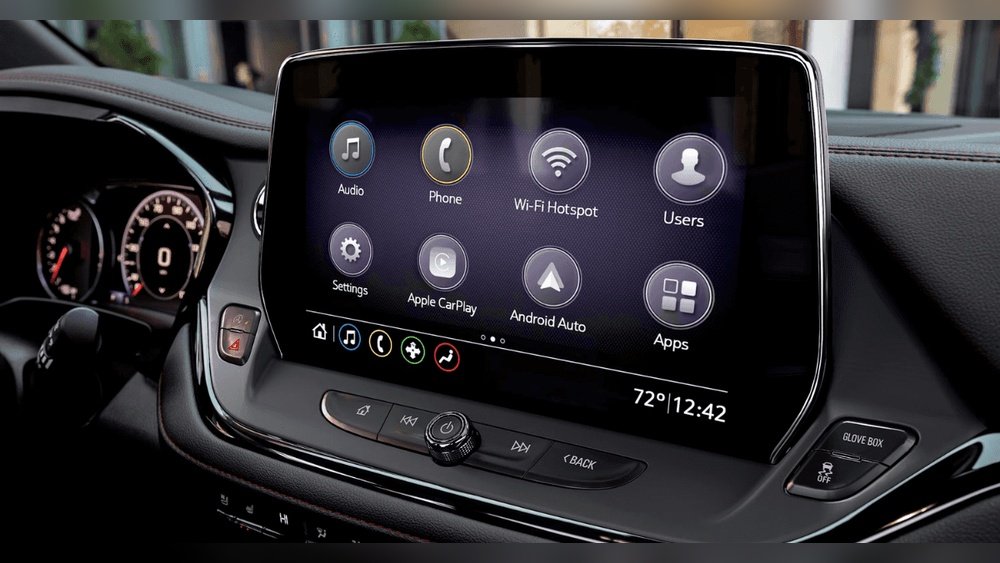
Manufacturers are focusing on seamless connectivity. Cars with built-in Android Auto or Apple CarPlay already auto-switch when you plug your phone in.
For more data on car audio technology, visit Wikipedia’s Car Audio page.
Frequently Asked Questions
What Is Auto Switch In Car Stereos?
Auto switch means your car stereo automatically changes to the correct audio source when you connect a device. For example, plugging in your phone to USB switches the stereo to USB mode.
Why Does My Stereo Not Switch To Bluetooth Automatically?
The most common causes are outdated firmware, wrong pairing settings, or interference from other devices. Try updating your stereo software and removing extra paired devices.
Can I Make My Old Car Stereo Auto Switch?
Some older stereos support auto switch after a firmware update. If not, you may need a new stereo with modern auto-switch features.
What’s The Best Way To Fix Delayed Switching?
Check for loose cables, update software, and restart your stereo. Delays often come from hardware or software problems.
How Do I Know If My Stereo Supports Auto Switch?
Check your user manual or manufacturer’s website. Look for auto-switch or automatic source detection in the features list.
Auto-switching audio in your car makes driving easier and more enjoyable. With the right setup and a few checks, most problems can be solved quickly. Remember to keep your stereo updated, use quality connections, and don’t hesitate to ask for help if needed.
Credit: www.retromanufacturing.com