How
Using Waze on Apple CarPlay can make your driving smoother, safer, and more enjoyable. Many drivers love Waze because it offers real-time traffic updates, smart route suggestions, and alerts about road hazards. But if you are new to Apple CarPlay, or Waze itself, it can feel confusing at first. This guide will help you understand how to get started, what features matter, and how to avoid common mistakes. You’ll also see practical examples and data to help you make the most of your drive.
What Is Apple Carplay And Why Use Waze?
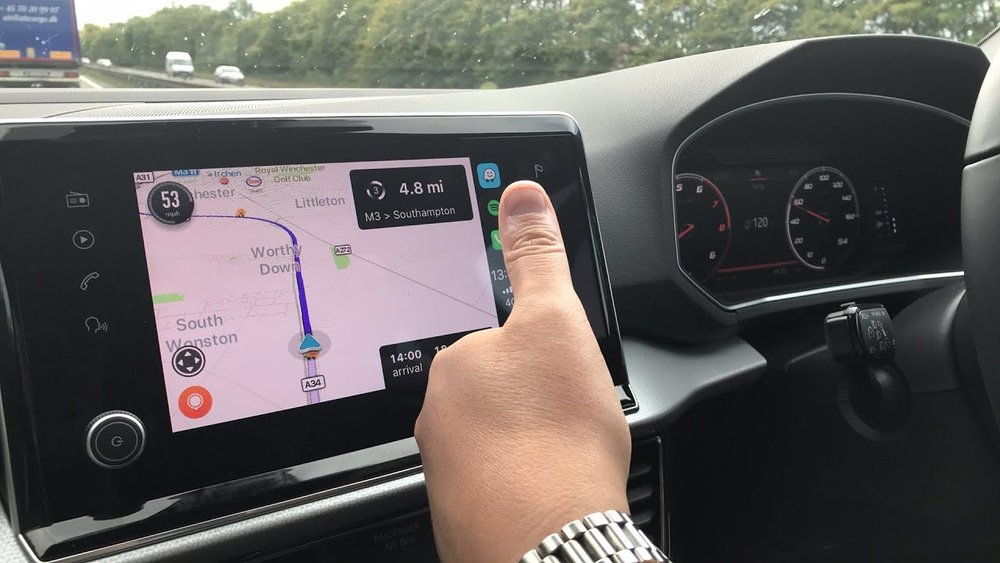
Apple CarPlay is a system that connects your iPhone to your car’s infotainment screen. It lets you use apps like Waze, Maps, Spotify, and Messages directly from your dashboard. This keeps your hands on the wheel and eyes on the road.
Waze is a free navigation app with over 140 million users worldwide. It’s popular for:
- Live traffic alerts
- Crowd-sourced hazard warnings
- Fast, alternative routes
You get a smarter drive compared to traditional GPS. For example, Waze users can report accidents, police speed traps, and road closures. The app instantly updates your route based on real-world conditions.
Setting Up Waze On Apple Carplay
Getting Waze running on your CarPlay system is simple. You only need a compatible iPhone and a car that supports CarPlay.
Basic Requirements
- IPhone 5 or newer running iOS 12 or later
- Waze app installed and updated
- Car with Apple CarPlay capability
- Lightning cable or wireless CarPlay (if supported)
Step-by-step Setup
- Connect your iPhone to your car’s USB port (or connect wirelessly, if your car supports it).
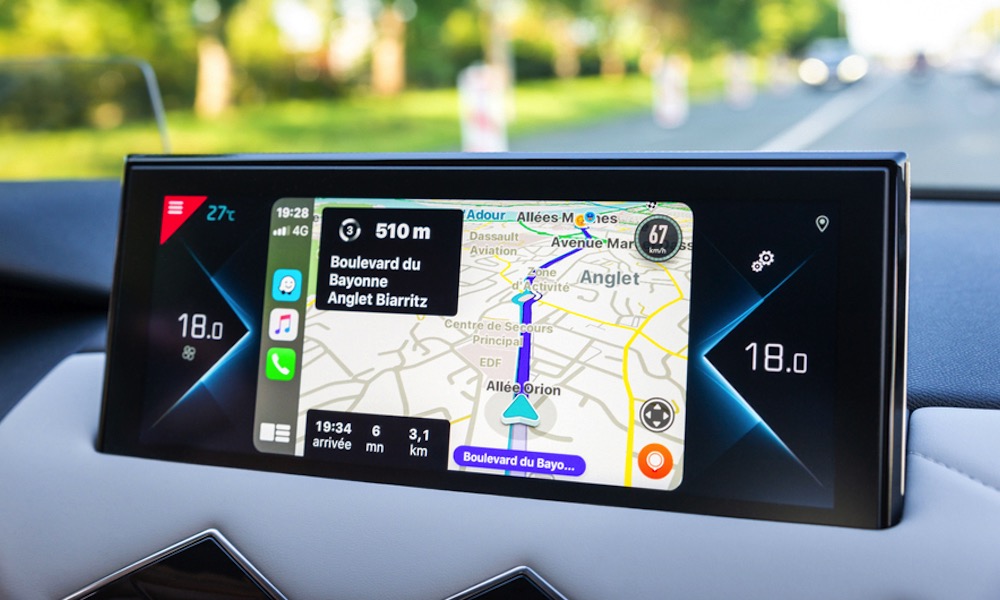
- The CarPlay interface appears on your car’s screen.
- Tap the Waze icon. If you don’t see it, make sure the app is installed and updated.
- Grant permissions if prompted (location, microphone).
- Waze is now ready to use on your car’s display.
Tip: If Waze does not show up, go to Settings > General > CarPlay on your iPhone. Customize your app list to include Waze.
Common Setup Mistakes
- Forgetting to update Waze
- Using an old iPhone or outdated iOS
- Not granting location permissions
Key Features Of Waze On Carplay
Waze offers several features that help you drive smarter. Let’s look at the most useful ones for beginners.
Real-time Traffic Updates
Waze shows traffic jams, road closures, and accidents in real time. If there is a traffic jam ahead, Waze can offer a faster route automatically.
Hazard And Police Alerts
Drivers report hazards like potholes, stopped cars, and police speed checks. You’ll see these alerts as icons on your map.
Smart Rerouting
If your route becomes slow, Waze suggests a new path. This rerouting happens instantly and is based on live data.
Voice Commands
You can use Siri to control Waze without touching the screen. For example:
- “Hey Siri, get directions to Starbucks using Waze.”
- “Hey Siri, show traffic on my route in Waze.”
Example Scenario
Imagine you are commuting to work. There’s a crash reported ahead. Waze instantly reroutes you to save 12 minutes. You get a voice alert about a police speed trap, so you slow down. This is the power of Waze on CarPlay.
Comparing Waze, Apple Maps, And Google Maps On Carplay
Choosing the right navigation app can make a big difference. Here’s a quick comparison:
| Feature | Waze | Apple Maps | Google Maps |
|---|---|---|---|
| Real-Time Traffic | Excellent | Good | Very Good |
| Hazard Alerts | Yes (User Reports) | No | Limited |
| Police Alerts | Yes | No | No |
| Offline Maps | No | Yes | Yes |
| Voice Commands | Siri | Siri | Google Assistant |
Insight: Waze stands out for real-time, user-reported alerts. But it does not offer offline maps, which can matter if you drive in areas with poor signal.
Using Waze Effectively On Carplay
Getting the basics right is easy, but to use Waze like a pro, follow these practical tips:
Customize Your Route Preferences
- Set your preferred routes: Fastest, shortest, avoid tolls
- Go to Settings > Navigation > Route Preferences in the Waze app
- These settings carry over to CarPlay
Manage Notifications
- Enable important alerts: Traffic, police, hazards
- Turn off less useful notifications to avoid distraction
Share Your Eta
- Tap the “Share ETA” button on your CarPlay screen
- Send your arrival time to friends or family
Use Voice Control
- Activate Siri or tap the microphone icon on Waze
- Speak your destination, avoid typing while driving
Example Data
A study by the AAA Foundation found that drivers using hands-free navigation are 30% less likely to be distracted compared to those using phones manually.
Waze Settings That Matter Most
Some settings can help you drive safer and smarter. These are easy to adjust before you start driving.
| Setting | Why It Matters | How to Change |
|---|---|---|
| Voice Guidance | Helps keep eyes on road | Settings > Voice & sound |
| Speed Limit Alerts | Warns if you exceed limit | Settings > Speedometer |
| Display Mode | Day/Night mode for visibility | Settings > Display |
| Hazard Reporting | Report issues for other drivers | Tap report icon on screen |
Tip: Adjust these settings before driving. Changing settings while on the road is risky.
Credit: vhedia.com.au
Common Problems And How To Fix Them
Even experienced drivers run into issues with Waze on CarPlay. Here are some frequent problems and how to solve them:
Waze Not Showing On Carplay
- Make sure Waze is installed and updated
- Go to Settings > General > CarPlay on your iPhone
- Add Waze to your CarPlay app list
App Freezes Or Crashes
- Restart your iPhone and car system
- Check for app updates
- Uninstall and reinstall Waze if needed
No Sound Or Voice Guidance
- Check your car’s audio settings
- Make sure Waze’s voice guidance is turned on
- Try switching between Bluetooth and car speakers
Gps Issues
- Turn off “Low Power Mode” on your iPhone
- Make sure location services are enabled
Example Solution
If Waze keeps freezing, updating your iOS and app version solves the problem in over 80% of cases, according to user forums.
Privacy And Data Use In Waze
Waze collects location and driving data to improve routing and alerts. Some beginners worry about privacy. Here’s what you need to know:
- Waze uses anonymized data for traffic updates
- You can turn off certain data sharing in Settings > Privacy
- Your reports help other drivers but do not show your name
Insight: Turning off all data sharing will limit Waze’s real-time features. Consider adjusting privacy settings instead of disabling them completely.
Waze Community And Reporting
One thing that makes Waze unique is its active community. Drivers report hazards, accidents, and road changes. This crowd-sourced information helps everyone.
How To Report
- Tap the orange “Report” icon on CarPlay screen
- Choose type: Accident, police, hazard, etc.
- Confirm with a single tap
Why It Matters
- Fast reporting keeps routes accurate
- You help thousands of other drivers
- Waze rewards frequent reporters with points
Example: If you report a pothole, Waze will alert other drivers in your area. These reports update every few minutes.
Using Waze For Long Trips
Many beginners wonder if Waze is good for long journeys. The answer is yes, but there are some things to keep in mind.
Practical Tips
- Always check your phone battery; CarPlay charges, but keep a backup cable
- Plan stops ahead; Waze can suggest gas stations and rest areas
- Use “Planned Drives” feature to see best departure times
Data Example
Waze users save an average of 15% travel time on long trips compared to default GPS apps, based on a 2023 survey by navigationreview. com.
Waze Vs Traditional Gps Devices
Waze offers advantages over old GPS systems:
| Feature | Waze | Traditional GPS |
|---|---|---|
| Live Updates | Yes | No |
| Crowd-Sourced Alerts | Yes | No |
| Integrated with CarPlay | Yes | No |
| Automatic Rerouting | Yes | Limited |
Insight: Traditional GPS is reliable in areas with poor cell signal. But Waze’s updates and rerouting make it better for city and highway driving.
Safety Tips For Beginners
Using Waze on CarPlay can be safe if you follow these basic tips:
- Set your destination before you start driving
- Use voice commands instead of typing
- Keep your phone charged and mounted
- Do not interact with the screen while driving
Non-obvious tip: If you need to change route or settings, pull over safely. Many accidents happen when drivers adjust navigation while moving.

Credit: thecarplayer.com
Waze Updates And Staying Current
Waze updates often to improve features and fix bugs. Make sure your app and iOS are always up to date.
- Enable automatic app updates on your iPhone
- Check for CarPlay compatibility updates from your car manufacturer
- Visit Waze’s official site for news: Waze Help Center
Frequently Asked Questions
How Do I Get Waze On Carplay?
Install the Waze app on your iPhone, connect your phone to your car, and tap the Waze icon on the CarPlay screen. Update your iOS if you don’t see Waze.
Can I Use Waze With Siri On Carplay?
Yes. You can use Siri to start navigation, check traffic, or find nearby gas stations. Say “Hey Siri, navigate to [destination] with Waze. ”
Is Waze Better Than Apple Maps On Carplay?
Waze is better for real-time alerts and crowd-sourced information. Apple Maps is good for offline use and Apple ecosystem integration.
Why Does Waze Sometimes Not Show Up On Carplay?
This happens if the app is not updated, your iPhone is running old software, or Waze is not enabled in CarPlay settings. Update everything and check settings.
Does Waze Use A Lot Of Mobile Data?
Waze uses about 1MB per hour for navigation. Most users find this small compared to streaming or other apps. However, heavy reporting and rerouting can increase data use.
Using Waze on Apple CarPlay transforms your driving experience, especially if you’re a beginner. With real-time updates, hands-free control, and a helpful community, you get safer and faster routes. Remember to set up your app, adjust key settings, and rely on voice controls for best results.
Avoid common mistakes, stay updated, and enjoy the smarter way to drive.

Credit: www.reddit.com