Why Is My SD Card So Slow? Top Causes and Quick Fixes
Why Is My Sd Card So Slow?
SD cards are everywhere today. They store your photos, videos, music, and even run apps on your phone or tablet. But many people notice one annoying problem: SD cards often become very slow. Sometimes your files take forever to copy. Other times, your camera says “writing to card” for a long time, or your phone shows laggy performance.
You may wonder, “Why is my SD card so slow? ” Let’s break down the common causes, how to test SD card speed, and what you can do to fix or avoid slowdowns.
How Sd Card Speed Works
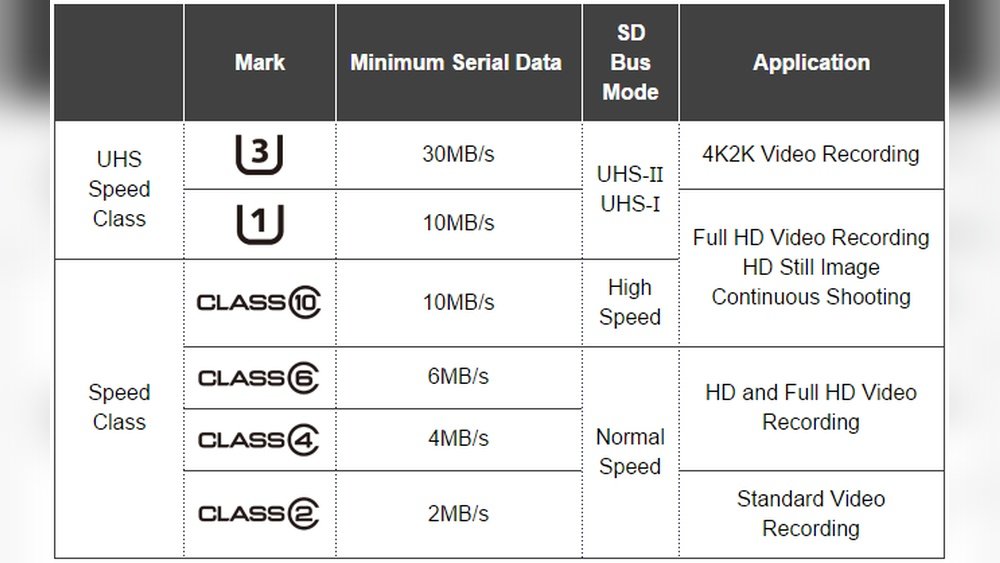
SD cards have different speed ratings. These show how fast data can move between your device and the card. Most cards show a speed class or a UHS (Ultra High Speed) class.
Speed Classes Explained
- Class 2, 4, 6, 10: Shows the minimum write speed in MB/s (megabytes per second).
- UHS-I, UHS-II, UHS-III: Newer, faster standards. UHS-I can reach up to 104 MB/s.
- V10, V30, V60, V90: Video speed classes for recording high-quality video.
Here’s a comparison of common SD card speed ratings:
| Class | Minimum Write Speed | Best For |
|---|---|---|
| Class 4 | 4 MB/s | Music, basic photos |
| Class 10 | 10 MB/s | HD video, burst photos |
| UHS-I | 10-104 MB/s | Full HD, 4K video |
| UHS-II | 156-312 MB/s | Professional video |
A beginner mistake is to buy the cheapest SD card without checking the speed class. If you use a slow card for high-demand tasks, you will see lag.
Top Reasons Your Sd Card Is Slow
There are several reasons why your SD card is not performing well. Let’s look at the most common causes.
1. Card Speed Is Too Low
If you use a Class 4 SD card in a modern camera or smartphone, it may not keep up. New devices often need Class 10 or higher for smooth recording or app performance.
- Example: Shooting 4K video needs at least a V30 or UHS-I card.
2. Card Is Full Or Nearly Full
When an SD card is almost full, it slows down. The card has to work harder to find empty space to write new data. Aim to keep at least 10-20% free space.
3. Card Is Fragmented
Just like a hard drive, SD cards can become fragmented. This means files are scattered in many locations, so reading and writing takes longer.
4. Poor Card Reader Or Adapter
Using a cheap or old card reader can slow down even a fast SD card. Not all readers support high speeds.
- Example: USB 2.0 readers max out at about 30 MB/s, while USB 3.0 can go much faster.
5. Device Limitations
Some devices have slow internal controllers. Even if you use a fast SD card, the phone, camera, or computer may not support its full speed.
6. Counterfeit Or Fake Cards
Fake SD cards are common online. They often have real labels but much lower speeds than promised. Always buy from trusted stores.
7. Card Is Worn Out
SD cards use flash memory, which wears out with use. After thousands of write cycles, the card’s speed can drop. Old cards tend to slow down over time.
8. Too Many Small Files
Copying many tiny files is much slower than copying a few large files. SD cards are optimized for big files like videos and photos.
9. Virus Or Malware
A virus can use up card resources, making it slow. Always scan your card if you notice strange files or folders.
10. Bad Formatting
Formatting your card in the wrong file system (like FAT16 instead of exFAT) can limit speed and file size.
How To Test Your Sd Card Speed
Knowing your card’s real speed helps you spot problems.
- On a Computer: Use free tools like CrystalDiskMark (Windows) or Blackmagic Disk Speed Test (Mac).
- On Android: Try apps like A1 SD Bench or SD Card Test.
- On Camera: Many cameras show write speed or buffer status.
Test with the card in your main device, and also with a fast card reader on your PC for best results.
Example Test Results
Here’s what you might see when you test a Class 10 vs UHS-I card using a USB 3.0 reader:
| SD Card Type | Read Speed (MB/s) | Write Speed (MB/s) |
|---|---|---|
| Class 10 | 21 | 13 |
| UHS-I | 93 | 61 |
If your speed test shows numbers much lower than expected, your card or reader may be the problem.
How To Make Your Sd Card Faster
There are practical steps to improve SD card speed:
1. Use The Right Card For Your Device
- Check your device manual for recommended speed class.
- For 4K video, use at least UHS-I or V30.
- For smartphones, use A1 or A2 rated cards for apps.
2. Buy Genuine, High-quality Cards
- Choose brands like SanDisk, Samsung, or Kingston.
- Buy from official stores or trusted online sellers.
- Avoid cards with prices that seem “too good to be true.”
3. Use A Fast Card Reader
- Prefer USB 3.0 or USB-C card readers.
- Ensure your computer port supports high speeds.
- Avoid built-in readers on older laptops (they’re often slower).
4. Keep Cards Less Than 80-90% Full
- Move files regularly to your computer or cloud.
- Deleting unneeded files can boost speed.
5. Reformat Your Card Periodically
- Back up files and reformat the card using your device (not your computer).
- Use the recommended format: ExFAT for cards larger than 32GB.
- Do a full (not quick) format every few months.
6. Avoid Using The Card On Many Devices
Switching the card between cameras, phones, and computers can increase errors and fragmentation. Stick to one device if possible.
7. Update Device Firmware
Some cameras and phones release updates to improve SD card compatibility and speed. Check for updates regularly.
8. Scan For Viruses
- Use antivirus software to scan your SD card.
- Delete any suspicious files.
9. Replace Old Cards
If your card is several years old or shows errors, it’s better to buy a new one.
Credit: www.easeus.com
Common Beginner Mistakes
Many people make the same mistakes with SD cards. Here are two non-obvious things beginners often miss:
- Believing All SD Cards Are Equal: Cards with the same size (like 64GB) can have very different speeds. Always check the speed rating, not just the storage size.
- Ignoring Device Compatibility: Some phones and cameras only support cards up to a certain speed or size. Inserting a faster or larger card may not give you better performance.
Sd Card Speed Vs. Real-world Use
It’s important to match your SD card’s speed to your actual needs. Here’s a quick summary:
| Usage | Recommended Speed Class | Notes |
|---|---|---|
| Photos | Class 4 or above | Basic point-and-shoot cameras |
| Full HD Video | Class 10/UHS-I | DSLR, action cameras |
| 4K Video | V30/UHS-I or higher | GoPro, drones |
| Phone Apps | A1/A2 | Android “Adoptable Storage” |
Choosing the right SD card for your main activity avoids most speed issues.

Credit: www.youtube.com
When To Replace Your Sd Card
SD cards don’t last forever. If you notice any of these problems, it’s time to replace your card:
- Slow speeds even after formatting
- Frequent errors or corrupted files
- Card is more than 3-5 years old and heavily used
- Device often asks to “reformat” or “repair” the card
Modern SD cards are cheap and reliable, so don’t risk losing important data by keeping an old, slow card.
Myths About Sd Card Speed
Let’s clear up a few common myths:
- Myth: Formatting a card with your computer is always best.
Fact: Format using your device for best compatibility.
- Myth: All SD cards with the same size have the same speed.
Fact: Speed depends on class, not just size.
- Myth: Expensive cards are always faster.
Fact: Some mid-range cards offer great speed for less money.
Understanding these points helps you shop smarter and avoid frustration.
Extra Tips For Better Sd Card Performance
- Store SD cards in a cool, dry place.
- Avoid dropping or bending the card.
- Eject safely before removing from a device.
- Label your cards to track age and use.
These habits extend the life and speed of your SD card.
Real-world Example
Suppose you buy a cheap 64GB card online for your GoPro. It’s labeled as “Class 10,” but your 4K videos keep stopping or get corrupted. After testing, you find write speeds are only 6 MB/s. This is not enough for 4K video (needs at least 30 MB/s).
Buying a V30 or UHS-I card from a trusted seller fixes the problem instantly.
This example shows why checking real speed ratings and buying genuine cards is so important.

Credit: www.reddit.com
Useful Resources
For more details about SD card speed classes and standards, you can visit the official SD Association website.
Frequently Asked Questions
Why Is My Sd Card Slower On My Phone Than On My Computer?
Phones often have slower card readers than computers, especially if the phone is a budget model. Also, background apps or system processes can use SD card resources, making it slower.
How Can I Tell If My Sd Card Is Fake?
Check the packaging, price, and buy only from trusted stores. You can also test the card’s real speed with tools like CrystalDiskMark. Fake cards usually show much lower speeds than promised.
What Is The Best File System For Sd Cards?
For cards 32GB and below, use FAT32. For cards above 32GB, exFAT is better. Always format using your device for best results.
Does Deleting Files Make My Sd Card Faster?
Deleting files helps only if your card is almost full. For best speed, backup and do a full format every few months instead of just deleting files.
How Long Do Sd Cards Last?
Most SD cards last for thousands of write cycles or 3-5 years of normal use. Heavy use (like video recording) wears them out faster. Replace your card if you notice errors or slowdowns.
SD card speed problems are common but often easy to fix. By understanding the main causes, testing your card, and following a few best practices, you can enjoy fast, reliable storage for your photos, videos, and apps.