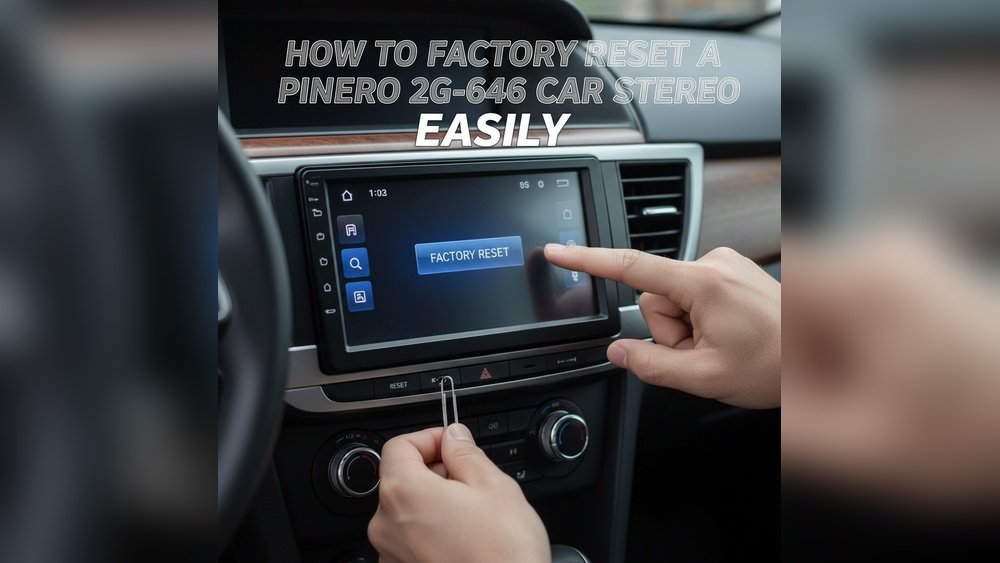
How to Factory Reset a Pinero 2G 64G Car Stereo Easily: Step-by-Step Guide
How to Factory Reset a Pinero 2G 64G Car Stereo Easily
If your Pinero 2G 64G car stereo is acting up, freezing, or you simply want to erase all data before selling your car, a factory reset is often the best solution. Many drivers worry that the process is complicated, but with the right steps, you can factory reset your device easily—even if you are a complete beginner. This guide explains everything you need to know, including step-by-step instructions, troubleshooting tips, and answers to common questions.
What Does A Factory Reset Do?
A factory reset removes all personal data, apps, and settings from your car stereo. After the reset, your stereo will work like when it was brand new. It is important to understand what will be lost:
- All saved music, videos, and images
- Downloaded apps and user data
- Bluetooth and Wi-Fi pairings
- Custom EQ settings and radio presets
Factory reset is useful if:
- The system is slow or unresponsive
- You want to clear your data before selling your car
- You installed apps that are causing problems
Important: Make sure to back up any data you want to keep before starting.
Preparing For The Reset
Before jumping into the reset process, spend a few minutes preparing. This can prevent mistakes and data loss.
1. Backup Important Data
- Save any music, videos, or photos to a USB drive or your phone.
- Write down your favorite radio stations and Bluetooth names.
2. Power and Safety
- Make sure your car is parked safely.
- Keep the engine running or switch to accessory mode to avoid power loss.
3. Locate the Reset Option
- Most Pinero car stereos have reset in the Settings menu.
- Some units have a small physical reset button (often a pinhole).

Credit: www.mdpi.com
Step-by-step: Factory Reset From The Settings Menu
Resetting your Pinero 2G 64G car stereo through the software menu is the easiest way for most users. Follow these steps:
- Turn on the stereo.
- Wait for it to load fully.
- Go to the home screen.
- Tap the home button.
- Open the Settings app.
- Look for a gear or wrench icon.
- Scroll to System or General.
- Some models use “System,” others “General.”
- Select Factory Reset or Restore Defaults.
- This option might be called “Factory Data Reset.”
- Confirm your choice.
- The system will warn you that all data will be erased.
- Wait for the process to finish.
- The stereo will reboot automatically.
Tip: If your menu language is not English, look for a circular arrow or two rotating arrows—this often means reset.
Example: Resetting A Common Pinero Model
Suppose you own the Pinero T8 2G 64G unit. Here’s how you reset it:
- Tap “Settings”
- Choose “System”
- Scroll to “Backup & Reset”
- Tap “Factory Data Reset”
- Confirm by selecting “Erase Everything”
This process takes about 3–5 minutes.
Using The Physical Reset Button
If your system is frozen or you can’t access the menu, use the physical reset button:
- Find the small pinhole labeled “RESET” near the stereo’s face.
- Use a paperclip or SIM tool to press and hold for about 10 seconds.
- The screen will go black and restart.
Note: This usually performs a soft reset. For a full factory reset, use the settings menu if possible.
Data Table: Menu Reset Vs. Physical Reset
To help you compare, here is a quick overview:
| Reset Method | Data Wiped | When to Use | Ease of Use |
|---|---|---|---|
| Settings Menu | All personal data & settings | Device is working normally | Easy |
| Physical Button | Temporary settings only | System frozen or unresponsive | Very Easy |
Insight: Many people think the reset button erases everything—it usually does not. Always check your owner’s manual or try the menu option first for a complete reset.
After The Factory Reset: What To Expect
Once the reset is done, your Pinero stereo will restart. The first boot may take a little longer than usual.
- You’ll see the welcome or setup screen.
- Language and region settings must be selected again.
- All apps, stations, and pairings will be erased.
- The device will act as it did out of the box.
Practical tip: Keep your Wi-Fi or mobile hotspot ready to reconnect and download updates.

Credit: www.amazon.es
Common Issues And Troubleshooting
Even with clear steps, you might face some problems. Here’s how to handle them:
The Stereo Does Not Boot After Reset
- Wait at least 5–7 minutes; first boot can be slow.
- If still stuck, try the physical reset button.
- Disconnect the car battery for 5 minutes, then reconnect.
Touchscreen Not Responding
- Check if a screen protector is blocking the sensor.
- Try the physical reset button.
- As a last resort, contact the seller or manufacturer.
Factory Reset Option Is Greyed Out
- Some aftermarket stereos require a password to reset. Check your manual.
- Remove the memory card or USB stick and try again.
- Update the firmware if possible.
Data Not Fully Wiped
- Run the factory reset process again.
- Check for system updates—sometimes a bug causes incomplete resets.
Table: Typical Reset Problems And Solutions
Here’s a quick reference for common problems:
| Problem | Possible Cause | Solution |
|---|---|---|
| Stuck on boot logo | Software glitch | Use physical reset or disconnect battery |
| No factory reset option in menu | Custom firmware installed | Reinstall original firmware |
| Touchscreen not working | Screen protector or hardware issue | Remove protector or contact support |
Advanced Tips For Best Results
Most guides stop at the basic steps, but there are two advanced tips that many beginners miss:
1. Update Firmware After Reset
- Go to the official Pinero website to check for updates.
- A fresh system with the latest software runs smoother and is more secure.
2. Customize Settings Step-by-Step
- Don’t rush to reinstall every app or setting at once.
- Test the system after each change. This way, if something goes wrong, you know which change caused it.
Real-World Example: A driver installed too many third-party apps after reset, which made the stereo slow. By reinstalling apps one by one, he found the problem was a faulty navigation app.
Safety And Security Reminders
- Only factory reset when parked safely.
- Do not reset while driving.
- Keep your stereo’s firmware up to date to avoid bugs and security risks.
Insight: Many users forget to log out of Google or Apple accounts before selling their car. Always remove your accounts before doing a reset for complete privacy.
Data Table: What Is And Isn’t Erased By Factory Reset
Understanding what stays and what goes is important:
| Data Type | Erased by Factory Reset? |
|---|---|
| Downloaded music & videos | Yes |
| System firmware | No |
| Navigation maps (if pre-installed) | No (usually remains) |
| Bluetooth pairings | Yes |
| Custom launcher or app installs | Yes |
When Should You Not Factory Reset?
While a factory reset is powerful, it is not the answer to every problem:
- Minor glitches: Try restarting your stereo first.
- App issues: Delete and reinstall only the problem app.
- Firmware problems: Update or reinstall firmware instead.
Factory reset should be your last step, not your first.
Alternatives To Factory Reset
If you’re not ready to erase everything, try these options:
- Soft Reset: Just restart the stereo. Many issues go away after a reboot.
- Clear Cache/Data: Some systems let you clear app data without a full reset.
- Uninstall Problem Apps: Remove only the app causing trouble.
These options help you avoid losing your saved data.
Extra Resources
If you want to dive deeper or see official instructions, visit the Wikipedia car audio page. It covers car audio systems, their components, and how they interact with your vehicle.
Frequently Asked Questions
How Long Does A Factory Reset Take On A Pinero 2g 64g Car Stereo?
The process usually takes 3–7 minutes. The first startup after the reset may be slower as the system rebuilds necessary files. If it takes longer than 10 minutes, try a physical reset or disconnect the battery for a few minutes.

Credit: www.mdpi.com
Will A Factory Reset Remove System Updates Or Just User Data?
A factory reset only removes user data, apps, and settings. It does not delete official system updates or revert the stereo to an older version. Updates remain unless you manually reinstall firmware.
Is It Safe To Factory Reset My Car Stereo Myself?
Yes, it is safe if you follow instructions and the car is parked. Avoid resetting while driving. If your stereo is not an original Pinero or has custom firmware, check compatibility before starting.
What Should I Do If I Forget My Password Or Pin?
Try the physical reset button method. If your stereo asks for a password, consult your user manual. Some models have a default password (like “0000” or “1234”). If you are locked out completely, contact the seller for support.
Will Factory Reset Fix All Software Problems?
Factory reset solves most software issues, including freezing, app crashes, and slow performance. However, it cannot fix hardware problems or issues caused by faulty installation.
A factory reset is a simple but powerful tool for keeping your Pinero 2G 64G car stereo running smoothly. By following the steps above, you can erase all data safely and get your stereo working like new. Always back up important files and make changes carefully to avoid losing valuable information. If you face any problems, use the troubleshooting tips, and don’t hesitate to seek expert help if needed.