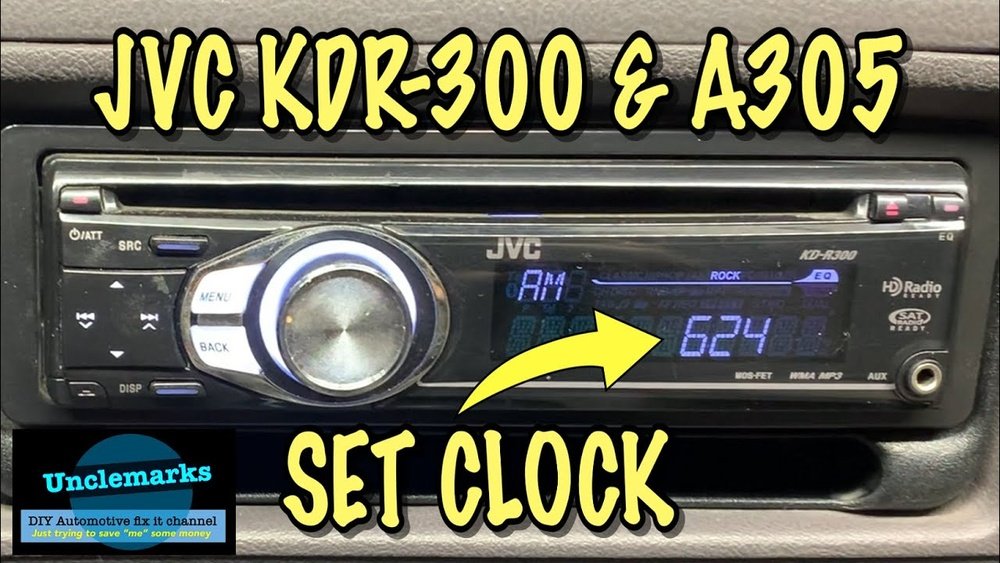
How Do You Set the Clock on a JVC Radio: Quick Step-by-Step Guide
Setting the clock on a JVC radio can feel confusing, especially if you’re new to car audio systems or home radios. You may worry about pressing the wrong button or not finding the right menu. The good news? Most JVC radios use simple steps for clock setup, and you don’t need special tools or technical knowledge. If you want your radio to show the correct time, follow this guide. You’ll learn the best methods for different models, discover helpful tips, and avoid common mistakes that beginners often make.
Why Setting The Clock Matters
A correct clock on your JVC radio does more than just show the time. It helps you:
- Stay on schedule while driving
- Use timed features (like alarms or sleep functions)
- Avoid confusion, especially with daylight saving changes
Some modern JVC radios sync time automatically, but most require manual setup. If you skip this step, you might miss appointments or forget to adjust for seasonal time changes.
Understanding Jvc Radio Models
JVC offers different types of radios:
- Single-DIN car radios (most common in vehicles)
- Double-DIN multimedia units (with touch screens)
- Home stereos (tabletop models)
Each model has unique controls. Before setting the clock, check your radio’s model number. This info is usually on the front or back of the device. It helps you find the right instructions and avoid frustration.
Key Differences
Car radios often have physical buttons. Home stereos might include remotes or touch panels. Touchscreen models sometimes hide the clock adjustment in menus. Here’s a quick comparison:
| Type | Main Controls | Clock Setting Method |
|---|---|---|
| Single-DIN Car Radio | Buttons, Knobs | Button sequence |
| Double-DIN Touchscreen | Touchscreen, Menu | On-screen menu |
| Home Stereo | Remote, Panel | Remote or button sequence |
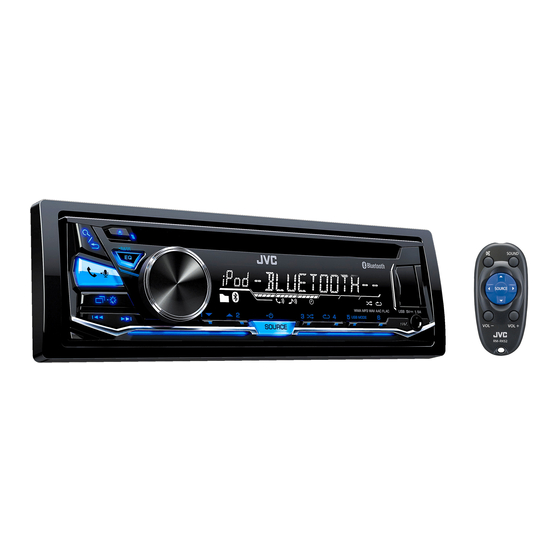
Credit: www.manualslib.com
Basic Steps To Set The Clock
Most JVC radios use similar steps. Here’s a beginner-friendly guide:
- Turn on the radio. Make sure your unit is powered up and not in standby.
- Find the clock button. Look for a button labeled “Clock,” “Menu,” or “Disp.”
- Enter clock mode. Press and hold the button for a few seconds. Some models require you to press “Menu” first, then select “Clock.”
- Adjust hours. Use the volume knob or arrow buttons to change the hour.
- Adjust minutes. Move to the minute setting and adjust.
- Save settings. Press “Clock,” “Menu,” or “Disp” again to save.
If your radio has a touchscreen, tap the “Settings” or “Setup” icon and look for “Clock” or “Time. ”
Example: Jvc Kd-r330 Car Radio
Let’s use the JVC KD-R330, a popular single-DIN model, as an example.
- Press and hold the “Menu” button.
- Use the volume knob to scroll to “CLOCK ADJ.”
- Press the knob to select.
- Rotate the knob to set hours, then press again for minutes.
- After setting, press “Menu” to confirm.
This method works for many JVC radios, but always check your user manual if you get stuck.
Troubleshooting Common Issues
Beginners often face problems. Here are solutions to the most frequent issues:
- Buttons not responding: Check if the radio is fully powered. Some models require the ignition to be on.
- Wrong time format: Many JVC radios allow switching between 12-hour and 24-hour formats. Look for “Time Format” in the menu.
- Time resets after power loss: If your car radio loses power or resets, check your vehicle’s battery or wiring. Home radios may need backup batteries.
Data Table: Common Mistakes And Solutions
| Mistake | Reason | Solution |
|---|---|---|
| Clock changes after restart | Battery/wiring issue | Check power connection |
| Cannot enter clock mode | Wrong button sequence | Read manual, try Menu/Clock/Disp |
| Time format confusion | Default to 24-hour | Change format in menu |
Advanced Clock Settings
Some JVC radios offer extra features:
- Automatic time sync: If your unit is connected to GPS or RDS radio, it may update time automatically.
- Alarm and sleep functions: Useful for home models, letting you set alarms or auto-off times.
- Daylight saving adjustment: Some radios allow easy switching for daylight saving.
Check your radio’s settings to see if these features are available. For car radios with RDS, the time may update when tuned to certain stations.
Practical Tips For Beginners
Here are tips that most beginners overlook:
- Read the manual: Even simple radios hide clock settings in menus. User manuals are available online if you lose yours.
- Check power source: If your clock won’t save, the backup battery or car wiring may be faulty.
- Test before setting: Try adjusting the clock while parked or at home. Avoid distractions while driving.
Many users forget to save settings after adjustment. Always press the final button or confirm on the screen.

Credit: www.reddit.com
Comparing Jvc Clock Setting To Other Brands
JVC radios are known for simple controls. But how do they compare to other brands? Here’s a quick look:
| Brand | Ease of Setup | Button Layout | Time Format Options |
|---|---|---|---|
| JVC | Easy | Clear labels | 12/24-hour |
| Pioneer | Moderate | Hidden menu | 12/24-hour |
| Kenwood | Easy | Menu button | 12-hour only |
| Sony | Moderate | Multi-function buttons | 12/24-hour |
JVC’s straightforward design makes clock setup less frustrating for new users.
Using Online Resources For Help
If you get stuck, online guides and videos can help. The official JVC support website offers manuals and FAQs for different models. You can also find step-by-step videos on platforms like YouTube. Reading user reviews can reveal model-specific tricks.
For detailed instructions, visit the official JVC Support page.
Real-world Example: Setting The Clock In A Used Car
Imagine you buy a used car with a JVC KD-X260 radio. The time is wrong, and you don’t have the manual. Here’s what you do:
- Turn on the radio.
- Press and hold “Menu” until the options appear.
- Rotate the knob to find “CLOCK ADJ.”
- Press the knob, adjust hour and minute.
- Press “Menu” again to save.
This process takes less than two minutes. If you have trouble, search your radio’s model number online for a manual or guide.
Extra Insights For Beginners
Two things beginners often miss:
- Time format settings: Many JVC radios let you choose 12-hour or 24-hour display. This choice is often found in the “Settings” menu.
- Saving changes: If you don’t press the final button or confirm on screen, your new time won’t stick. Always wait for confirmation or a beep.
Another tip: If your radio resets after removing your car key, check the yellow and red wires. These wires provide constant and ignition power.
Frequently Asked Questions
How Do I Set The Clock On A Jvc Car Radio?
Most JVC car radios use a button sequence. Press and hold “Menu” or “Clock” until you see “CLOCK ADJ. ” Use the knob or arrow buttons to adjust hours and minutes. Press “Menu” or “Clock” again to save.
Can I Change Between 12-hour And 24-hour Formats?
Yes. Many JVC radios offer both 12-hour and 24-hour formats. Enter the “Settings” or “Menu,” look for “Time Format,” and select your preference.
Why Does My Clock Reset When I Turn Off The Car?
This usually means a wiring issue. The radio’s memory wire (yellow) may not have constant power. Check your car’s wiring or ask a technician.
Is Clock Setup The Same For All Jvc Radios?
No. While the steps are similar, some models use touchscreens, others use buttons. Always check your radio’s manual or look up your model number online.
Where Can I Find My Jvc Radio’s Manual?
You can find manuals on the official JVC Support site. Enter your model number to download a PDF or view instructions.
Setting the clock on your JVC radio is quick once you know the steps. Whether you drive a modern car or use a home stereo, following these instructions keeps your radio running smoothly and your schedule on track. If you ever face problems, online resources and manuals are always available.
With these tips, you won’t waste time or feel confused—just enjoy your music and get where you need to go, right on time.

Credit: www.youtube.com