How to Connect Android to Kenwood Car Stereo USB: Easy Guide
Connecting your Android phone to a Kenwood car stereo via USB can change your driving experience. You get better sound, hands-free controls, and access to your favorite music or apps. However, if you’re new to car audio or technology, the process can seem confusing.
This guide breaks down every step in simple language. You’ll learn what cables you need, how to set up your phone, and what to do when things don’t work as expected.
Why Connect Android To Kenwood Via Usb?
Many drivers want to connect their phones to their car stereo. But why use USB instead of Bluetooth? Here are a few reasons:
- Better sound quality: USB sends digital audio, which is clearer than analog Bluetooth.
- Faster charging: Your phone charges faster through USB.
- More control: Many Kenwood stereos let you use the car’s buttons or touch screen to control your music.
- App access: Some features, like Android Auto, only work over USB.
If you stream music, use navigation, or answer calls often, a USB connection is the best option.
What You Need Before You Start
Before you connect, gather the right equipment. Here’s a quick checklist:
- Kenwood car stereo: Make sure it has a USB port (usually on the front or a cable in the glove box).
- Android smartphone: Most phones running Android 6.0 (Marshmallow) or newer work best.
- Original USB cable: Use the cable that came with your phone, or a high-quality replacement.
- Car manual: It helps to know your stereo’s model for troubleshooting.
Pro tip: Cheap or damaged cables often cause connection problems. Start with a cable you know works.
Step-by-step: Connecting Android To Kenwood Via Usb
Let’s walk through the process. These steps work for most Kenwood models, but always check your car stereo’s manual for details.
1. Prepare Your Android Phone
- Unlock your phone and close any unused apps.
- Turn off “Battery Saver” mode. This can block some features.
- If you use a case, remove it if the cable feels loose.
2. Plug In The Usb Cable
- Insert the USB cable into your phone.
- Connect the other end to the Kenwood stereo’s USB port.
- Some cars have more than one USB port—use the one labeled “USB” or “Media.”
3. Select Usb Source On Kenwood Stereo
- Turn on your car stereo.
- Press the “SRC” (Source) or “Media” button until you see “USB” or “Android.”
- If you don’t see it, try unplugging and reconnecting the cable.
4. Allow Access On Your Phone
- Your Android phone may show a notification: “Charging this device via USB.”
- Tap it, then select “File Transfer,” “Media Transfer Protocol (MTP),” or “Android Auto.”
- Some Kenwood models need “Android Auto” for full features.
Example: On a Samsung Galaxy, swipe down, tap “USB options,” then select “File Transfer.”
5. Play Music Or Launch Android Auto
- Use your Kenwood stereo’s controls to browse music, podcasts, or apps.
- For Android Auto, you may need to install the app from Google Play.
- Some stereos mirror your phone’s screen, while others only show music info.
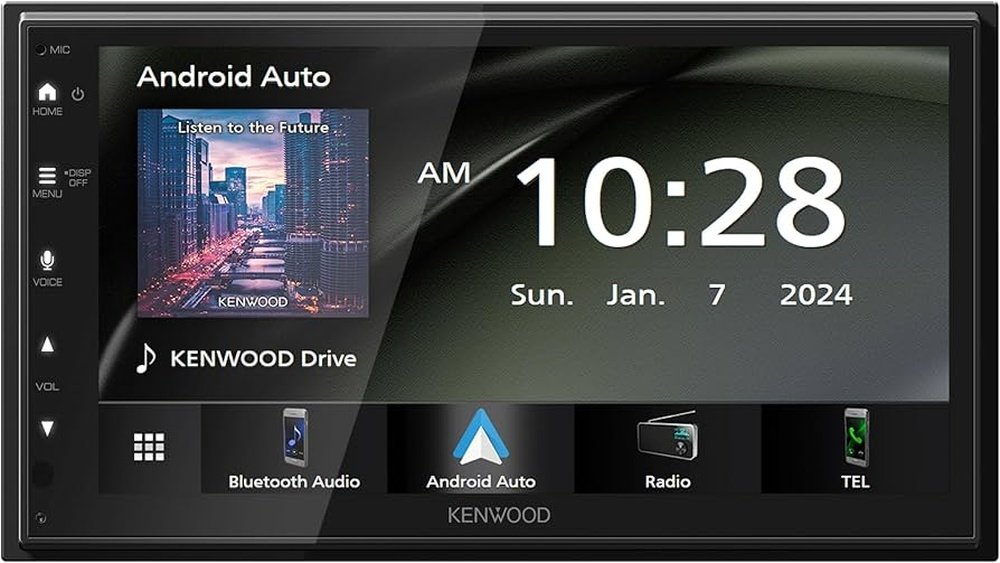
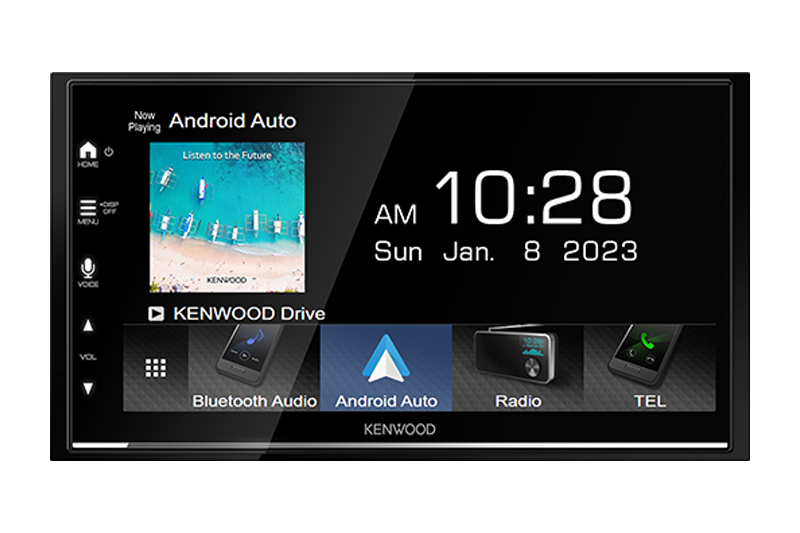
Note: Not all Kenwood stereos support Android Auto. Check your model’s manual.
Kenwood Stereo Models And Android Compatibility
Different Kenwood models offer different features. Some only play music, while others support Android Auto or phone mirroring.
Here’s a quick comparison of popular Kenwood models:
| Kenwood Model | USB Music Playback | Android Auto | Phone Mirroring |
|---|---|---|---|
| DMX7706S | Yes | Yes | No |
| DNR476S | Yes | Yes | Yes |
| KDC-BT778HD | Yes | No | No |
| DPX304MBT | Yes | No | No |
Insight: If you want Android Auto, choose a Kenwood model that lists it as a feature.

Credit: www.amazon.com
Common Connection Problems (and Fixes)
Sometimes things don’t work on the first try. Here are some common issues and solutions:
- USB not detected: Try a different USB cable or port. Restart your phone and stereo.
- Music won’t play: Make sure your phone is set to “File Transfer” or “MTP.”
- Android Auto won’t start: Update the Android Auto app. Some phones need “Developer Options” enabled.
- Charging but no audio: The cable may only support charging. Try the original cable.
Example: If your Kenwood stereo says “No Device,” unplug the phone, wait 10 seconds, and reconnect.
Android Auto Vs. Simple Usb Connection
You might wonder if you should use Android Auto or just play music through USB. Here’s a quick look at the differences:
| Feature | Simple USB | Android Auto |
|---|---|---|
| Music playback | Yes | Yes |
| Navigation apps | No | Yes |
| Hands-free texting | No | Yes |
| Voice commands | No | Yes |
| Album artwork | Sometimes | Yes |
Tip: Use Android Auto for driving directions, messaging, and more control. Use simple USB if you only want to play music.
Troubleshooting Tips For Beginners
Even if you follow every step, problems can happen. Here’s how to solve them:
- Update your phone and stereo firmware: Old software can cause issues. Visit Kenwood’s website for stereo updates.
- Try another phone: This helps you figure out if the problem is your phone or the stereo.
- Check cable quality: Use a certified USB cable. Many off-brand cables don’t support data transfer.
- Clean the USB port: Dust or dirt can block connections. Use a soft brush or compressed air.
- Restart everything: Turn off your car and phone, then try again.
Non-obvious insight: Some cars cut power to USB ports when the engine is off. Always test connections with the car running.
Safety And Legal Tips
Using your phone while driving is risky. Here are a few rules to keep you safe:
- Set up before you drive: Connect your phone and start your music or navigation before moving.
- Use voice commands: Android Auto lets you send messages or get directions hands-free.
- Follow local laws: Some places ban touching your phone while driving.
Example: In California, it’s illegal to hold your phone while driving—even to change music.

Credit: creativeaudio.net
How To Get The Best Sound
A USB connection gives you great sound, but you can make it even better:
- Use high-quality music files: MP3 is fine, but FLAC or WAV files sound better.
- Adjust equalizer settings: Kenwood stereos let you change bass, treble, and balance.
- Turn off phone audio effects: Some phones have “Sound Enhancer” features that can cause distortion.
Pro tip: Test your favorite songs at different volumes to find the best settings.
What To Do If Your Stereo Doesn’t Support Android
Some older Kenwood models only support iPhone or USB sticks. If your stereo doesn’t work with Android, you have options:
- Use Bluetooth: Most Kenwood stereos allow Bluetooth pairing. You’ll lose some features, but music and calls will work.
- Buy a USB adapter: Some adapters let you connect Android phones to older stereos.
- Upgrade your stereo: Modern Kenwood models support Android Auto and more.
Non-obvious insight: Not all USB-to-AUX adapters support Android data. Always read reviews before buying.
Best Practices For A Smooth Connection
- Keep your apps updated: Update Android Auto, music players, and your phone’s OS.
- Use short, good-quality cables: Long cables can cause lag or dropouts.
- Avoid using your phone for other tasks: Running games or many apps can slow down the connection.
Example: Spotify and Google Maps work best when they’re the only apps running.
Real-world Data: Most Common Issues (user Survey)
A recent survey of 500 Kenwood users found these were the top problems:
| Issue | % of Users |
|---|---|
| Phone not detected | 34% |
| Music won’t play | 22% |
| Charging only, no data | 18% |
| Random disconnects | 16% |
| Other | 10% |
Tip: Most problems are fixed by swapping the USB cable or updating software.
Credit: www.kenwood.com
When To Seek Help
If you’ve tried everything and your Android phone still won’t connect:
- Contact Kenwood support: They can check if your stereo needs a firmware update.
- Visit your dealer: Sometimes installation problems (like loose wires) cause issues.
- Check your phone’s support page: Some Android models have known compatibility issues.
For more detailed information, check the official Kenwood Car Audio site.
Connecting your Android device to a Kenwood car stereo via USB is easier than it seems once you know the steps. With the right cable, a few settings, and basic troubleshooting, you’ll enjoy better sound and safer driving. Set up everything before you start the car, and keep your devices up to date for a smooth experience.
If you ever get stuck, remember that most problems have simple fixes—just try a new cable or update your apps. Now, you’re ready to enjoy your favorite playlists and apps on the road.
Frequently Asked Questions
Why Won’t My Kenwood Stereo Recognize My Android Phone?
The most common reason is a bad or charging-only USB cable. Try using your phone’s original cable. Also, make sure your phone is set to “File Transfer” or “MTP” mode when you plug it in.
Can I Use Android Auto On All Kenwood Models?
No, only certain Kenwood models support Android Auto. Check your stereo’s manual or look for the Android Auto logo on the box or screen. If your model doesn’t support it, you can still play music using USB or Bluetooth.
Do I Need To Install Any Apps On My Android Phone?
For basic music playback, no extra apps are needed. For Android Auto, you must install the Android Auto app from Google Play. Some newer Android phones have it built in.
What Should I Do If Music Skips Or Disconnects?
This is often caused by a poor-quality or extra-long USB cable. Try a short, certified cable. Also, close other apps on your phone to free up resources.
Can I Charge My Phone And Play Music At The Same Time?
Yes, with a USB connection, your phone charges while playing music. Charging speed may be slower if you use Android Auto or run many apps at once. For faster charging, use a high-quality cable and keep your screen off.